2.9 SMS functionality
Article goal
To show how an administrator can request an SMS confirmation code for a client in the CRM if the message does not arrive on the phone (because of blocking, anti-spam filters, or provider issues).
Who this article is for
Club administrators and users who have access rights to the SMS functionality in the admin panel.
What you will learn
- How to open and use the SMS request function.
- How to enter data and get a code.
- Important warnings about the validity of the code.
- What to do if the code is not displayed or becomes invalid.
Prerequisites
Before you start, make sure that:
- You have administrator rights with access to the SMS button.
- You know the client’s phone number.
- Access to the admin panel is available.
Step-by-step instructions
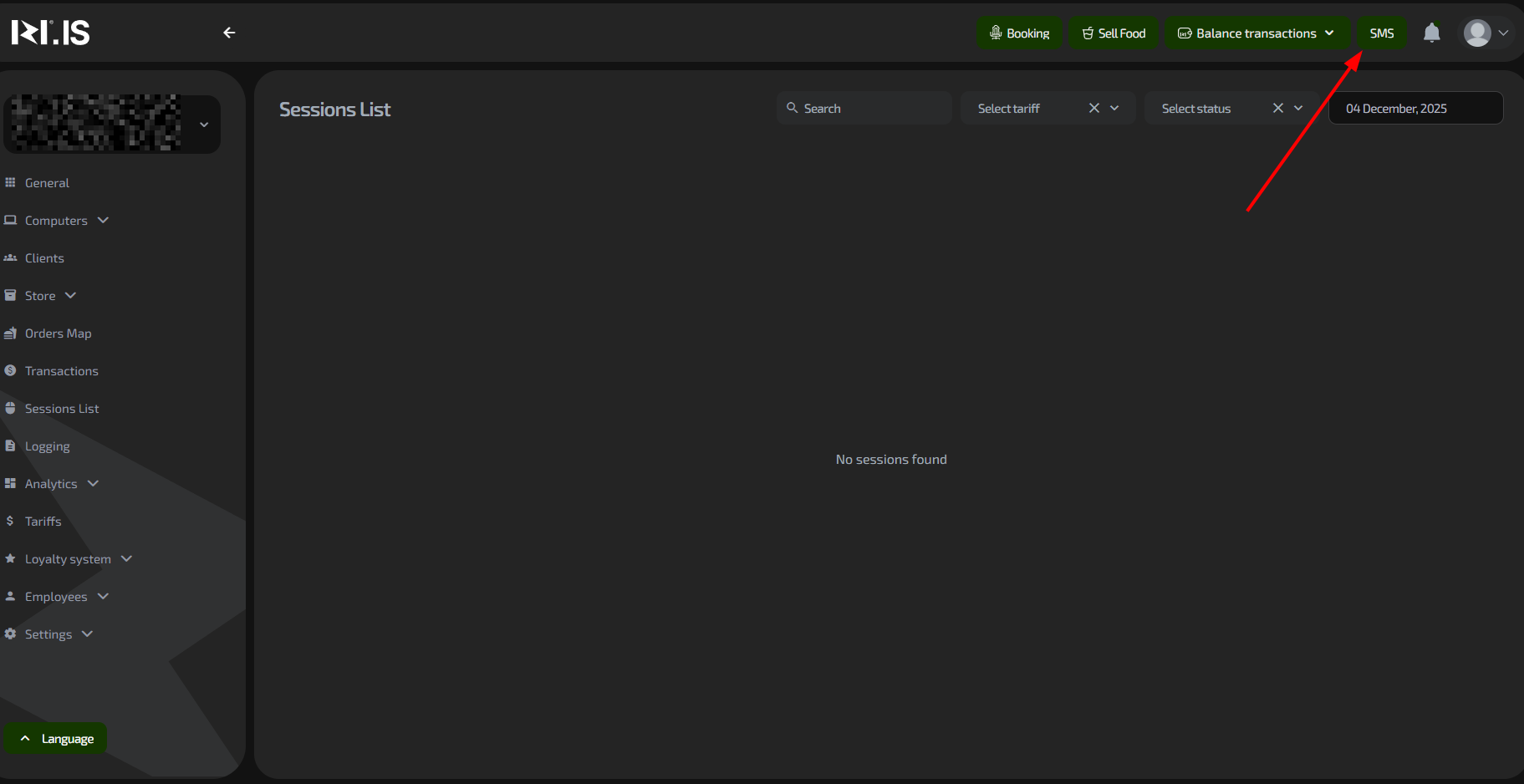
Step 1. Open the SMS functionality
- Log in to the IZI CRM admin panel.
- Click the SMS button in the top right of the screen.
Step 2. Fill in the request data
- Enter the client’s phone number (for whom the code is needed).
- Enter a comment (optional, for internal tracking).
- Enter your password (the current administrator’s or owner’s password, not the client’s).
Step 3. Get the code
- Click the "Get code" button.
- The code will be displayed in the lower part of the field.
- Give the code to the client in any convenient way (voice, chat, etc.).
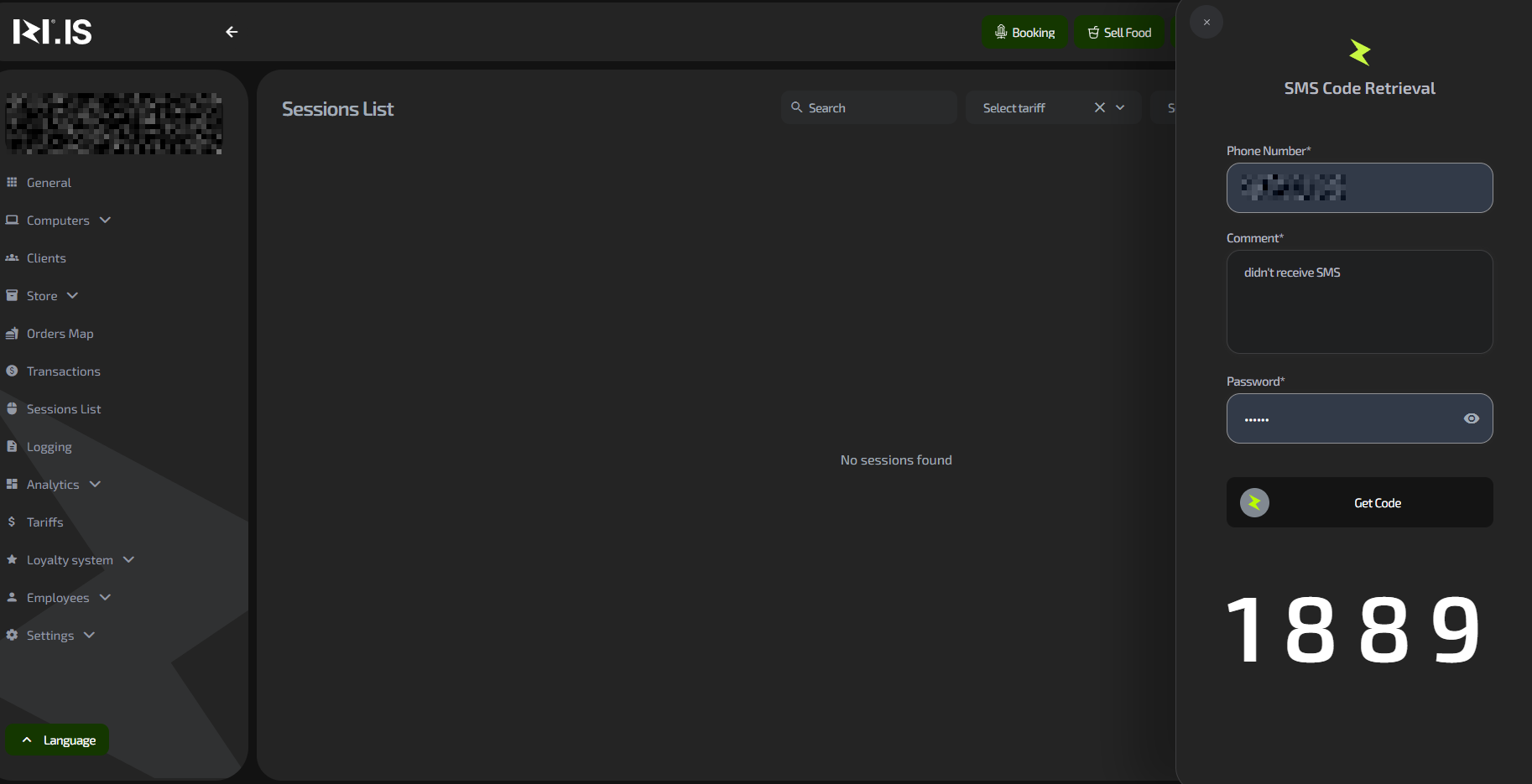
Important: The client must not request a new code in the app after receiving the code from you — this will generate a new code, and the code you provided will become invalid.
Typical situations
| Problem | What to do |
|---|---|
| The code is not displayed | Check that the administrator password is correct; repeat the request. |
| The code does not work for the client | Make sure the client has not requested a new code in the app; request a new code again. |
| The SMS button is inactive | Check access rights; contact the system owner. |
| Error when entering the number | Enter the number in international format (+7...); remove spaces. |