2.13 Transactions
Goal of this article
Show how an administrator can work with the “Transactions” section in IZI CRM: view, filter, export, and add records manually.
Who this article is for
- Club administrators
- Senior administrators and shift managers
What you will learn
- How to open the “Transactions” section
- How to use filters to find the necessary records
- How to export reports to PDF or Excel
- How to add a new transaction manually
- How to analyze and use transaction data
Prerequisites
Before you start, make sure that:
- You are logged into the system with your administrator account.
- You have access rights to the Transactions section.
- The shift is active if you are analyzing current operations.
Step-by-step guide
Step 1. Open the section
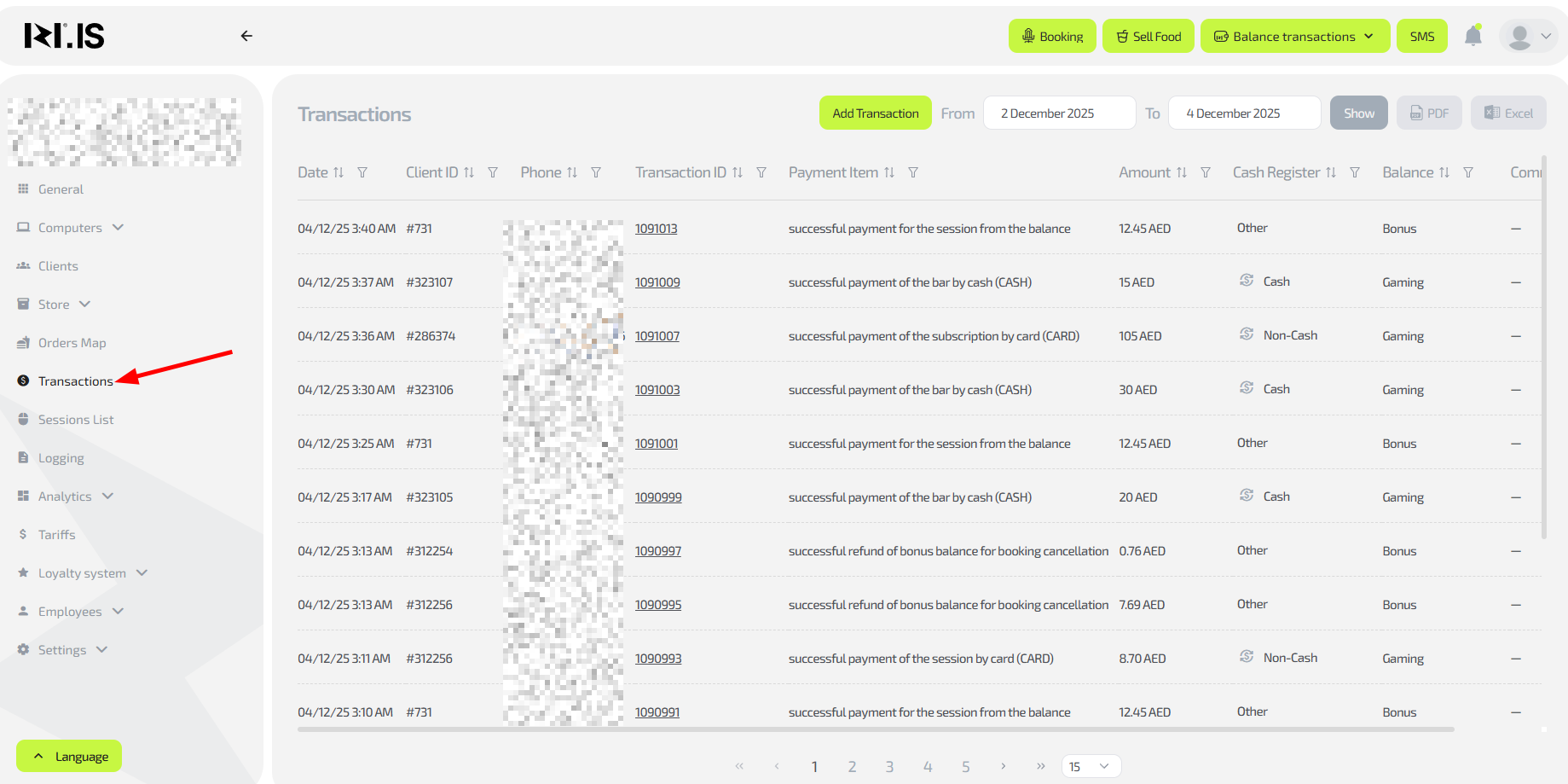
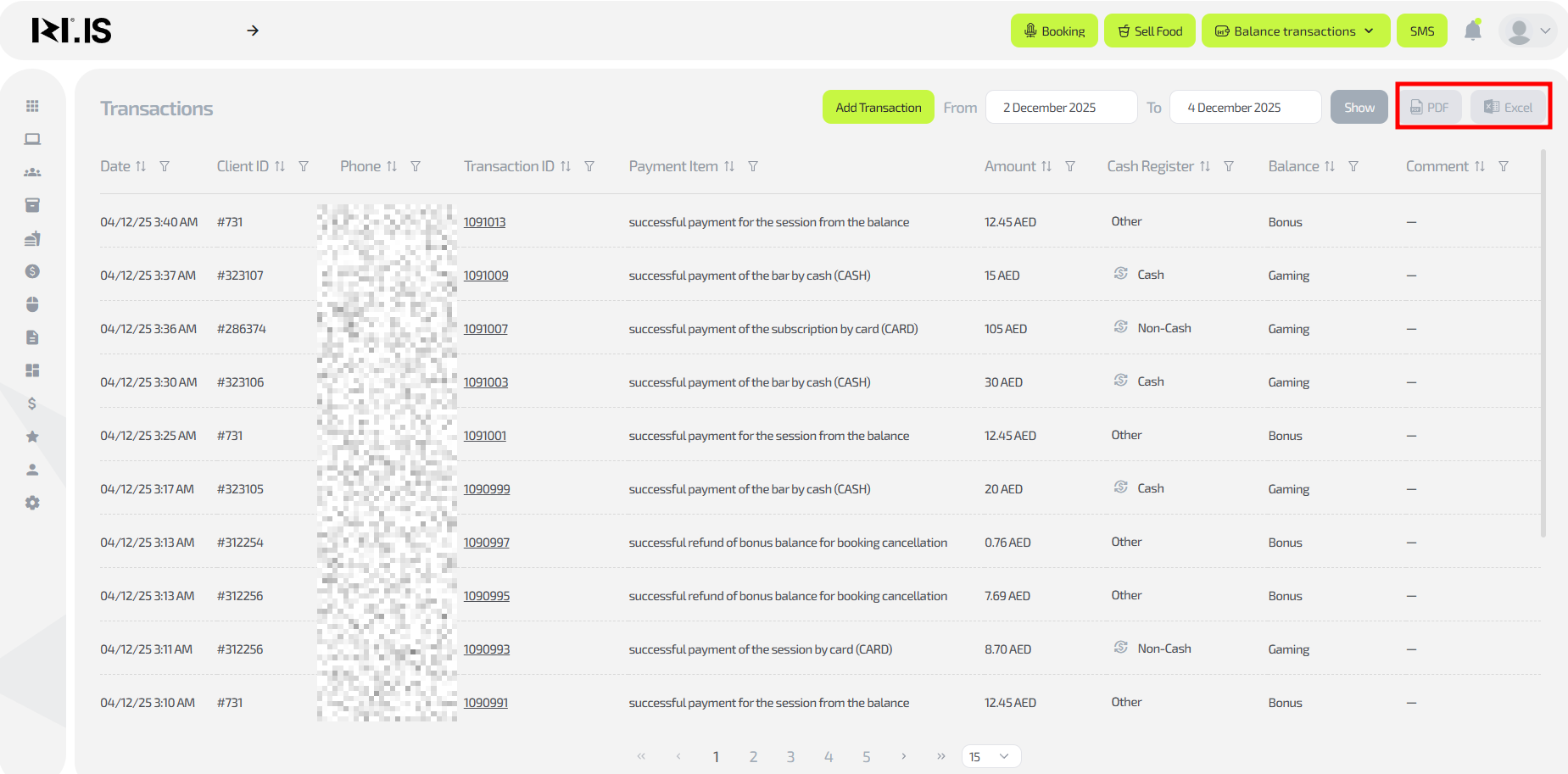
- In the CRM side menu, select “Transactions”.
- By default, all operations for the current day are displayed.
Step 2. Using filters for search
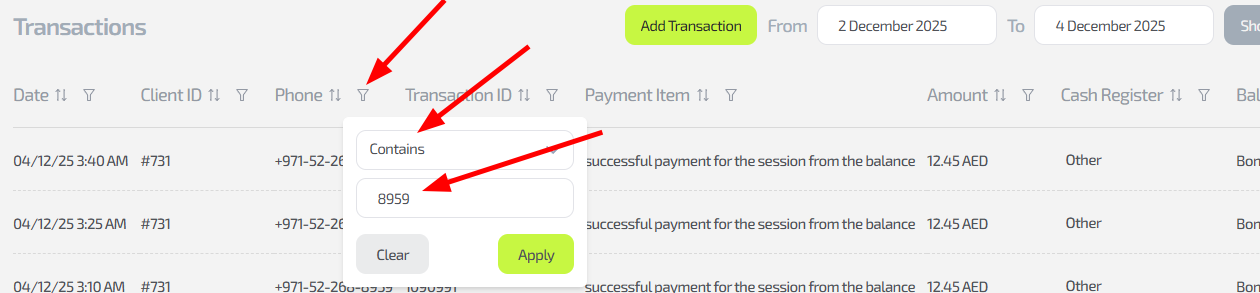
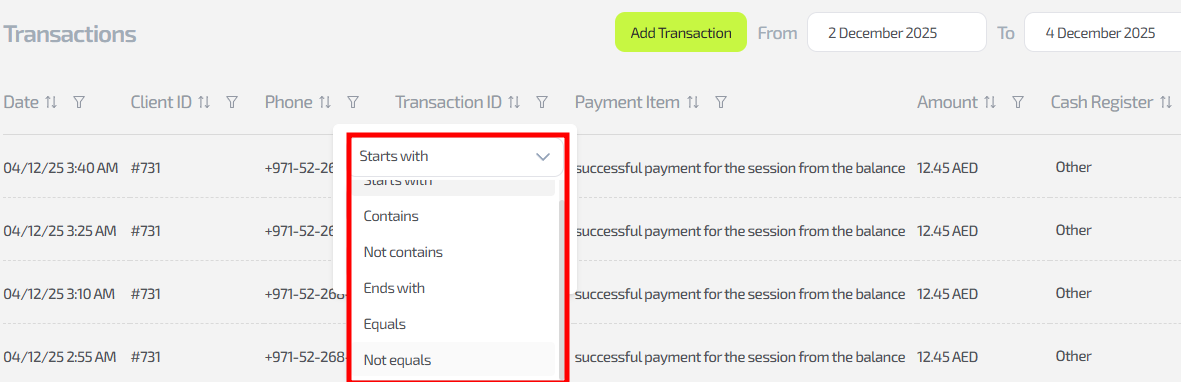
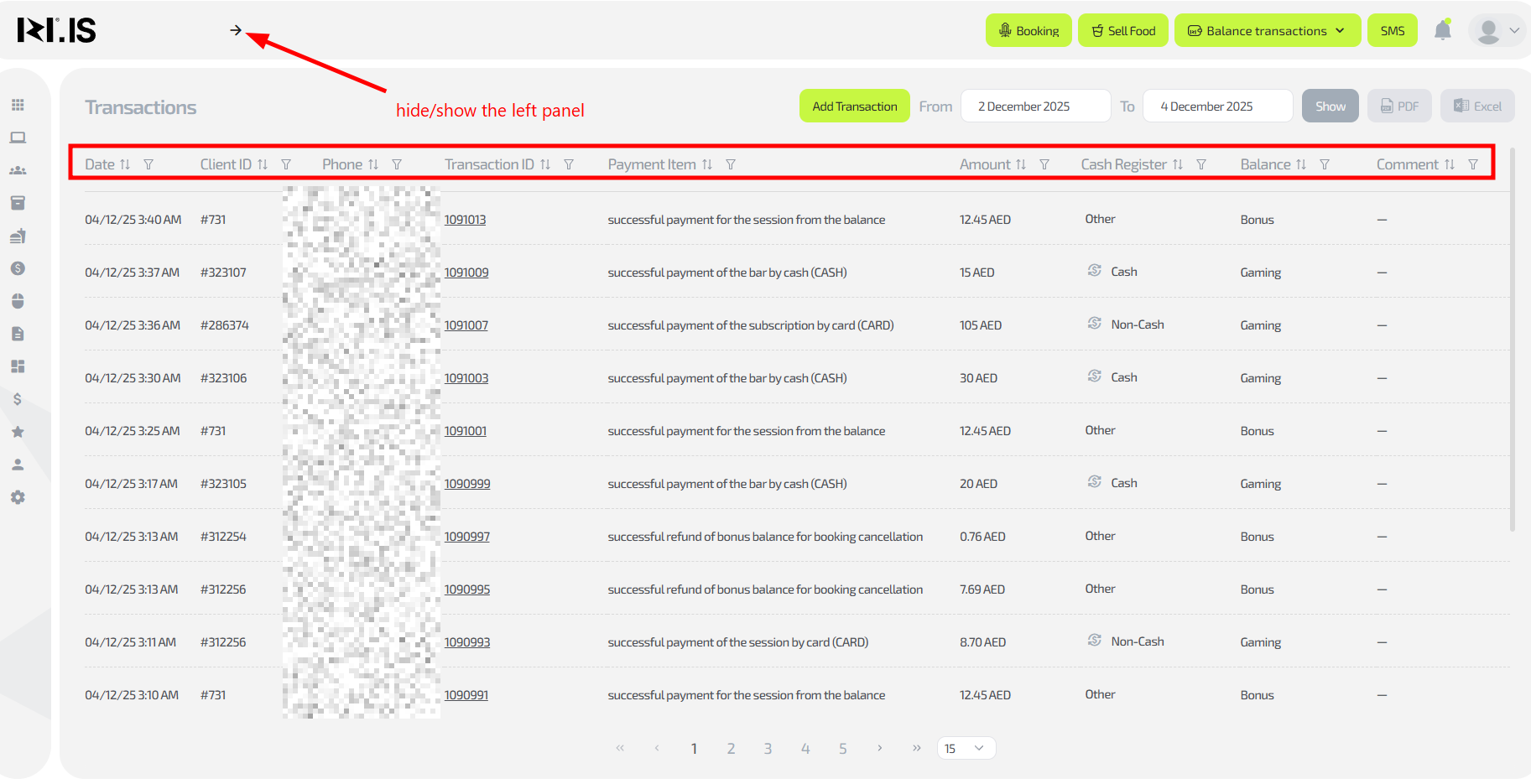
The interface provides flexible filters for precise data analysis:
- Date / period – select a range for viewing transactions.
- Client ID / phone – search for a specific user.
- Transaction ID – quick access to a particular record.
- Payment item – filter by operation type (top-up, purchase, refund).
- Amount and cash register – display cash, card, refunds, and bonus operations.
- Balance – split between bonus and game balance.
Step 3. Viewing detailed information
Step 4. Exporting data
- Specify the period for which you want to export a report.
- Choose the format — PDF or Excel.
- The report can be used for accounting or for analyzing club load.
Step 5. Adding a transaction manually
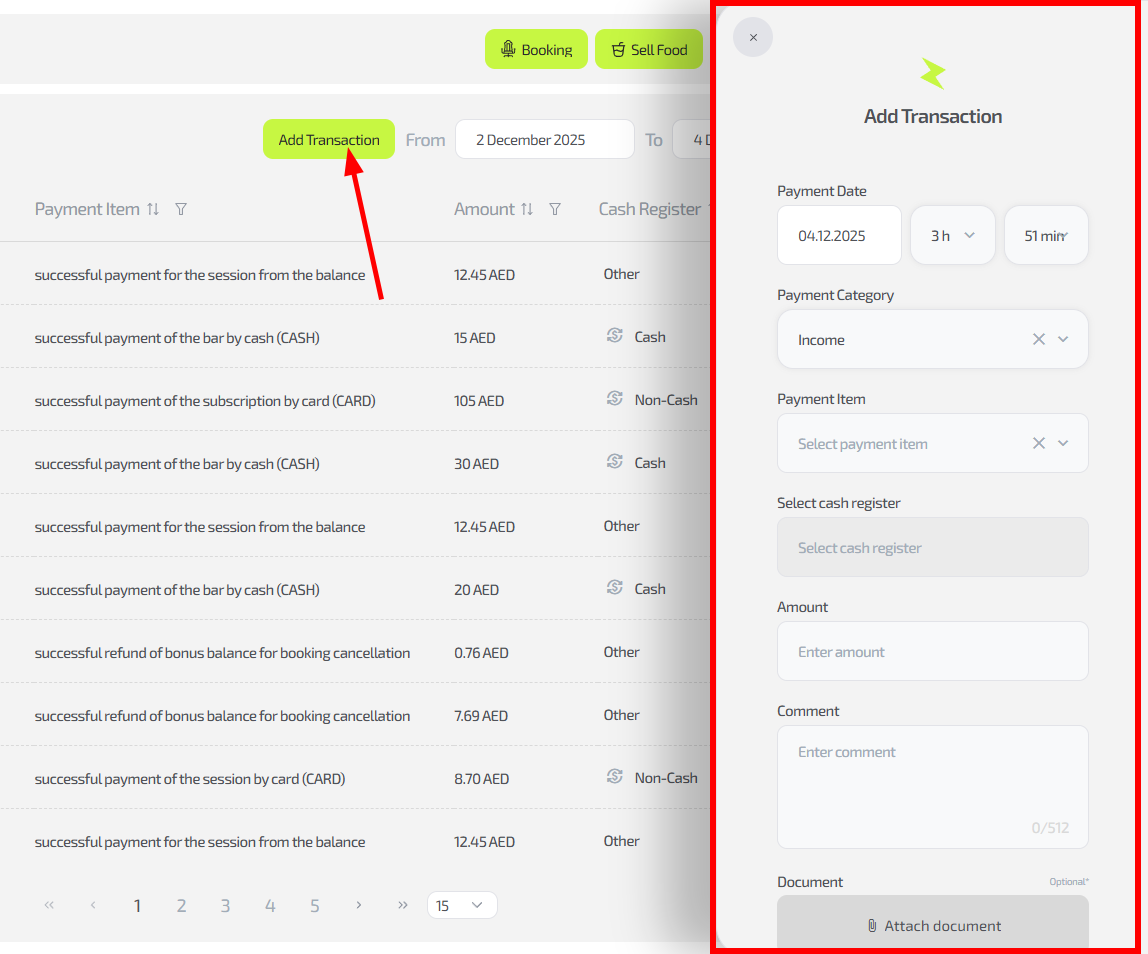
- Click “Add transaction”.
- Select:
- Operation date
- Category: Income or Expense
- Payment item
- Cash register (cash / card)
- Amount and comment
- Attach a document if necessary.
- Click “Post transaction” to save.
Step 6. Additional options
- Refunds — available if you have the appropriate permissions.
- Action logging (in development) — will allow you to track who created or edited transactions and when.
Typical situations
| Problem | What to do |
|---|---|
| The transaction is not shown | Check the date or status filter |
| Wrong amount | Use a comment and create a correcting entry |
| Report is not exported | Check access rights and refresh the page |