2.14 Refund to the client
Article goal
To explain step by step how to process a refund to a client through the IZI system for different payment methods, in order to avoid financial discrepancies and comply with legal requirements.
Who this article is for
- Club administrators
- Cashiers
- Staff members with permissions to work with transactions
What you will learn
- How to find the transaction that needs to be refunded
- How to process a refund for different payment methods
- What specific features each type of refund has
- What to do in non-standard situations
- Why it is important to process refunds correctly
Prerequisites
Before you start, make sure that:
- You have permissions to process refunds
- The client has provided purchase details (date, amount, payment method)
- For terminal payments, the client has the original card that was used for payment
Step-by-step instructions
Step 1. Find the required transaction
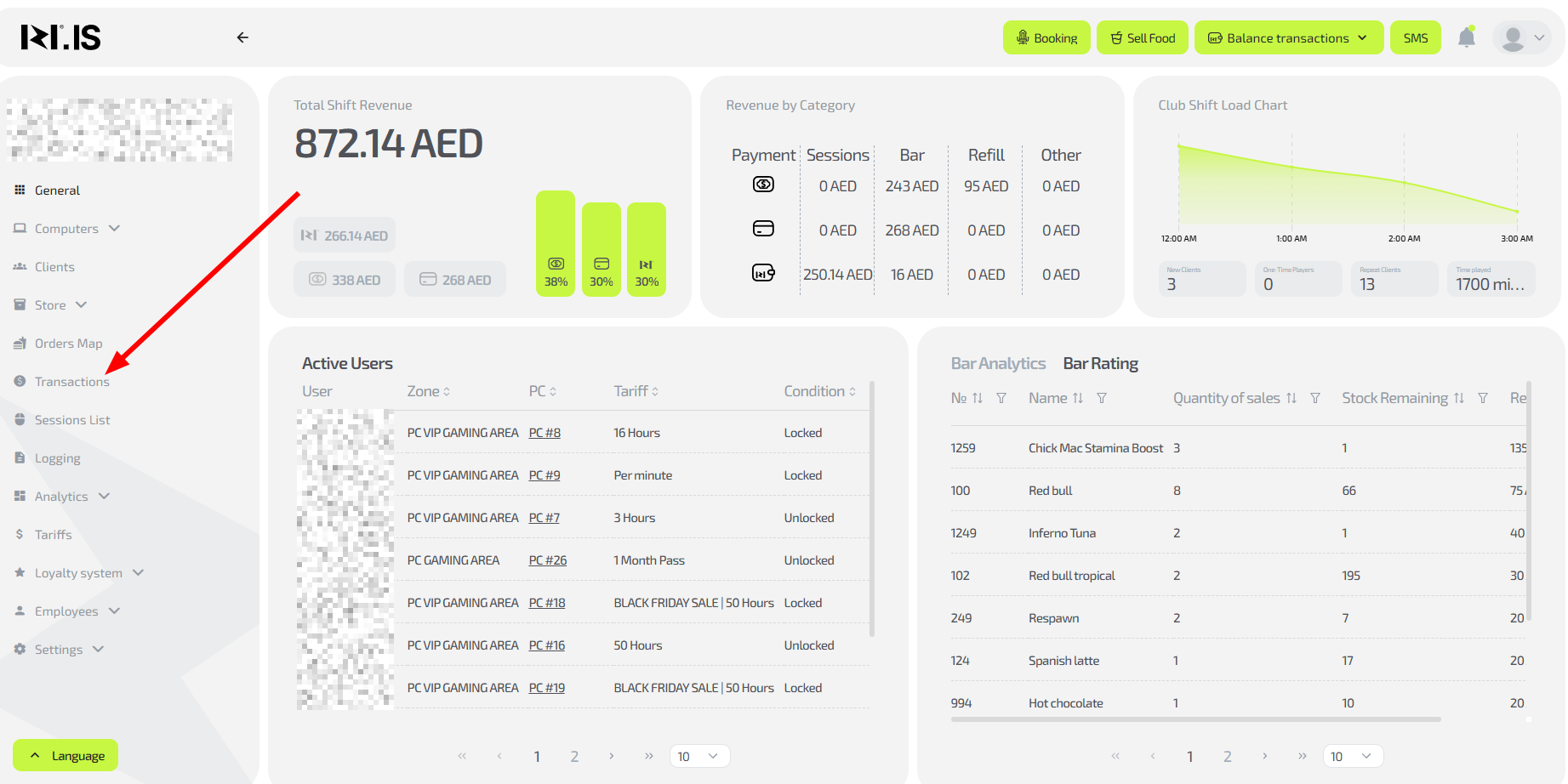
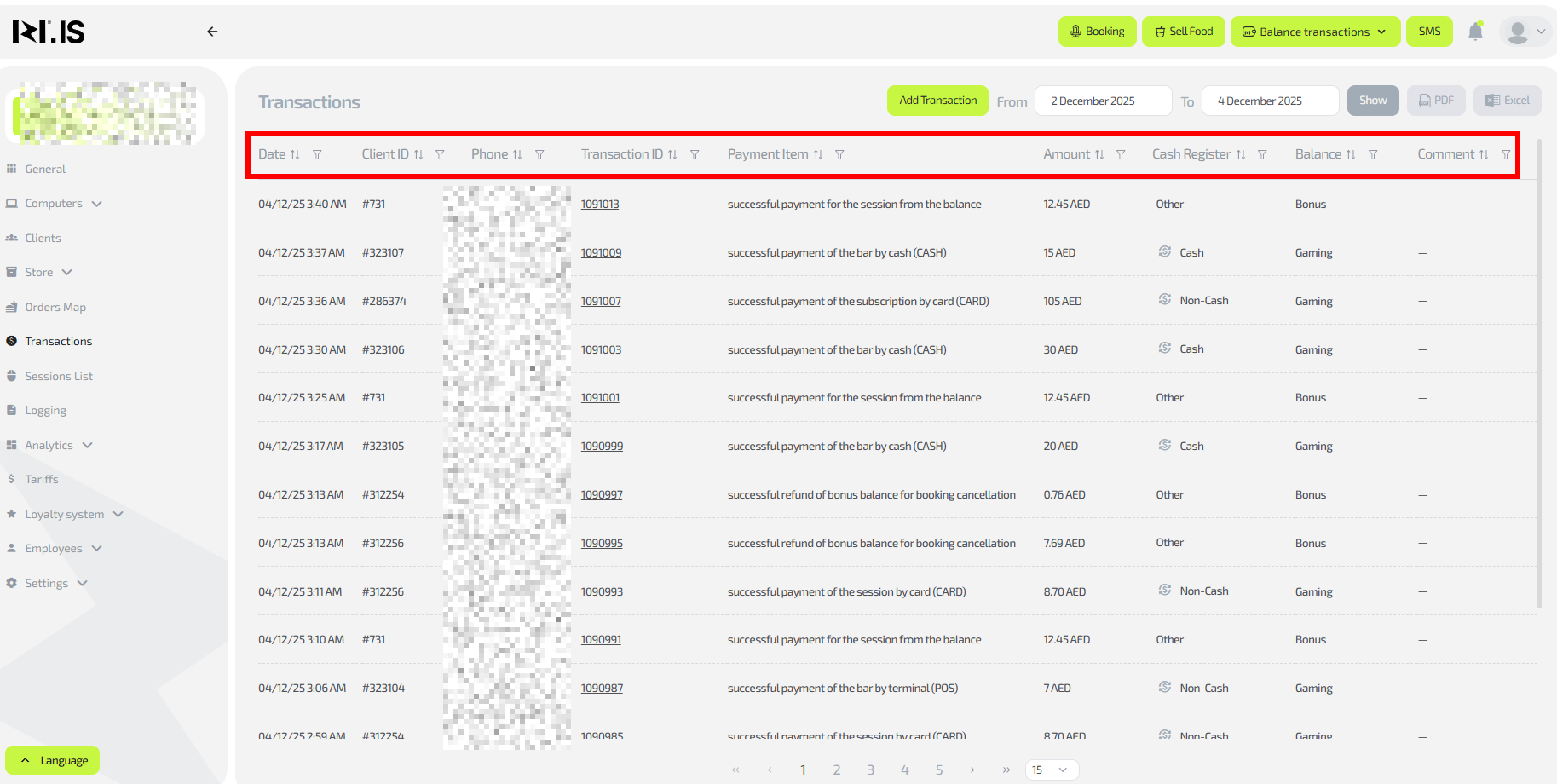
- Go to the “Transactions” section via the main menu on the left
- Use filters to search:
- By client phone number
- By operation date
- By payment amount
- By operation type (top-up, bar purchase, etc.)
- Make sure you have found the correct transaction
Tip: When searching by phone number, try different formats (starting with 8 or +7) if the client is not found.
Step 2. Initiate the refund
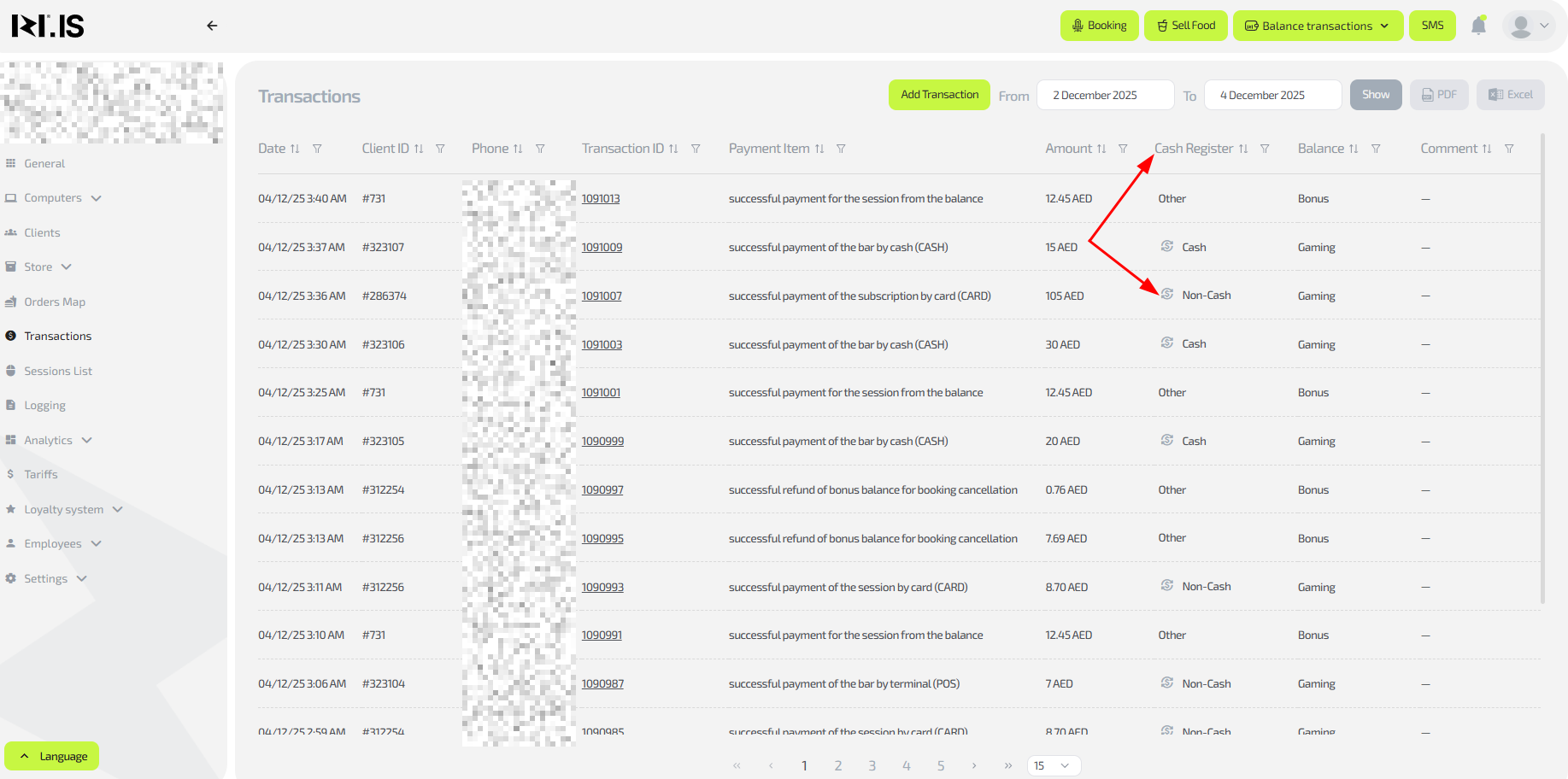
- In the row of the found transaction, click the ↻ icon (dollar sign with circular arrows) in the “Cash register” column
- Make sure the refund form has opened on the right
Important: This button is only available for operations for which a refund is possible.
Step 3. Fill in the refund details
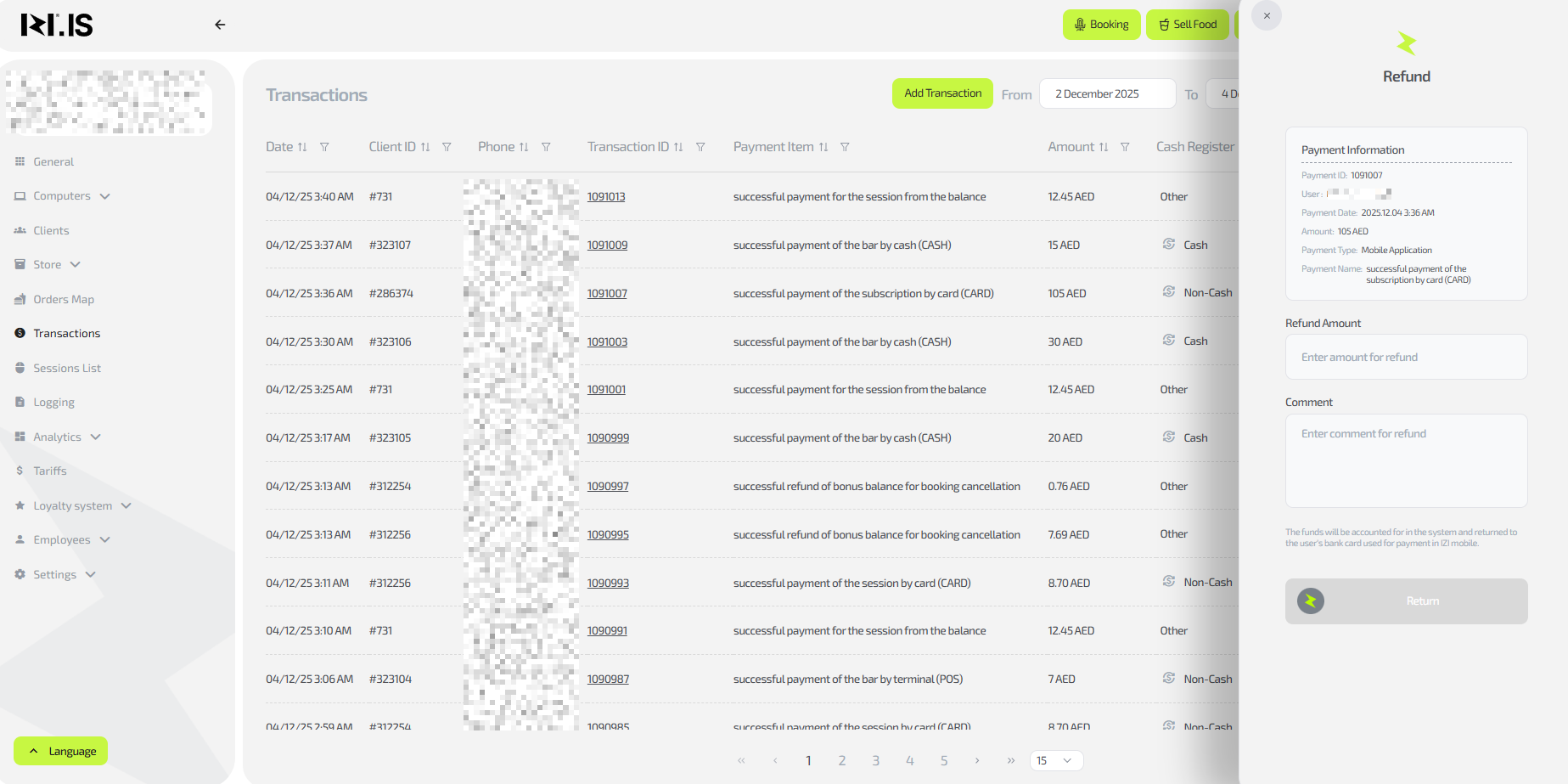
- In the opened form specify:
- Refund amount (full or partial)
- Comment with a mandatory indication of the refund reason
- Click the “Refund” button
- Wait for the operation to be confirmed
Tip: Always fill in the comment in detail — this helps when dealing with disputes.
Example: “Refund for unused time due to a technical failure of PC #15”.
Step 4. Additional actions for different payment methods
Payment via mobile application:
- Funds will automatically be returned to the client’s account within 3 business days
- Inform the client about the expected refund time
Cash payment in the club:
- Be sure to process the refund in KKM-Server
- Give the cash back to the client from the cash register
Card payment via terminal in the club:
- Process the refund in KKM-Server
- Be sure to attach to the terminal the same bank card that was used for the payment
- Wait for the operation to complete
Important: Refund to another card is not possible according to banking rules.
Typical situations
| Problem | What to do |
|---|---|
| The client requests a refund but does not remember the date and payment method | Use advanced search in the “Transactions” section by phone number for the last 30 days. Review the operation history together with the client and clarify the purchase details |
| The client has lost the card used for terminal payment | Explain that refund to another card is not possible under banking rules. Offer an alternative: crediting bonuses to the account or a cash refund (if this complies with the club’s internal policy) |
| Refund via mobile app has not arrived within 3 days | Check the operation status in the “Transactions” section. If the status is “Completed”, explain to the client that the delay may be on the acquiring bank’s side. If the status is “Error”, contact IZI technical support |
| A partial refund is required | In the refund form, enter not the full transaction amount, but only the part agreed with the client. Be sure to specify the reason for the partial refund in the comment |
| The refund button is inactive or missing | Check whether the allowed refund period has expired (usually 30 days), whether the transaction has already been refunded, and whether you have permissions to process refunds in the system |
| The client asks to refund money to another card | Explain that technically this is impossible. Funds are always returned in the same way as the original payment was made |
| Error occurs while processing a refund through the terminal | Make sure the original card is used, check the terminal’s internet connection, and try again. If the error persists, contact the acquiring bank |