2.10.7 PC protection system
Article goal
Explain how the protection system for gaming PCs works in IZI CRM, what it is for, and how to correctly enable/disable protection in different situations.
Who this article is for
- Club administrators;
- Club owners;
- Technical specialists.
What you will learn
- What protection (freeze mode) is;
- How the restoration mechanism works;
- When you should disable protection and when you should keep it enabled;
- How to change the protection status on a PC;
- Typical situations and tips.
What the protection system is
The protection system is a mode in which all changes on the computer are automatically rolled back on reboot.
It is similar to a “freeze mode” or DeepFreeze-like solutions.
When protection is enabled, a user can:
- change game settings;
- install mods;
- download files;
- change graphics parameters;
- install programs;
- change system settings.
But after a reboot the PC is fully restored to the original state that it had at the moment protection was enabled.
Why protection is needed
Protection solves several tasks at once.
1. Keeping PCs stable
Players often change settings, install mods, run suspicious files.
Without protection, these changes accumulate and the PC starts to slow down or become unstable.
With protection, it is enough to reboot the computer and it is “like new” again.
2. Protection from viruses and malware
If a player downloads a virus, cheat, or malicious installer:
➡ just reboot the PC
➡ the system will be fully restored.
3. Saving staff time
Without protection, the administrator would have to reinstall software, clean PCs, or restore the system manually.
With protection, any problems are fixed with a single action: reboot.
4. Privacy protection
Saved files, passwords, and players’ personal data — everything disappears after reboot.
This increases security and user trust.
5. Control over gaming stations
Protection helps maintain a standardized configuration identical on all club PCs.
When to disable protection
Disable protection only when you need to make long-term changes.
Disable protection if you need to:
- Install a new game, launcher, or program;
- Update drivers;
- Install Windows updates or IZI Client updates;
- Add mods, plugins, or large game files;
- Fix system settings that must remain after reboot;
- Install an anti-cheat or mandatory game library.
DO NOT disable protection if:
-
A player complains about settings
➡ A reboot is enough. -
The PC behaves unstable
➡ A reboot without disabling protection usually solves the issue. -
You need to free up space or delete user files
➡ A reboot will clear everything automatically.
How to determine the protection status

Go to:
Computers → card of the required PC
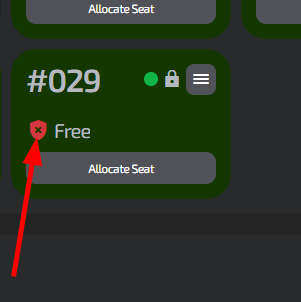
Check the icon:
| Icon | Meaning |
|---|---|
| Red shield | Protection is disabled |
| No shield | Protection is enabled |
Step-by-step instructions for working with protection
Step 1. Decide whether you need to disable protection
Answer the question: do the changes need to remain after reboot?
| Required action | Protection |
|---|---|
| Installing a program / game | Disable |
| Updating drivers | Disable |
| Updating system components | Disable |
| Game settings were changed | Do not disable |
| PC is slow or gives errors | Do not disable, just reboot |
Step 2. Find the computer and check the status
- Go to the Computers section;
- Find the required PC;
- Check the protection status by the icon.
Step 3. Change the protection mode
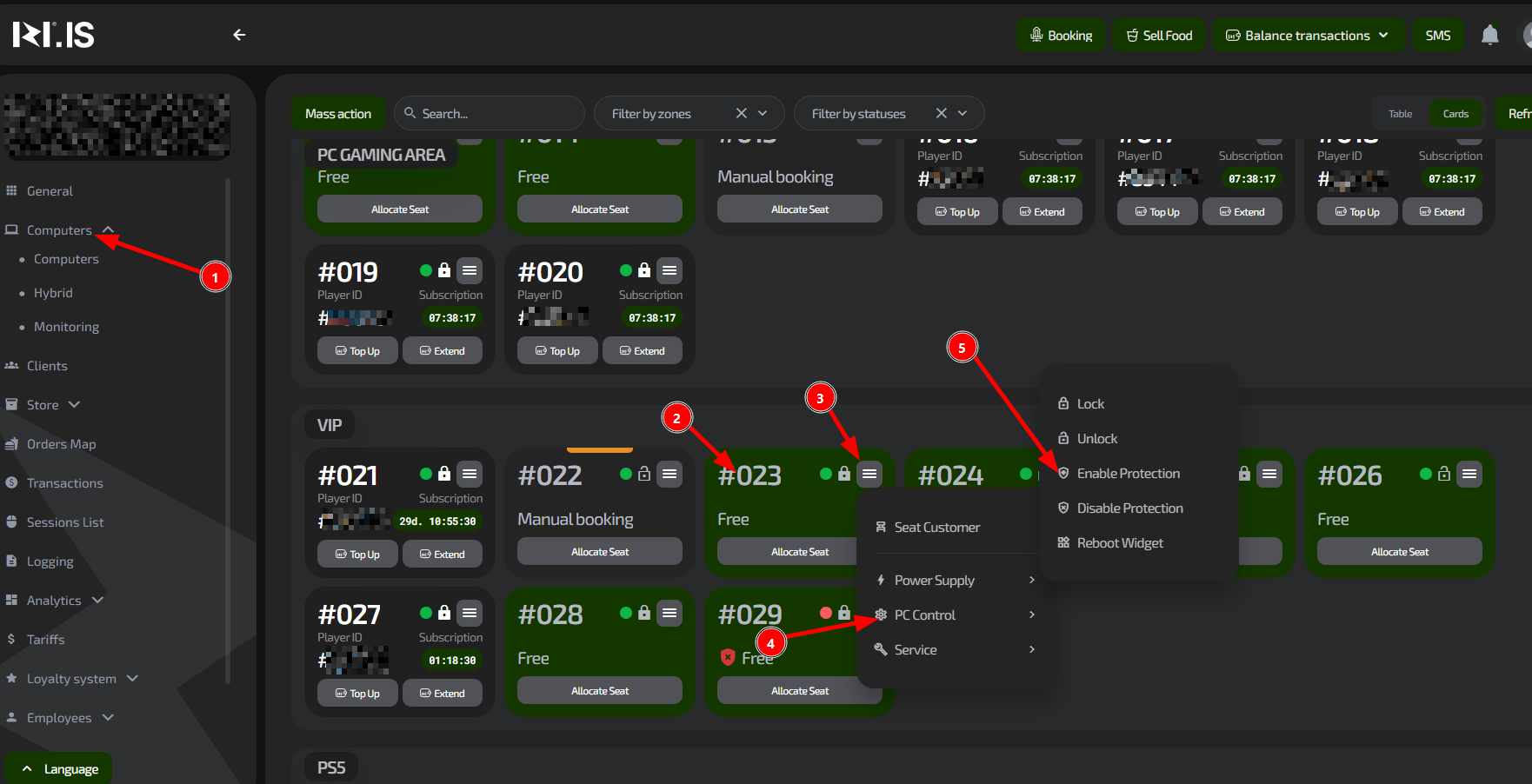
- Open the PC card menu (button with three lines);
- Select PC control;
- Click:
-
Disable protection — if you need to make changes.
The PC will reboot automatically. -
Enable protection — to return the system to protected mode.
Important: before disabling protection, warn the client and save any important data.
Step 4. Perform the required actions
- Install games, updates, or programs;
- Check that everything works correctly;
- After finishing, be sure to enable protection again.
Step 5. Check the protection state
After you enable protection:
- The PC will reboot;
- The PC card will show that protection is active;
- You can continue using the station in normal mode.
Typical situations
Situation: you need to install a game on several PCs
Use Bulk actions → Disable protection.
After installation, enable protection again.
Situation: a client complains that “nothing is saved”
Explain that the protection system resets all changes on reboot.
Recommend storing settings in the cloud (Steam Cloud, Battle.net Sync, etc.).
Situation: the PC did not reboot after disabling protection
Check network connectivity and connection to the server — commands may not execute without a connection.
Situation: you forgot to enable protection
Regularly check PCs with a red shield.
Enable protection again as soon as possible.
Situation: a client installed malware
If protection was enabled — just reboot the PC.