2.11 Clients
Purpose of the article
To show how a club administrator can view, filter, and edit client information in the “Clients” section: from analysing the visitor list to manually changing the balance and assigning groups.
Who this article is for
- Club administrator
- Users with access rights to the admin panel
What you will learn
- How to view the list of clients and their key data
- How to sort, filter, and search clients
- How to assign groups and edit the balance or bonus account
- How to hide one-time visitors
- What to do if a client is not displayed or the data is incorrect
Prerequisites
Before you start, make sure that:
- You have administrator rights
- Loyalty groups are created in the “Loyalty system” section
Step-by-step guide
Step 1. Go to the “Clients” section and review the list
- Log in to the admin panel with your account.
- Go to the “Clients” section.
- The list will show information about visitors:
- Client ID
- Account phone number
- Balance (money)
- Bonus points
- Total play time
- Money spent
- Group membership
- Date of last visit
- Registration date
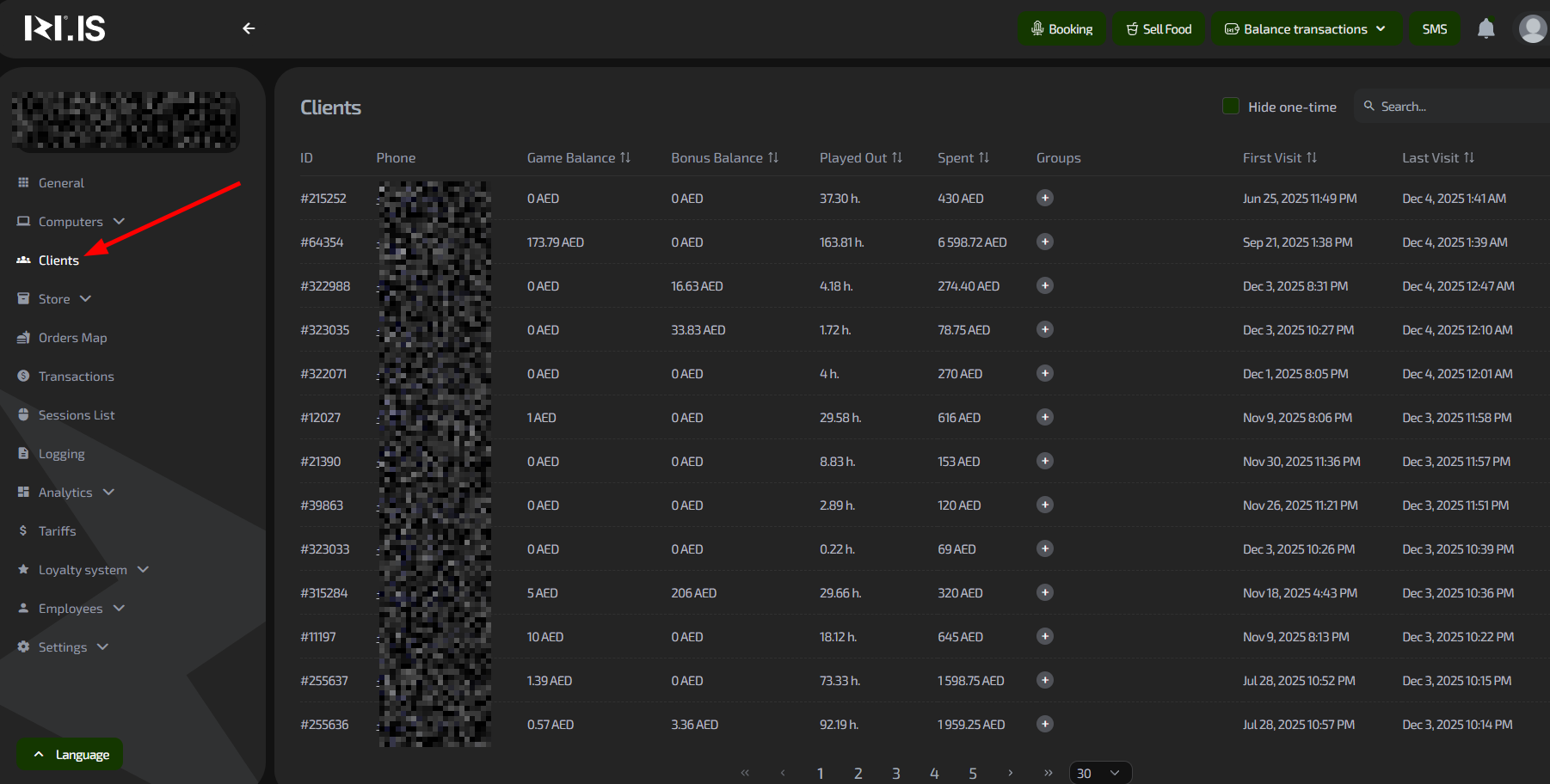
Tip: Use the arrow icons to the right of the column headers to sort data by the selected parameter (for example, by visit date or balance).
Step 2. Filter and search for clients
- Enable the “Hide one-time visitors” checkbox to display only registered users.
- In the top menu, select a group filter to see clients from a specific category.
- Enter a query in the search field (digits from the ID or phone number).

Important: The search works by partial digit match. If the client is not found, check the phone number format.
Step 3. Assign groups to a client
- In the client’s row, click the plus icon in the “Groups” column.
- Select a predefined group from the list (groups are created in advance in “Loyalty system”).
- Save the changes.
Tip: Groups help you structure clients for promotions and loyalty — assign them based on behaviour (for example, “VIP” for active visitors).
Step 4. Edit the balance or bonus account
- Click the client’s phone number to open the compact profile view.
- In the profile, enter the amount to change the balance or bonus account.
- Be sure to add a reason (for example, “Compensation for a technical issue”).
- Confirm the operation.
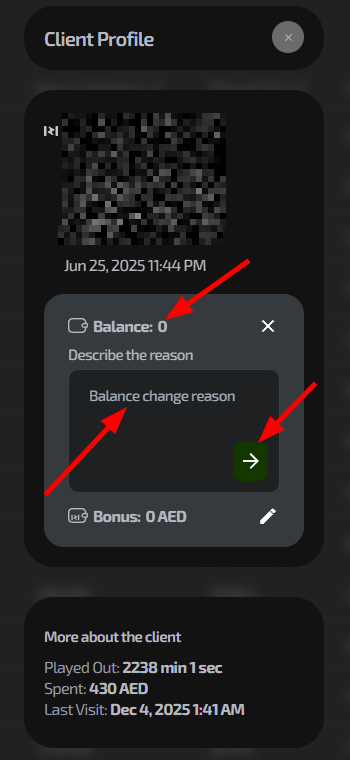
Important: Balance changes are logged for audit purposes — always provide a justification.
Common situations
| Problem | What to do |
|---|---|
| Client not found in search | Check the phone number format (with or without country code). Make sure the client is registered. |
| Groups are not displayed | Create groups in the “Loyalty system” section and refresh the page. |
| Data is not updated | Refresh the client list. |
| No access to editing | Make sure you have administrator rights; contact the club management. |