2.10.1 PC statuses and what they affect
Article goal
To explain how to use PC statuses correctly so that:
- clients only see working PCs in the mobile app;
- the administrator can manage the club load without confusion;
- situations where a client books a non-working PC and is unhappy are avoided.
Who this article is for
- Club administrators
- Technical specialists
- Managers
What you will learn
- Why statuses are needed — to separate working and non-working PCs without physical “out of order” stickers.
- How a status affects booking — only PCs with the Free status are visible and bookable in the app.
- When to use the Broken status — to temporarily remove a PC from public use without deleting it from the system.
- What the Unfrozen status means — when to use it during technical work and updates.
What PC statuses are
Statuses are virtual state labels for each PC in the IZI CRM.
They help you:
- quickly distinguish working PCs from those under maintenance or with issues;
- hide non-working PCs from the client app;
- plan workload and maintenance;
- reduce conflict situations with guests.
Where you can see the PC status
The status is displayed:
- In the “Computers” section — in the row or card of each PC.
- In the PC card — at the top of the window, next to the PC name or number.
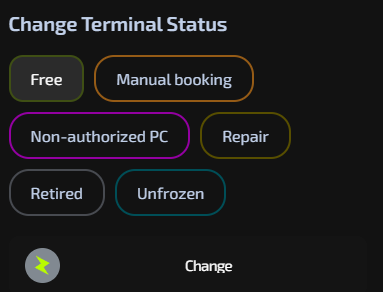
By looking at the status, the administrator immediately understands whether a guest can be seated at this PC or if another one should be selected.
How to change a PC status
You can change the status from the PC card:

- Open the “Computers” section.
- Find the required PC and open its card.
- At the top, locate the status dropdown.
- Select the required status.
- The change is applied automatically — no need to press an extra “Save” button.
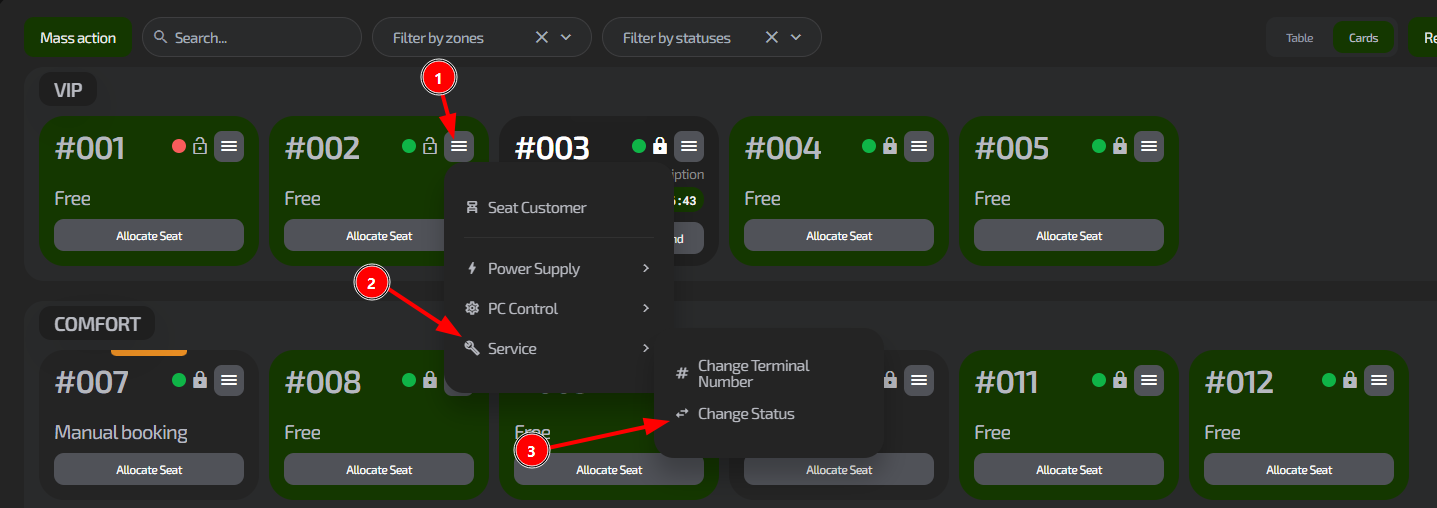
Main statuses and when to use them
| Status | When to use | What the client sees |
|---|---|---|
| Free | The PC is fully working and ready for use | Visible in the app, can be booked |
| Broken | Hardware issues, repair, diagnostics, replacement of components | Not visible in the list of available PCs |
| Unfrozen | Game updates, software installation, system configuration, other technical maintenance | Not visible in the list of available PCs |
Use statuses so that a client never ends up booking a PC that is currently not suitable for playing.
Typical situations
| Problem | Solution |
|---|---|
| A client complains that they cannot see a specific PC in the app | Check the status in the “Computers” section. If the PC has the Broken or Unfrozen status, explain that this PC is temporarily unavailable for booking. |
| You need to update drivers or games on several PCs | Set these PCs to Unfrozen for the duration of the work. After you finish, make sure to set the status back to Free. |
| A PC is being repaired but clients keep asking for it | Set its status to Broken to hide it from the app so clients stop requesting this PC. |
| After technical work a PC is not visible in the app | Check if the status is still Broken or Unfrozen. A common mistake is to forget to switch the status back to Free after maintenance. |
| A client booked a PC, but it does not work | Immediately check the status, offer an alternative PC, apologize for the inconvenience, and then switch the problematic PC to Broken. |