2.8 Balance operations
Purpose of the article
To show how an administrator can manage a client’s accounts: top up the balance to pay for game time or products, credit bonus points under promotions, and correctly deduct funds.
Who this article is for
- Club administrators
- Managers with access to the CRM
What you will learn
- How to find a client and check their current balance
- How to correctly top up the account with cash or card
- Why bonuses are credited and why it is important to specify a reason
- When and how to deduct funds while maintaining proper financial discipline
Prerequisites
- You have administrator rights
- The shift is open
- The client is registered in the system
Step-by-step guide
Step 1. Find the client
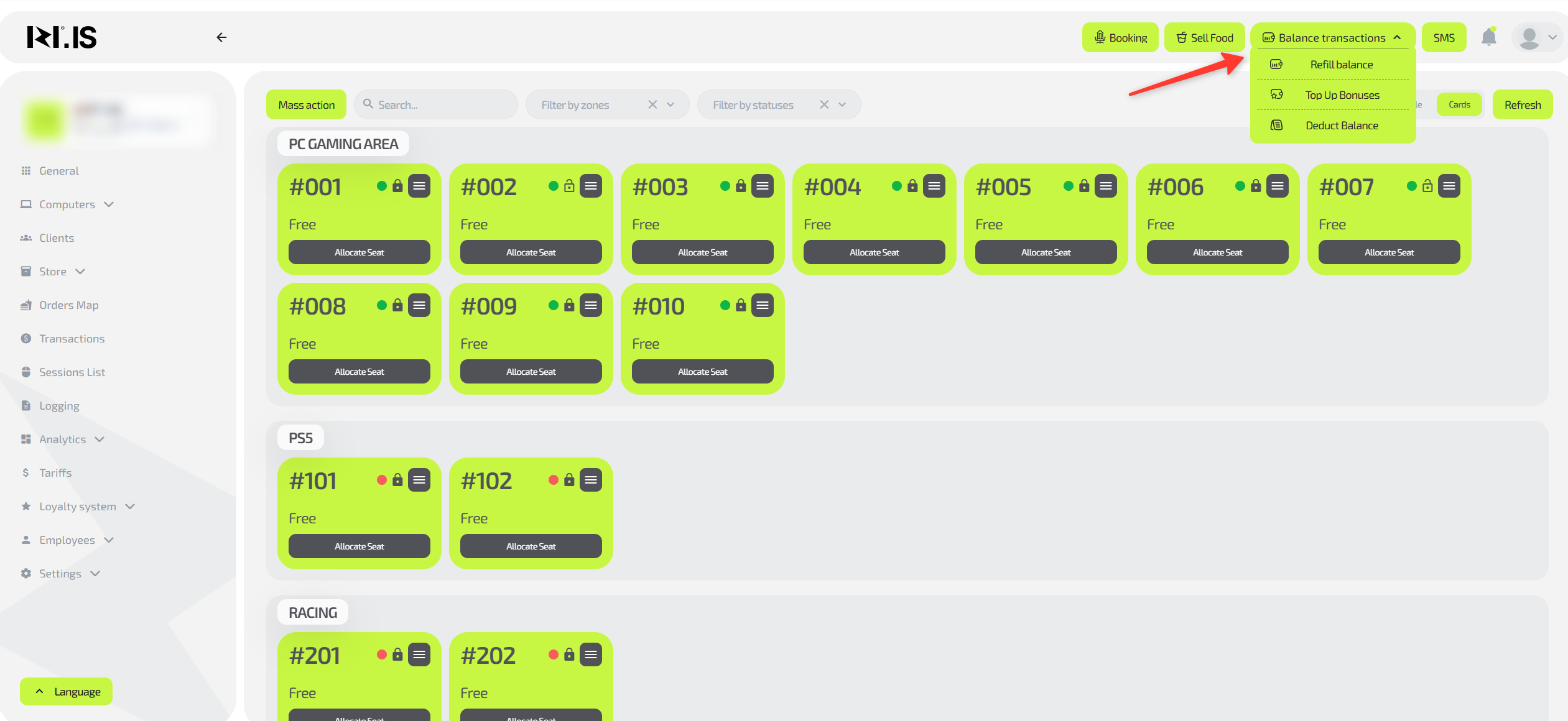
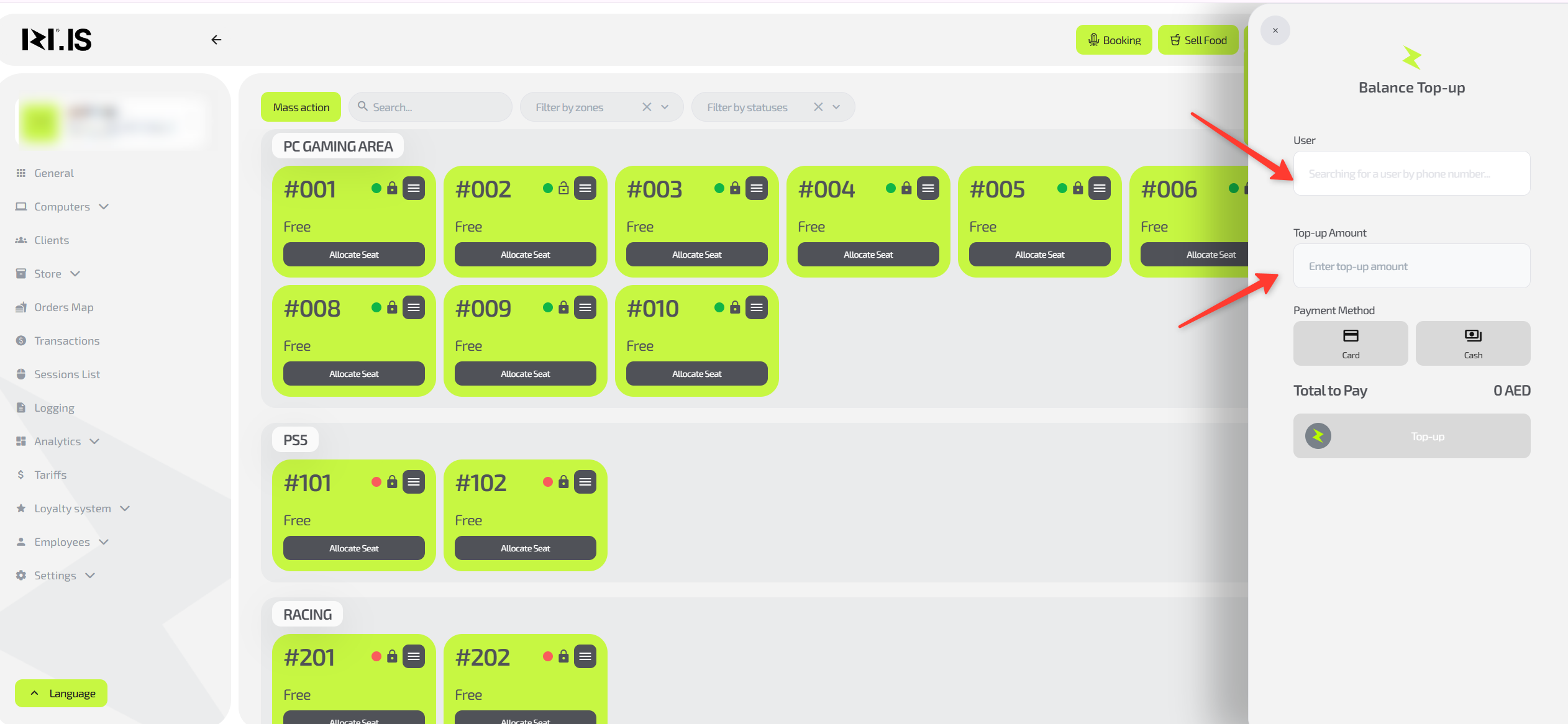
Before performing any operation, you need to find the client in the system.
- Log in to IZI CRM.
- Go to the “Balance operations” section.
- Click “Top up account”.
- Use the phone number search by entering the last 4–6 digits of the client’s phone number.
- In the results list, find the required client and open their card by clicking the name.
Step 2. Top up the game account
- In the client card, find the “Top-up amount” field.
- Enter the amount.
- Select the payment method: “Cash” or “Card”.
- Confirm the operation by clicking “Top up”.
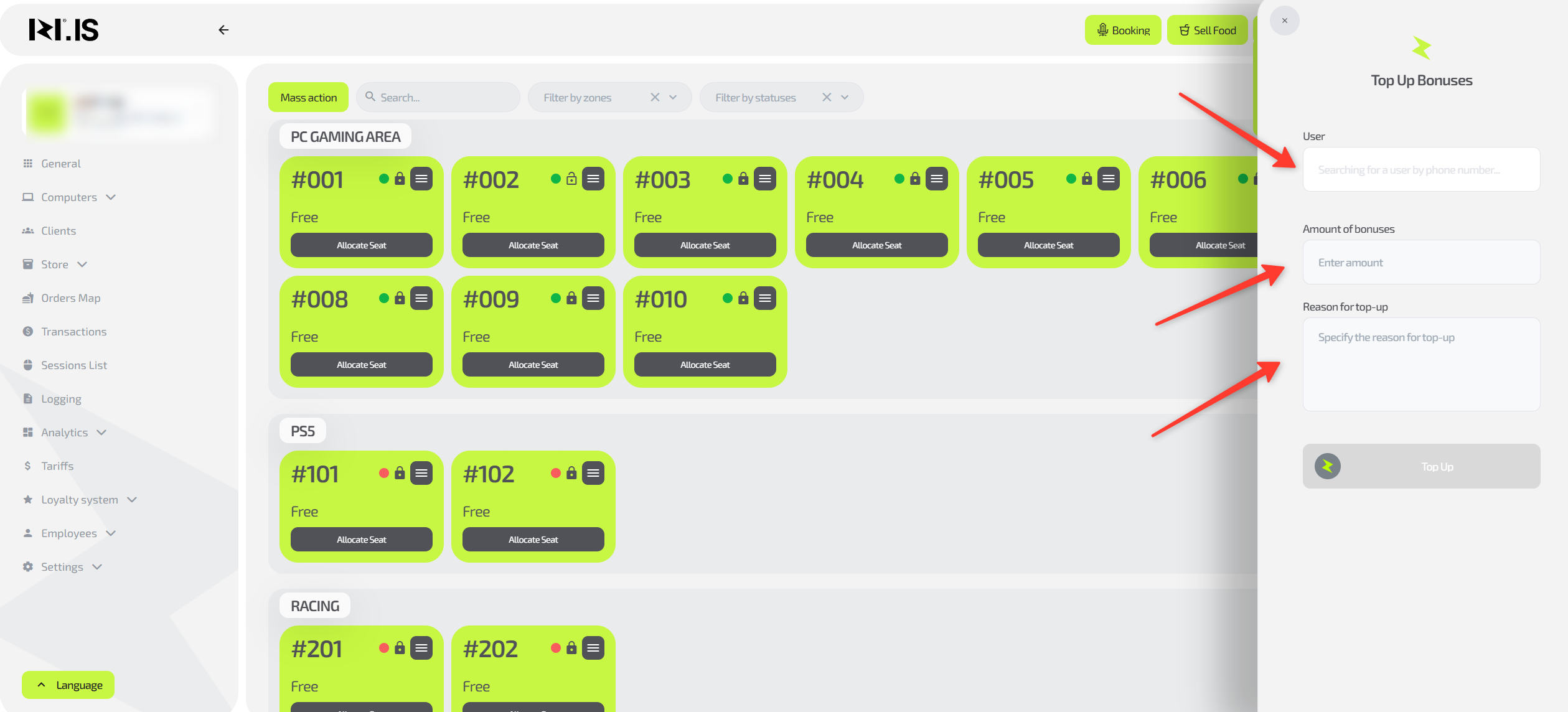
Step 3. Credit bonus points, if needed

Bonuses are credited for participation in promotions, loyalty, or as a gift.
- Go to the “Balance operations” section.
- Click “Credit bonuses”.
- In the “User” field, enter the last 4–6 digits of the client’s phone number and select them.
- Enter the number of points.
- Be sure to specify the reason (for example, “Bring a Friend promo”).
- Confirm the operation by clicking “Credit”.

Step 4. Deducting balance

Deduction is used to correct errors, handle refunds, or write off expired bonus points.
- At the top of the screen, click Balance operations / Deduct balance.
- In the “User” field, enter the last 4–6 digits of the client’s phone number and select them.
- In the “Deduction amount” field, specify the required amount.
- Clearly specify the reason (for example, “Correction of cashier’s error”, “Product refund”).
- Select the account type:
- Game account (money funds)
- Bonus account (bonus points)
- Carefully check the entered data and confirm the operation.

Typical situations
| Problem or question | What to do and why it is needed |
|---|---|
| The client wants to pay for the session by card. | Top up the balance, selecting “Card” as the payment method. This ensures correct accounting of non-cash revenue in reports. |
| The client is entitled to bonuses under a promotion. | Credit bonuses, specifying the promotion name in the reason. This helps control targeted spending of the bonus fund. |
| You made a mistake when topping up (entered a higher amount). | Use “Deduction” with the reason “Correction of erroneous top-up”. This returns the balance to the correct value and records the reason for the change. |
| You need to write off expired bonuses. | In the deduction operation, select “Bonus account” and specify the reason “Write-off of expired bonuses”. This keeps the bonus system up to date. |
| The system asks for “Account type” during deduction. | - Game account — the client’s real money. - Bonus account — promotional bonus points. Why this matters: choosing correctly prevents accidental deduction of real money instead of bonuses. |