2.10.3 Computer card menu
Article goal
To explain which functions are available in the computer card menu depending on its current status, and how an administrator can control a PC through IZI CRM.
Who this article is for
- Club administrators;
- Managers and shift supervisors;
- Club owners (in view/control mode).
What you will learn
- Where the PC card menu is located;
- Which functions are available in all statuses;
- Which options are additionally available on free PCs;
- Which functions appear when a session is active;
- What specifics exist for the statuses “Defrosted”, “Broken”, “Manual booking”, “Retired”, “Unauthorized PC”.
Prerequisites
Before you start, make sure that:
- You are logged into CRM under an account with administrator rights;
- The PC is visible in the Computers section;
- The IZI client software on the PC works correctly (for control commands).
General principle of the PC card menu

The computer card menu opens when you click the “three bars” icon on the PC card.
The set of functions depends on the PC status, which is described in detail in the article 2.10.2 “Indicators on PC cards”.
However, there is a basic block of functions that is present for all PC statuses.
1. General PC control block (available in all statuses)
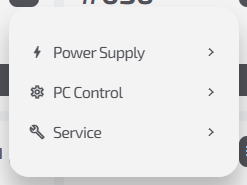
This block contains the main functions for interacting with the IZI client software and the hardware.
1.1 Power
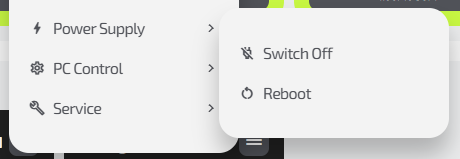
Allows you to remotely control the PC power:
- Shut down PC;
- Restart PC.
Used in case of freezes, system updates, or hardware issues.
1.2 PC control
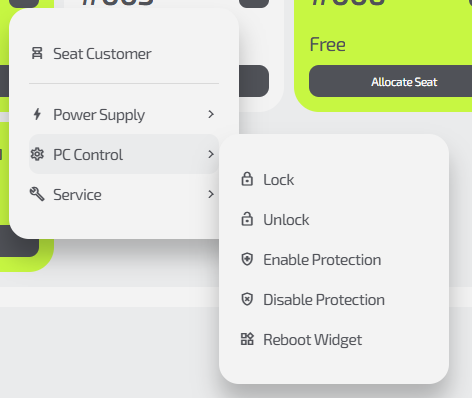
Interaction with the client software on the gaming PC:
-
Lock / Unlock PC
Locking dims the screen and makes the PC unavailable without starting a session. Used to prevent free play. -
Enable / Disable protection
Explained in more detail in the article 2.10.7 “PC protection system”. -
Restart widget
Restarts the IZI widget on the PC if it is frozen, shows an incorrect status, or there are network issues.
1.3 Maintenance
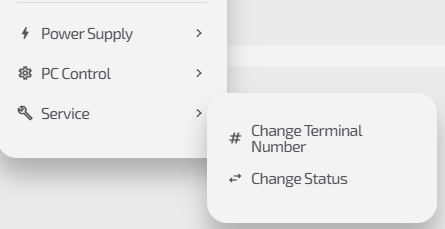
This section contains technical functions:
- Change PC number (for example, when rearranging equipment);
- Change PC status
(all statuses and their effects are described in the article 2.10.1 PC statuses and what they affect).
2. Additional functions on a PC in “Free” status
When the PC is free, extra quick actions appear in the menu:
2.1 Seat a client
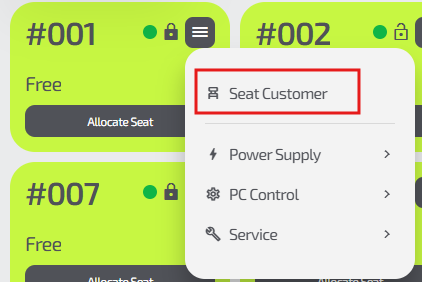
This is equivalent to the “Assign seat” button:
- the selected PC is inserted automatically;
- then the standard seat assignment form opens (see 2.4 Seating a client).
Convenient when working “at the PC” (when a client comes directly to a specific computer).
3. Additional functions on a PC with an active session (occupied PC)
If a gaming session is running on the PC, the menu shows:
3.1 Client information
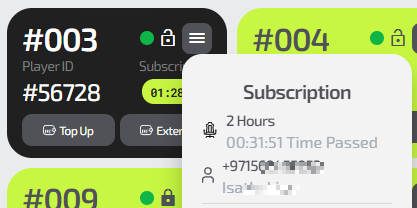
- Phone number (if the client is registered);
- Nickname;
- Active tariff and remaining time.
3.2 Quick operations
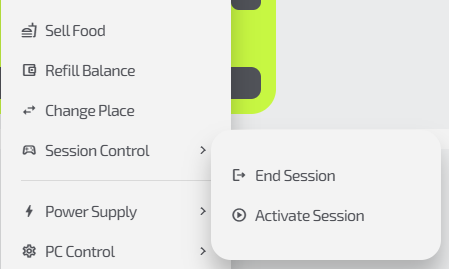
-
Sell food
Quick sale of bar items to the current client
(see article 2.5 Food sales) -
Top up balance
Similar to the “Balance operations” function in the top panel
(see article 2.8 Balance operations) -
Change seat
Move the client to another PC in the same zone.
Used when clients complain about a specific PC or want to switch. -
Session control
- Manually start a session;
- End a session.
4. Additional functions in “Defrosted” status
A PC in Defrosted status is not shown in the IZI.Play app and is not available for booking.
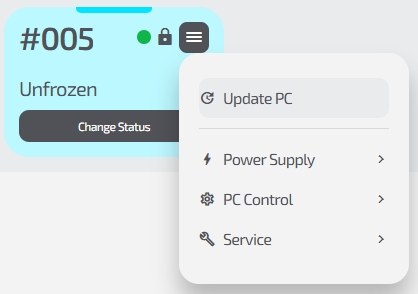
In addition to the general block, the menu contains:
4.1 Update PC
Starts an update of the IZI client software.
Used after a new version is released or when instructed by IZI support.
5. Menu for statuses: “Broken”, “Retired”, “Manual booking”, “Unauthorized PC”

For these statuses, the basic functionality is available:
- Power;
- PC control;
- Maintenance.
PCs in these states are not shown in the IZI.Play app and are not available for booking.
Used for:
- diagnostics;
- temporarily removing a PC from operation;
- configuring club equipment.
Common situations
| Situation | What to do |
|---|---|
| The menu does not open | Refresh the page or check the Internet connection on the PC |
| Commands do not work | The client software on the PC may not be running |
| Incorrect PC status | Use “Restart widget” |
| Status cannot be changed | Make sure the PC is online and reachable |