2.10.2 Indicators on PC cards
Article goal
Explain in detail which indicators and controls are displayed on the PC cards in the Computers section and what the different statuses of a PC mean.
Who is this article for
- Club administrators;
- Club owners;
- Managers who monitor the operation of gaming equipment.
What you will learn
- Which elements are displayed on PC cards;
- How the cards of a free, occupied and “defrosted” PC differ;
- What the different PC statuses show;
- Which actions are available for each type of card.
Prerequisites
Before you start, make sure that:
- You are logged into IZI CRM under your account;
- The Computers section is available and displays the club PCs;
- PCs are correctly authorized in the system and connected to the network.
Types of PC cards and their indicators
The PC card in the Computers section contains a set of elements that allow the administrator to see the current state of the PC, the user status and the available actions. The content of the card changes depending on the current state of the PC.
Below we will look at the main types of cards:
- Free PC;
- Occupied PC (session running);
- PC in “Defrosted” status;
- PCs in other statuses (Broken, Manual booking, Retired, Unauthorized).
1. Free PC card
The card shows:
- PC number;
- Online indicator
- green — PC is online;
- red — PC is offline;
- Lock indicator
- closed lock — PC is locked;
- open lock — PC is unlocked;
- PC control menu, including:
- Seat a client — quick navigation to seat assignment;
- Power — restart or shut down the PC;
- PC control — lock / unlock, enable / disable protection, restart the widget;
- Maintenance — change the PC number or its status;
- Status: “Free”;
- “Assign seat” button
- works the same as the “Seat a client” menu item but is faster to use.
2. Occupied PC card
Displayed when a client session is running on the PC.

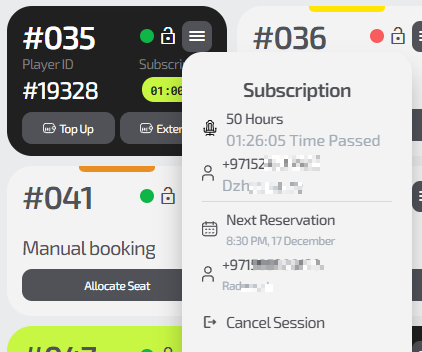
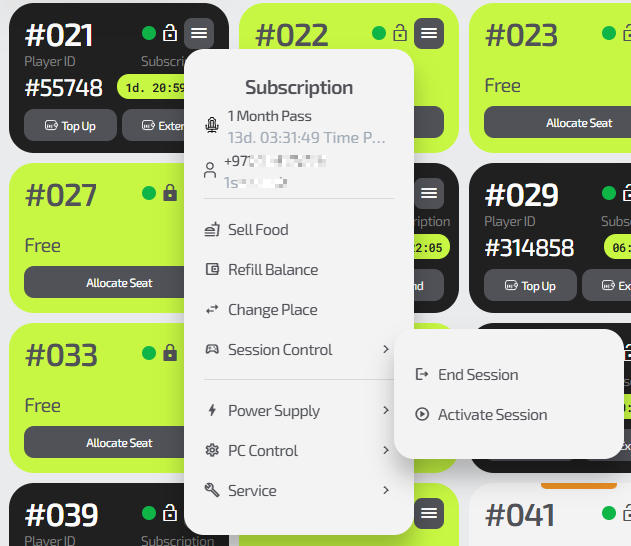
The card shows:
-
PC number;
-
Online indicator;
-
Lock indicator;
-
PC control menu, including:
- name of the active tariff;
- remaining time on the tariff;
- player’s phone number and nickname;
- Sell food — sell bar items linked to this client;
- Top up balance — if the client is registered;
- Change seat — move the client to another PC in the same zone;
- Session control — manual start / end;
- Power — restart / shut down;
- PC control — lock / unlock, protection, widget restart;
- Maintenance — edit PC parameters.
-
Guest ID occupying the seat;
-
Remaining time on the tariff;
-
The Top up button (to top up the balance if the client is registered) or the Bar button (to sell something from the bar if it is a one-time client).
-
Time until the end of the current session and the start of the next one (if another session has already been booked after the current one), or the Extend button (extend the current session by selecting an extension package and paying for it). If there is a next booking after the current session, information about the next session will appear in the card menu.
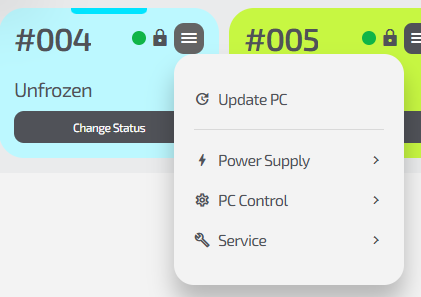
3. PC card in “Defrosted” status
A PC in this status is not shown in the IZI.Play app and is not available for booking.
The card shows:
- PC number;
- Online indicator;
- Lock indicator;
- PC control menu, including:
- Update PC — manually update the IZI client software;
- Power — restart / shut down;
- PC control — lock, protection, widget restart;
- Maintenance — change the PC number, change its status;
- Status: “Defrosted”;
- “Change status” button.
4. PCs in other statuses
(Broken, Manual booking, Retired, Unauthorized PC)
These PCs are also not shown in the IZI.Play app and are not available for booking.
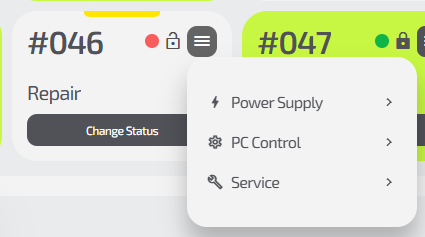
The card shows:
- PC number;
- Online indicator;
- Lock indicator;
- PC control menu, including:
- Power (restart / shut down);
- PC control (lock, protection, widget restart);
- Maintenance (change the PC number, change status);
- PC status — one of the listed ones;
- “Change status” button.
Common situations
| Situation | What to do |
|---|---|
| PC has a status that does not allow seating a client | Change the status to “Free” |
| PC is shown as offline | Check power and Internet connection. |
| The required menu is not shown on the PC | The PC may be in the “Defrosted” or “Retired” status. |