2.3 Shift dashboard
Article goal
To explain how to use the main CRM screen — the Shift dashboard, where operational information about the club, user activity, and sales for the current shift is displayed.
Who this article is for
- Club administrators
- Shift supervisors
- Managers who monitor the hall operations
What you will learn
- How to open the dashboard and what data it shows
- How to monitor revenue, load, and active users
- How to use the dashboard to analyze shift efficiency
Prerequisites
Before you start, make sure that:
- The shift is open and active
- All sales and sessions are processed through the CRM
- Your account has administrator access
Dashboard sections
The main CRM page (dashboard) contains the key information for the current shift. Data is updated automatically.
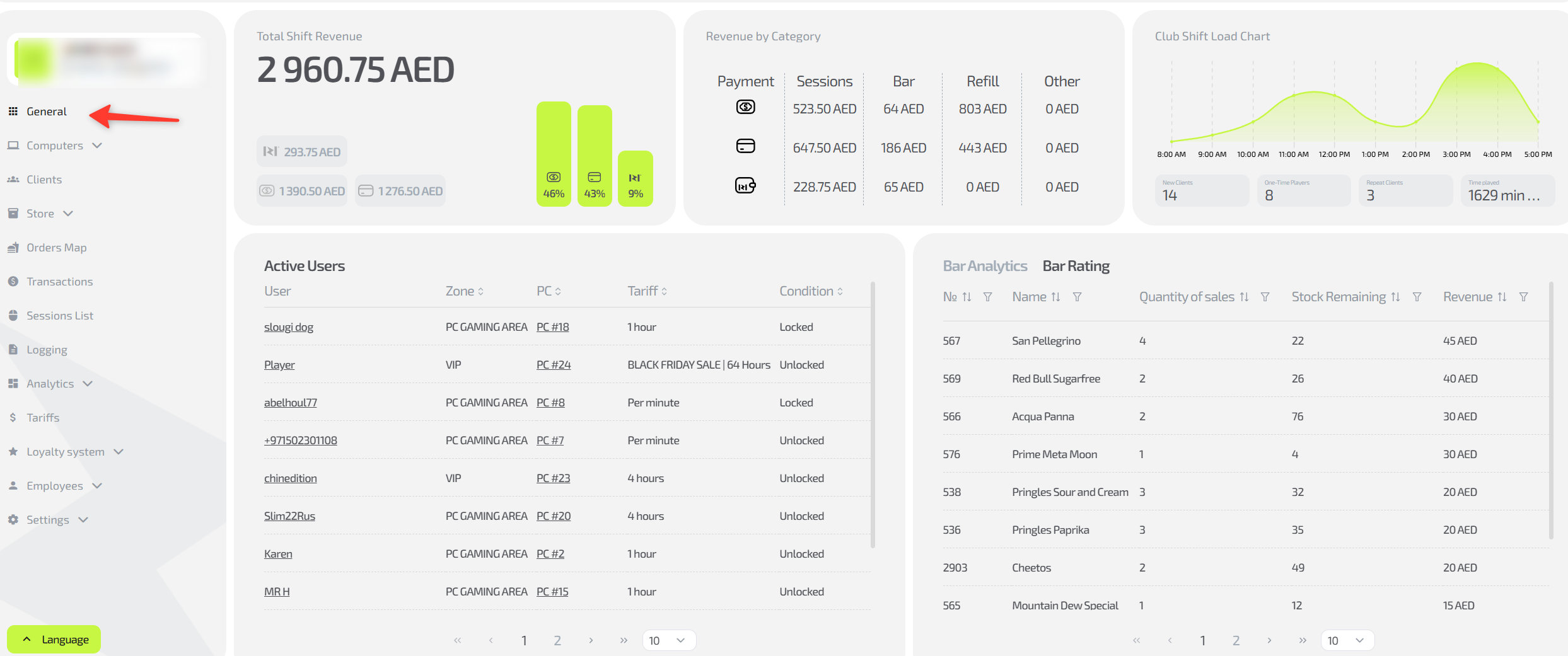
1. Total revenue for the shift
The top left block shows the total revenue for the current shift.
Below it you can see the breakdown by payment method:
- Cashless — card payments (including terminal and mobile app)
- Cash — operations through the administrator’s cash desk
- IZI app — transactions performed by users in the mobile app
The chart in percent shows the share of each payment method.
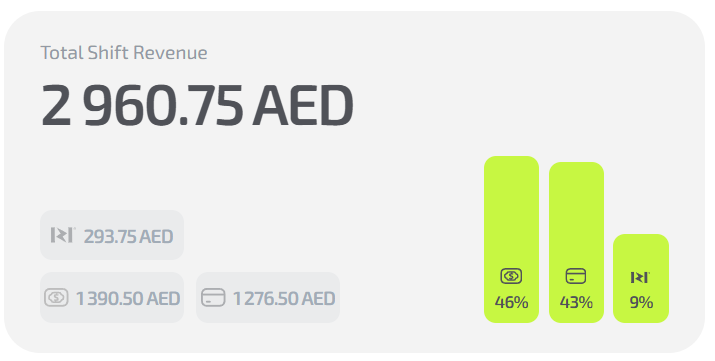
2. Revenue by category
The section to the right of the total amount.
Shows the breakdown by sales directions:
- Sessions — rental of gaming seats
- Bar — food and drinks
- Top-ups — adding funds to client balances
- Other — internal operations or adjustments
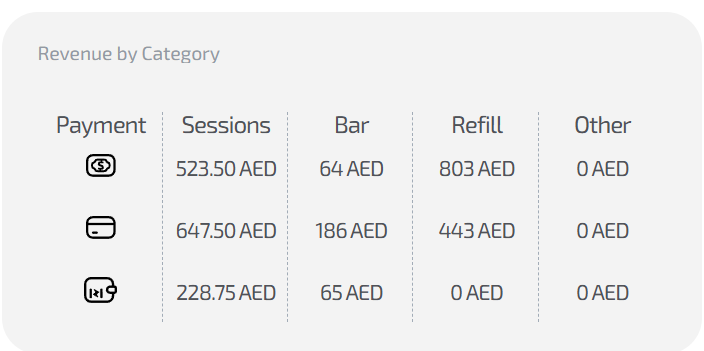
3. Club load chart
Shows the dynamics of attendance by hour. On the chart you can see at which hours the activity was highest — useful for analyzing peak periods and planning schedules.
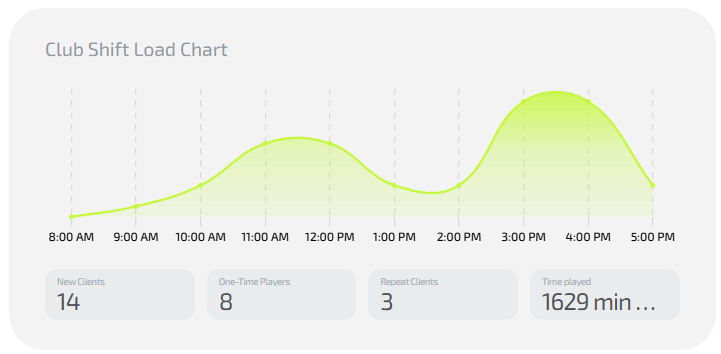
4. Active users
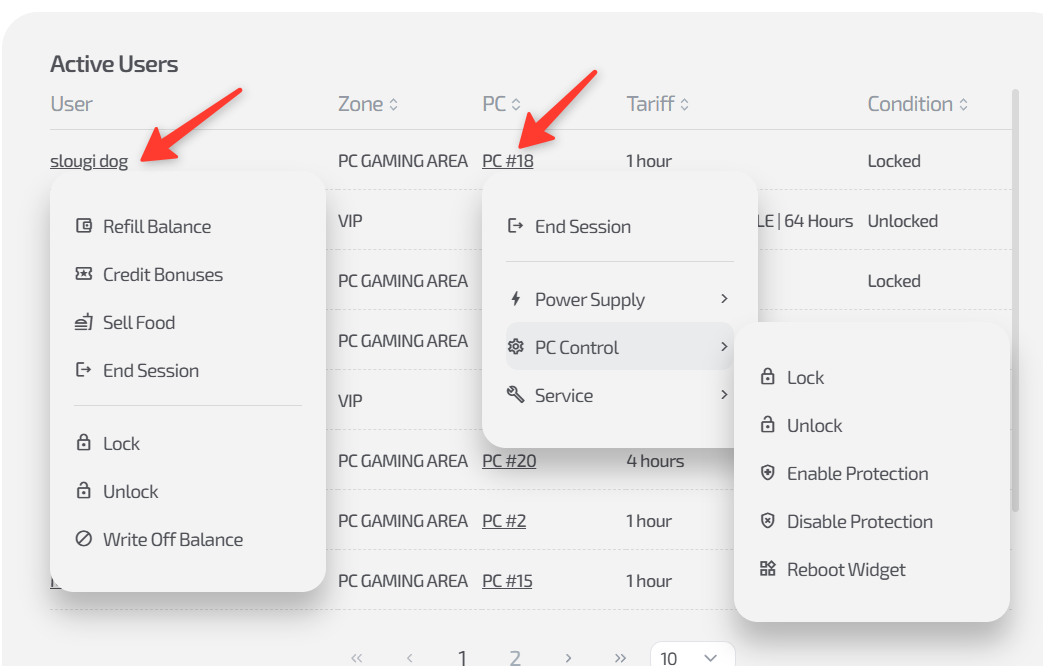
A list of all clients whose sessions are currently active.
The table shows:
- User name / phone
- Zone (club gaming zone)
- PC (station/terminal number)
- Tariff
- Status (for example, Unlocked, Разблокирован)

When you click on the user name or PC, a context menu opens where you can:
- End the session
- Extend the time
- Top up the balance
- Deduct from the balance
- Send a message
- Sell food
- Perform actions with guest PCs
5. Bar analytics and rating
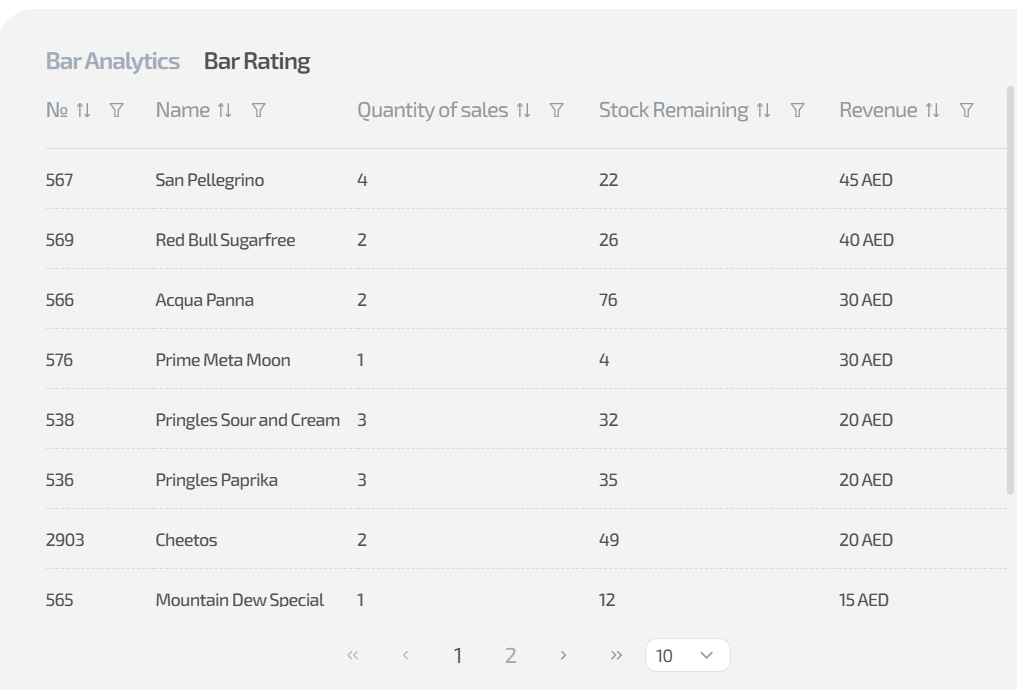
At the bottom you see items sold during the shift, with:
- Item name
- Number of sales
- Stock remaining in the warehouse
- Revenue per item
This information helps you control sales and replenish stock in time.
Common situations
| Problem | What to do |
|---|---|
| Revenue is not displayed | Check if the shift is open and if sales were processed correctly |
| The chart is empty | That means there were no sessions during the shift, or the time is shown in a different time zone |
| Active users are not visible | Refresh the page or check whether the list is filtered by zone |