4.6.1 Available profile settings
Article goal
Show how to configure personal information in your IZI profile for comfortable app usage and personalised service.
Who this article is for
- Registered users of the IZI app
- Clients who want to change their personal data
What you will learn
- How to change your nickname for identification in the system
- Where to specify first name and last name for service personalisation
- Why it is important to keep your personal data up to date
- How to quickly find profile settings
Why configure your profile?
Configuring personal information in your profile allows you to:
- Identify yourself in the system — so that administrators can quickly find your account when you contact them
- Receive personalised service — your first and last name are used by support and when processing orders
- Create a unique gaming profile — your nickname is displayed in the system and helps distinguish you from other users
- Ensure correct data display — in all sections of the app and in the operation history
In short: up-to-date profile data ensures personalised service and simplifies interaction with the club.
Step-by-step guide
Step 1. Open profile settings
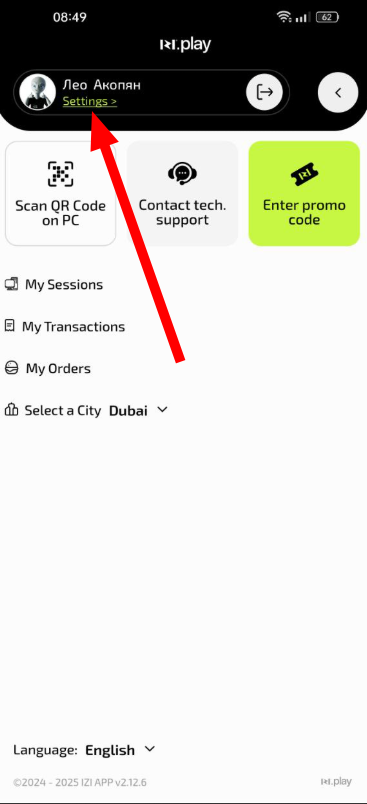
- Open the IZI app
- On the main screen tap the profile icon in the corner
- Select the “Profile settings” section
Why this matters: This is the only place where you can change your personal data. All changes are applied across the app immediately.
Step 2. Change your nickname
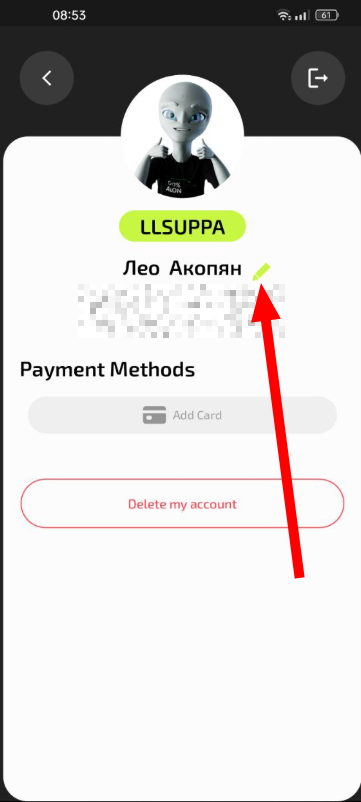
- Find the “Nickname” field
- Enter the name you want to be displayed in the system
- Save the changes
Why this matters: The nickname is visible to club administrators when searching for your account and in the operation history. It helps quickly identify you among other clients.
Step 3. Enter your first and last name
- Fill in the “First name” and “Last name” fields
- Use real data for correct addressing
- The data is saved automatically after being changed
Why this matters: Your name is used by support when addressing you, as well as in official documents and receipts. This ensures polite and professional service.
Common situations
| Problem | What to do and why |
|---|---|
| Changes are not saved | What to do: Check your internet connection and try again. Make sure you tapped the “Save” button. Why: With a poor connection, data may not be synchronised with the server. |
| The nickname field cannot be edited | What to do: Wait for the profile to fully load. If the problem remains, re-login to the app. Why: Some fields may be temporarily locked until all profile data is loaded. |
| I can’t find profile settings | What to do: On the main screen tap the profile icon in the top-right or bottom corner. Why: The position may differ slightly depending on the app version. |
| Data resets after exiting the app | What to do: Make sure you saved the changes before exiting. Check that you are using the latest version of the app. Why: Old app versions may contain data saving bugs. |