4.6.2 Linking a bank card
Article goal
Show how to link a bank card to your IZI account for fast and secure payment of gaming sessions and bar orders without entering payment details every time.
Who this article is for
- Registered users of the IZI app
- Clients who want to simplify the payment process in the club
What you will learn
- How to add a card for automatic payments
- Why a small verification charge is needed
- How a linked card simplifies PC booking and orders
- Where to manage linked cards
Why link a bank card?
Linking a card solves several key tasks:
- Instant session payment — no need to enter card details each time you book a PC
- Auto time extension — the session is automatically extended when time runs out
- Fast bar orders — pay for food and drinks in just a couple of taps
- Security — card data is stored in encrypted form
In short: a linked card eliminates routine payment data entry and makes using the club as convenient as possible.
Step-by-step guide
Step 1. Go to the payment section
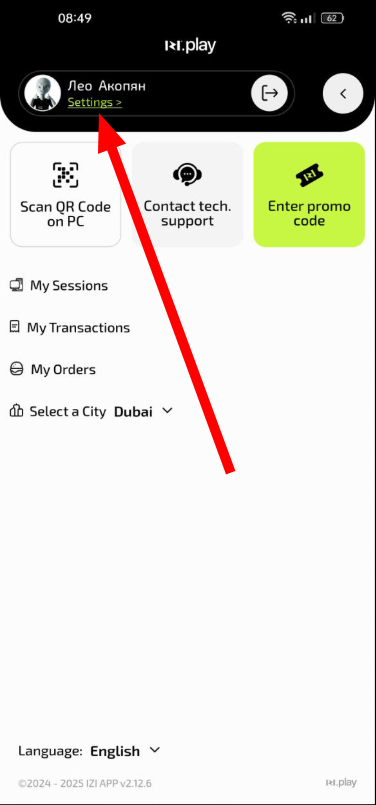
- Open the IZI app
- Tap the profile icon
- Select the “Payment methods” section
- Tap “Add card”
Why this matters: This is the only secure way to link a card. All operations go through a protected connection.
Step 2. Select a club
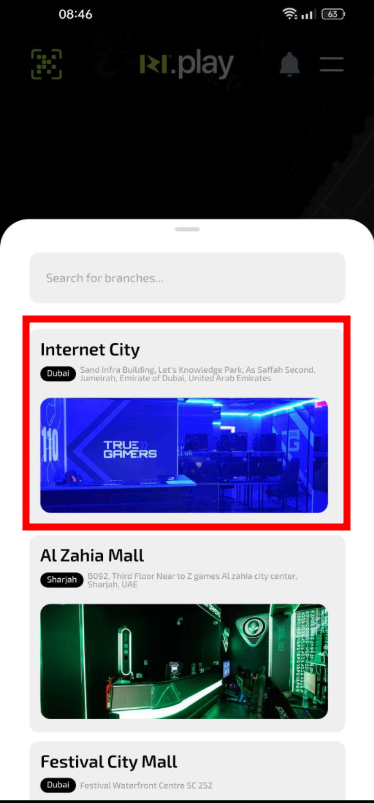
- From the list, select the club where you will use the card
- Confirm your choice
Why this matters: The card is linked to a specific club to ensure payment security. This prevents unauthorised charges elsewhere.
Step 3. Enter card details

- In the opened window select the “By card number” method
- Enter your bank card number
- Check that the entered data is correct
- Confirm the entry
Why this matters: Accurate data entry guarantees successful linking and prevents errors during future payments.
Step 4. Confirm the card via a small charge
- A small amount (1 ruble or an equivalent amount) will be debited from the card for verification
- The funds will be returned to your account immediately
- The card will be successfully linked
Why this matters: This is a standard banking procedure to verify that the card is valid and can be used for operations.
What you can do after linking the card
- Book PCs in the club — payment is made automatically in one tap
- Pay for food and drinks — without re-entering payment details
- Enable auto extension — the session will not be interrupted at a critical moment
- Save time — all payments are processed instantly
Common situations
| Problem | What to do and why |
|---|---|
| The 1-ruble verification charge failed | What to do: Check the card balance, correctness of the entered number and whether the bank supports online payments. Why: The bank may block small test charges as suspicious operations. |
| The card cannot be linked | What to do: Make sure the card supports online payments and is not blocked by the bank. Try another card. Why: Some cards (for example, debit cards without online-payment support) cannot be linked. |
| The verification charge was not refunded | What to do: Usually the refund is instant, but it can take up to 24 hours. If more time has passed, contact your bank. Why: Delays are possible due to the specifics of banking systems. |
| I can’t select a club | What to do: Refresh the club list and make sure a city is selected. Why: The app may not have loaded the current club list because of internet connection issues. |