4.5 Club information
Article goal
Show how to find detailed information about a club in the IZI app: address, opening hours, bar menu and how to quickly start playing in the selected club.
Who this article is for
- Clients of computer clubs
- New users of the IZI app
What you will learn
- How to find the required club in the app
- Where to see the address and opening hours
- How to check the bar menu before your visit
- How to quickly move to booking after viewing the information
Why check club information?
Viewing detailed club information helps you:
- See the exact address and opening hours — to plan your visit and not arrive when the club is closed
- Check the bar assortment — to understand which food and drinks are available
- Quickly start booking — go straight to choosing a PC after reading the information
- Choose the right club — compare different branches by location and services
In short: checking club information saves time and helps you plan a comfortable visit.
Step-by-step guide
Step 1. Open the club list
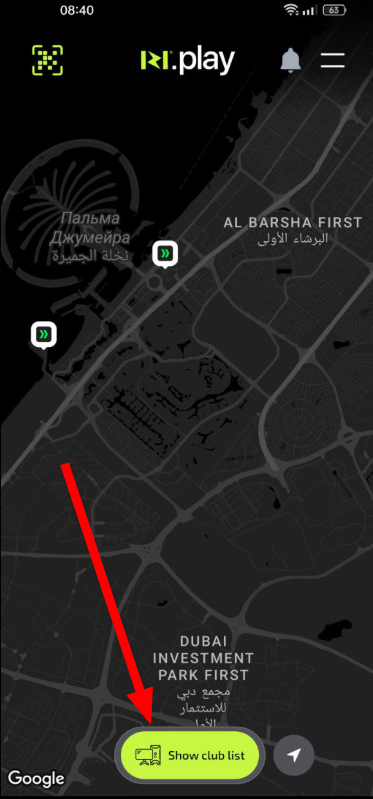
- Open the IZI app
- On the main screen tap the “Clubs” section
- You will see a list of all available clubs
Why this matters: You can see all clubs in your city and choose the most convenient one by location.
Step 2. Select a specific club
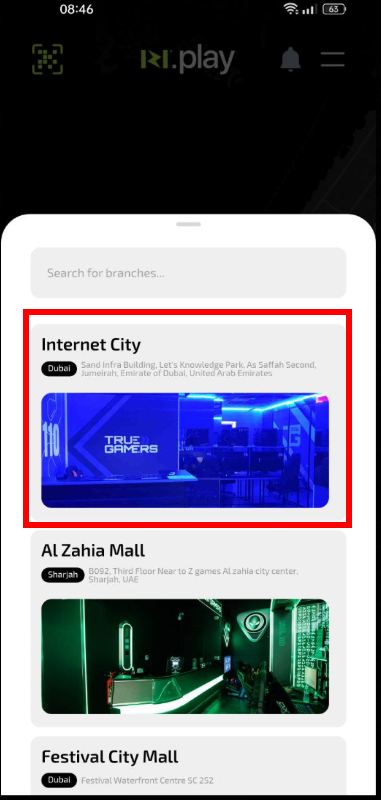
- Scroll through the list of available clubs
- Tap the name of the club you need
- A card with the main club information will open
Why this matters: Each club may have different features, opening hours and bar assortment. Selecting a specific club shows the current information for that branch.
Step 3. View detailed information
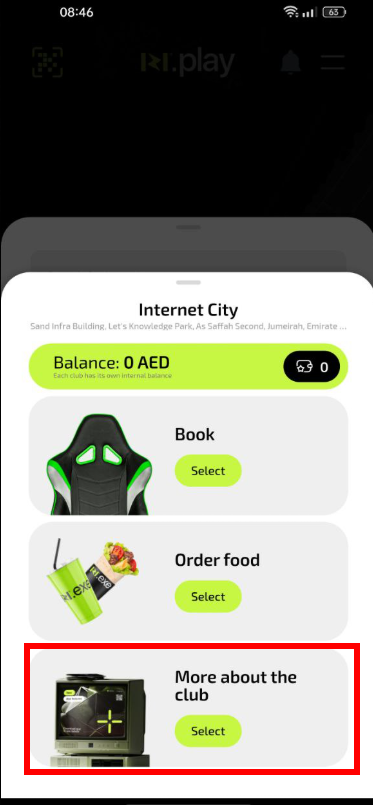
In the club card you will find:
- Address — exact club location
- Opening hours — when the club is open and ready to welcome guests
- Food and drinks — available bar menu
- “Play here” button — to proceed to booking
Why this matters: This information helps you decide whether to visit and prepare for it. You know the exact address, don’t have to search for it separately and can check if the bar offer suits you.
Step 4. Start booking
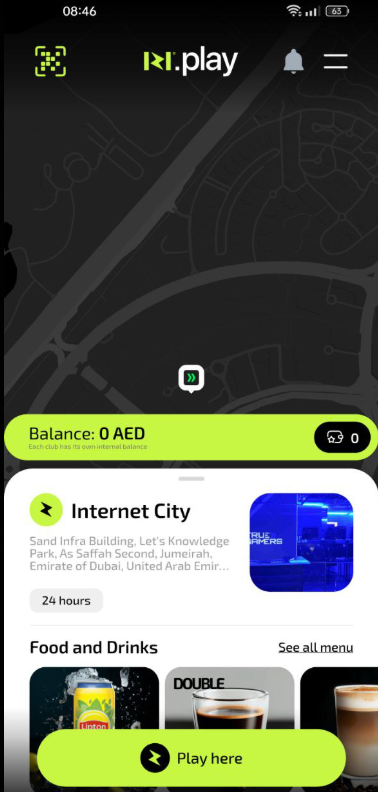
- After reading the information tap the “Play here” button
- You will immediately go to PC selection and booking
Why this matters: This is the fastest way to start booking after you have chosen a suitable club. You don’t need to go back to the main menu and search for it again.
Common problems and solutions
| Problem | What to do and why |
|---|---|
| The required club is not shown in the list | What to do: Pull the screen down to refresh the list. Check the selected city in the settings. Why: The app may not have updated the list of clubs or the wrong city is selected. |
| Opening hours are shown incorrectly | What to do: Refresh the club information by pulling the screen down. If the issue remains, check the current opening hours by calling the club. Why: Opening hours may have changed and the app has not yet synchronised. |
| The bar menu is not displayed | What to do: Check your internet connection and refresh the page. If the menu still does not load, you can view it on the club website. Why: With a slow connection, heavy menu images may load for a long time. |
| The “Play here” button is inactive | What to do: Make sure the club is currently open. Check whether the city is selected in the app settings. Why: The button may be inactive if the club is closed or you have not selected a city. |