4.8 Viewing transactions
Article goal
Learn how to view the history of all financial operations in the IZI app in order to track money movements, control your balance and verify that debits and credits are correct.
Who this article is for
- Registered users of the IZI app
- Clients who want to control their financial operations in the club
What you will learn
- How to find the transaction history section
- Which information you can see for each operation
- How to analyse your spending in the club
- Why it is useful to regularly check your transaction history
Why view your transaction history?
Regularly checking the “My transactions” section allows you to:
- Control all money movements — see every top-up and debit of your balance
- Detect unexpected operations — quickly find and dispute incorrect debits
- Analyse expenses — understand what exactly you spend money on in the club
- Plan your budget — track total spending over a period
- Confirm payments — have documentary proof of all financial operations
In short: viewing transactions means full financial control and protection from incorrect debits.
Step-by-step guide
Step 1. Go to your profile
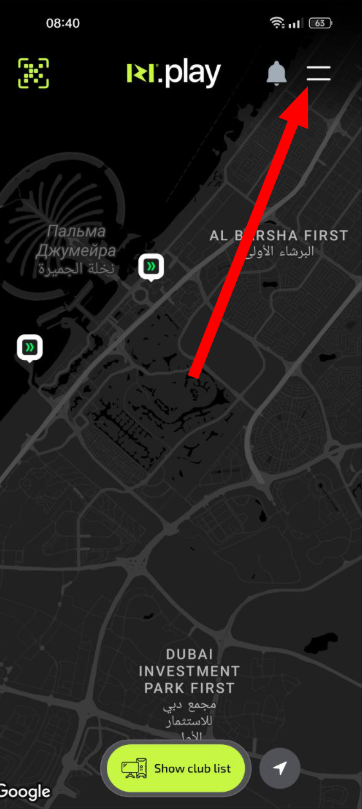
- Open the IZI app
- On the main screen tap your profile icon
Why this matters: All financial operations are linked to your account and stored in the personal profile section.
Step 2. Open the “My transactions” section
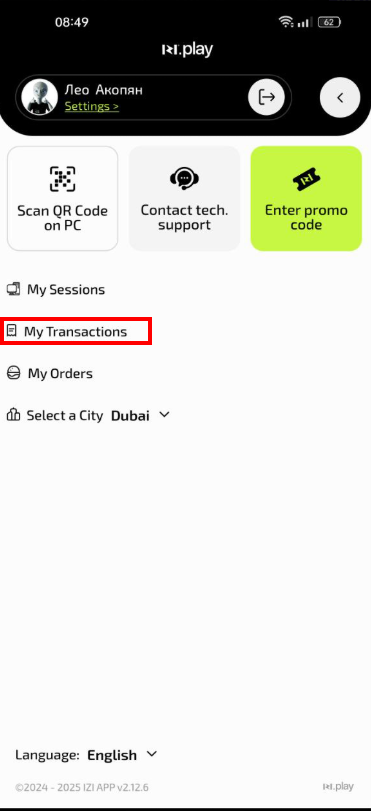
- In the profile menu find and tap “My transactions”
- Wait for the list of operations to load
Why this matters: This section contains the full history of all financial operations since registration.
Step 3. Analyse transaction information
In the “My transactions” section you will see:
- Date and time of each operation
- Type of operation (top-up, debit, refund)
- Amount of the operation with currency
- Execution status (successful, declined, in progress)
- Payment purpose (session payment, bar order, balance top-up)
- Payment method (card, cash, bonuses)
- Remaining balance after the operation
Why this matters: Detailed information helps you fully control financial flows and quickly react to any discrepancies.
Common situations
| Problem | What to do and why |
|---|---|
| A transaction is not shown in history | What to do: Pull the screen down to refresh the list. Check your internet connection. Why: Data is synchronised with the server and may appear with a delay. |
| An unknown transaction is found | What to do: Check the operation details. If the operation is not yours, immediately contact club support. Why: It may be a system error or unauthorised access to your account. |
| The debit amount does not match | What to do: Compare the amount with current tariffs and bar prices. Take into account possible promotions and discounts. Why: The amount may differ due to price changes or applied bonuses. |
| The operation status is “in progress” for a long time | What to do: Wait a few hours. If the status does not change, check notifications from your bank. Why: Bank operations can be processed for up to 24 hours. |