Changing country and language
Article goal
Learn how to change the country, city and interface language in the IZI app so that you see actual clubs in the desired region and use the app in a convenient language.
Who this article is for
- Users who travel between different cities and countries
- Clients who prefer to use the app in English
- New users who want to customise the app for their needs
What you will learn
- How to change country and city to view local clubs
- How to change the app interface language
- Why you should update your location when moving
- How to quickly find the necessary settings
Why configure country and language?
Correct location and language settings allow you to:
- See actual clubs — display only those branches that are located in the selected city
- Get correct tariffs — see the right prices and available tariffs for the selected region
- Use the app in a language you understand — understand all functions and instructions without a language barrier
- Save time — avoid manually searching for the desired club among all network branches
- Plan visits — get to know clubs in a new city in advance before the trip
In short: correct location and language settings save time and ensure comfortable use of the app.
Step-by-step guide
Changing country and city
Step 1. Go to your profile

- Open the IZI app
- On the main screen tap the profile icon
Why this matters: All main settings, including location selection, are in the personal profile section.
Step 2. Open city selection
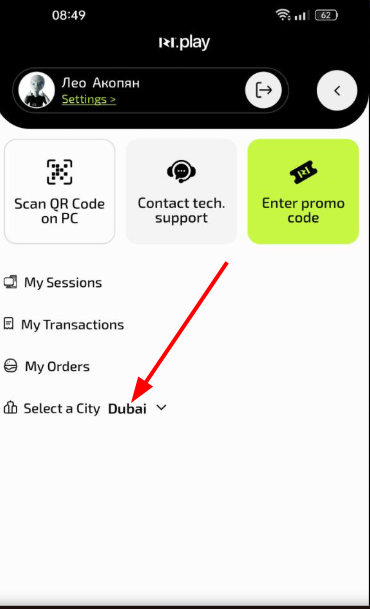
- In the profile menu find the “Choose city” section
- Tap it to open the list of countries
Why this matters: This is the only way to change the region to display the corresponding clubs.
Step 3. Select country and city
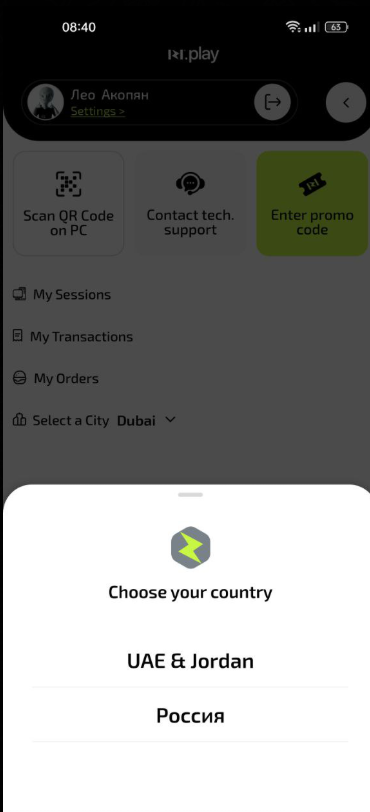
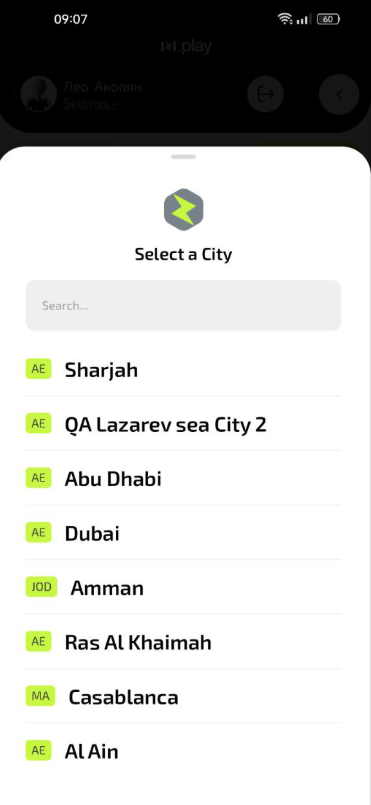
- Select the required country from the list
- Select a city in the chosen country
- Confirm your choice
Why this matters: The app will show only those clubs that are located in the selected city, which simplifies search and booking.
Step 4. Choose a club
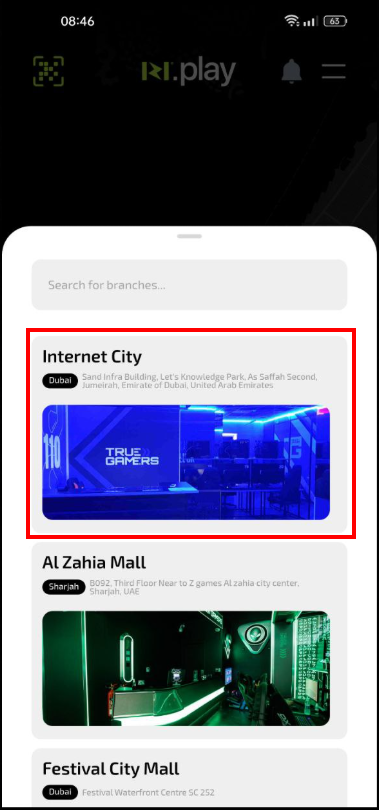
- After choosing a city, the list of available clubs will open
- Select the required club to view information and make a booking
Why this matters: Each club may have different tariffs and available services, so it is important to select a specific branch.
Changing the language
Step 1. Go to your profile
- Open the IZI app
- Tap the profile icon
Why this matters: Language settings are located in the main profile menu for quick access.
Step 2. Select a language
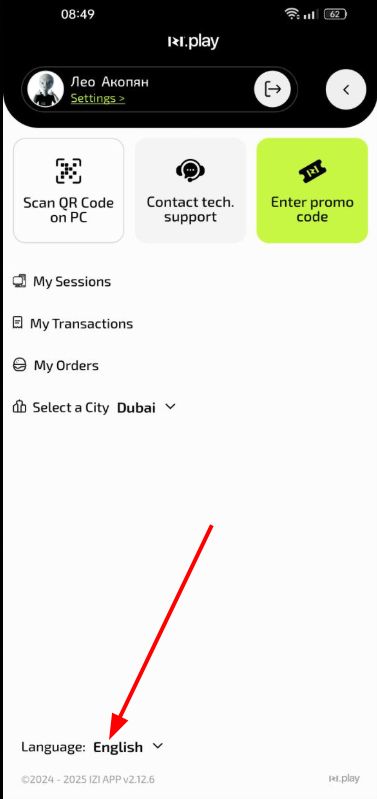
- At the bottom of the screen on the left, find the language switcher
- Tap it and select the desired language from the available ones
- Changes are applied automatically
Why this matters: Changing the language allows you to use the app in Russian or English depending on your preferences.
Common situations
| Problem | What to do and why |
|---|---|
| The required city is not shown in the list | What to do: Check your internet connection. Why: The list of cities is loaded from the server and may not update with a poor connection. |
| The language does not change after selection | What to do: Close and reopen the app. Make sure your language choice has been saved. Why: Some interface elements may require a restart for changes to be fully applied. |
| There are no clubs in the selected city | What to do: Check that the city is selected correctly. Make sure there are IZI partner clubs in this city. Why: The app shows only cities where clubs using the IZI system are available. |
| I don’t see the language switcher | What to do: Scroll the profile screen down. The switcher is located at the bottom left of the screen. Why: The position of elements may slightly differ depending on the app version. |