4.7 Viewing sessions
Article goal
Learn how to view the history and current gaming sessions in the IZI app to control your expenses, check remaining time and analyse your gaming activity.
Who this article is for
- Registered users of the IZI app
- Clients who want to track their club visits
What you will learn
- How to find the section with session history
- Which information is available for each session
- How to analyse your gaming habits
- Why it is useful to regularly check your session history
Why view your session history?
Regularly checking the “My sessions” section helps you:
- Control expenses — see how much time and money you spend on games
- Plan your budget — analyse weekly and monthly spending on game time
- Find patterns — understand on which days and at what time you most often visit the club
- Detect unexpected charges (forgot to end a session) — quickly react to possible system errors
- Optimise tariffs — choose suitable time packages based on your statistics
In short: viewing sessions is financial control and the basis for smart planning of your future visits to the club.
Step-by-step guide
Step 1. Go to your profile
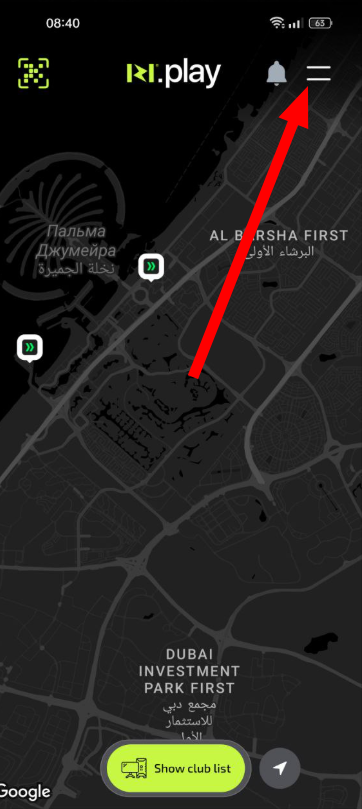
- Open the IZI app
- On the main screen tap the profile icon in the top-right corner
Why this matters: All personal data, including your session history, is stored in your profile. It is the central place for managing your account.
Step 2. Open the “My sessions” section
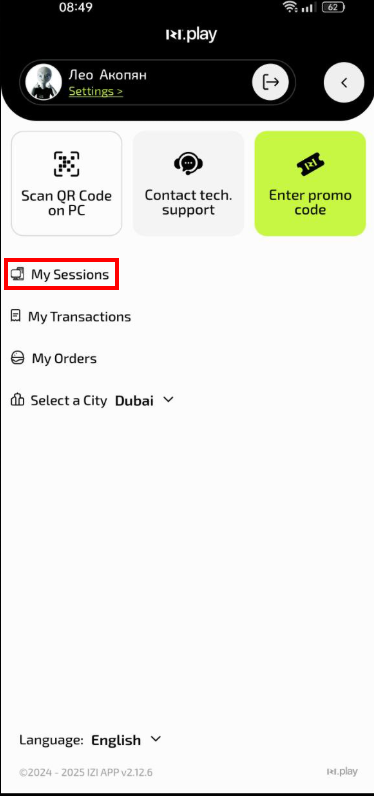
- In the profile menu find and tap “My sessions”
- Wait for the session list to load
Why this matters: This section contains the full history of all your gaming sessions — both finished and active.
Step 3. Analyse session information
In the “My sessions” section you will see:
- Active sessions — current gaming sessions with a countdown timer
- Date and time of the start and end of each session
- Duration of game time
- Cost of each session
- Tariff name used for the session
- PC number and the zone where you played
Why this matters: Detailed information helps you understand which tariffs are most profitable for you and how much time you actually spend playing.
Common situations
| Problem | What to do and why |
|---|---|
| A session is not shown in history | What to do: Pull the screen down to refresh the list. If the session still does not appear, check your internet connection. Why: Data may load with a delay due to connection speed. |
| The time in history does not match | What to do: Make sure the correct time zone is set in your phone settings. Why: Session time is displayed according to your device settings. |
| The cost is displayed incorrectly | What to do: Check which tariff was active for the session. Compare it with current club prices. Why: The cost depends on the tariff, which may have changed after your session. |
| Active sessions are not visible | What to do: Make sure the session has not been ended. Check the “Active sessions” section in the main app menu. Why: Active sessions may be displayed in a separate section for quick access. |