4.11.2 Activating sessions for the current time
Activating sessions for the current time
Article goal
Learn how to quickly activate a gaming session for the current time via the IZI app so you can start playing immediately when you arrive at the club, without waiting or extra steps.
Who this article is for
- Users who are already in the club and want to start playing
- Clients who prefer spontaneous visits without prior booking
- Visitors who want to minimise the time between arriving at the club and starting the game
What you will learn
- How to activate a session for the current moment
- How to quickly choose a computer and start playing
- Which tariff to choose for instant activation
- Why to use this method instead of booking in advance
Why activate a session for the current time?
Instant session activation solves several key tasks:
- Start playing immediately — no need to wait at the administrator desk
- Spontaneous visits — come to the club without planning and get access to a PC right away
- Save time — the whole process takes less than a minute
- Avoid queues — especially during hours when administrators are busy with other clients
In short: instant session activation turns a club visit into “came–sat down–started playing”.
Step-by-step guide
Step 1. Select a club
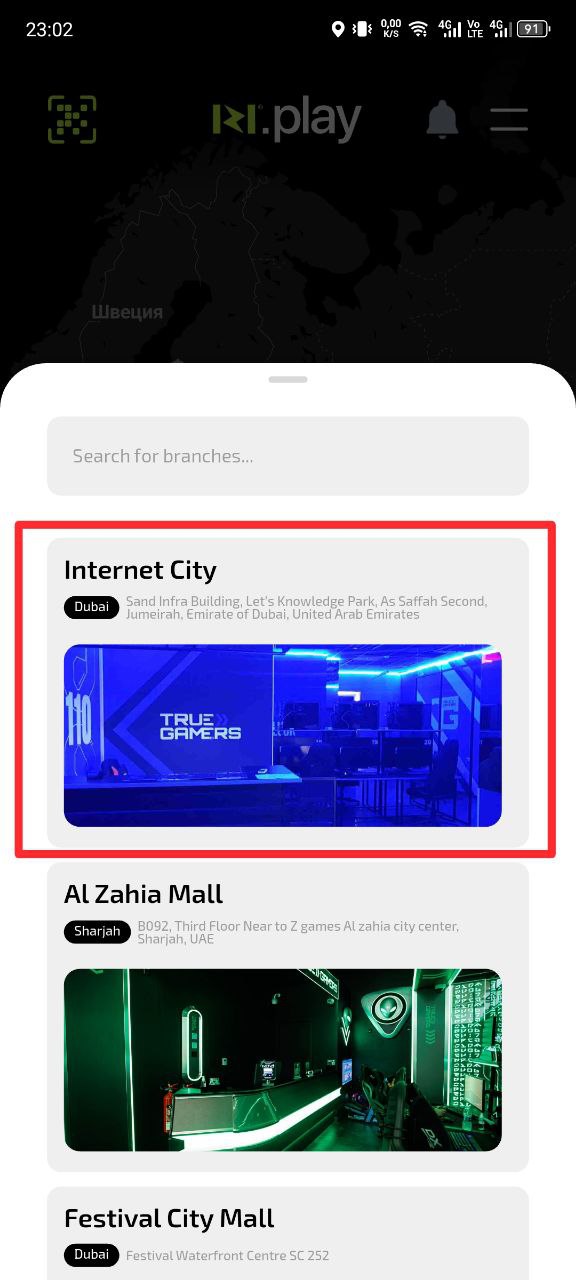
- Open the IZI app
- Select the club you are currently in
- Make sure it is the correct branch
Why this matters: Tariffs and available computers may differ between clubs in the network.
Step 2. Start the activation process
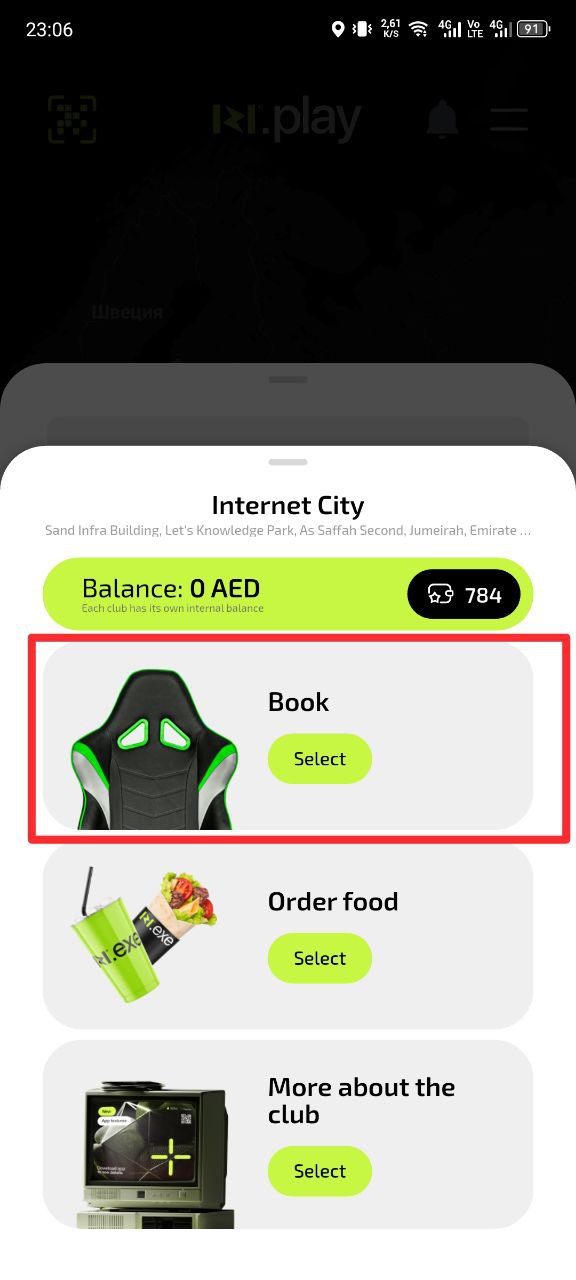
- On the club page tap the “Book” button
- The system will take you to the parameter selection section
Why this matters: Despite the name “Book”, this process is also used for instant session activation.
Step 3. Select a PC
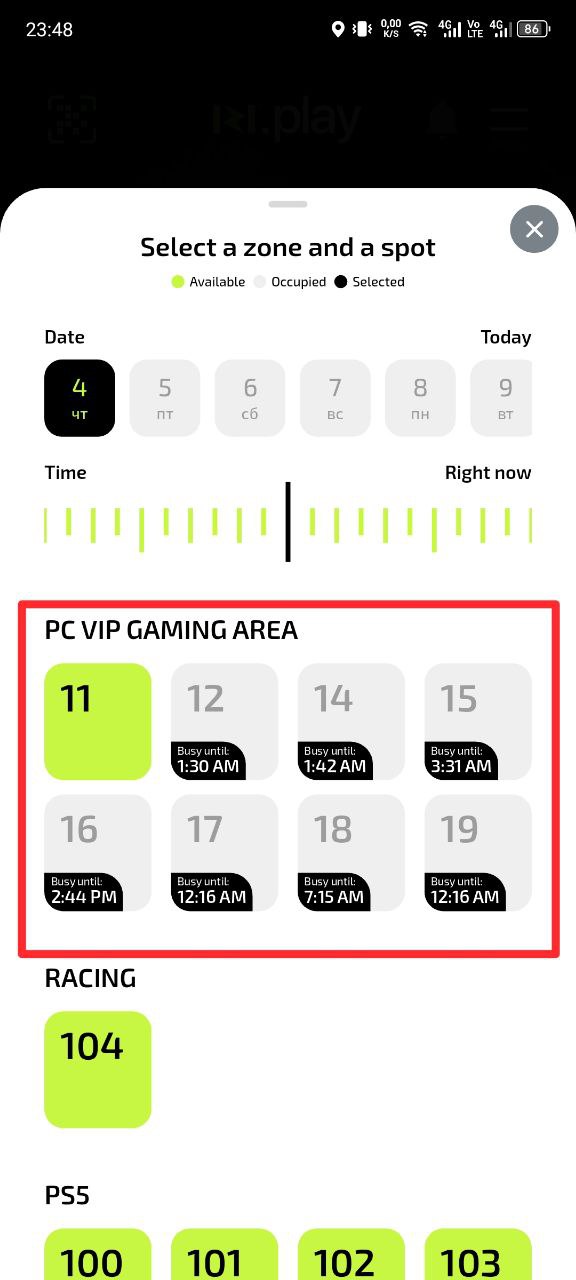
- Browse the list of available computers
- Select the specific PC you want to use
- Make sure it is free (marked with the corresponding status)
Why this matters: You can choose any free computer in the room, based on its location and characteristics.
Step 4. Check date and time
- The system will automatically set the current date and time
- Do not change these parameters
- Tap “Next”
Why this matters: Automatic settings guarantee that the session will start immediately after payment, without delays.
Step 5. Select a payment type
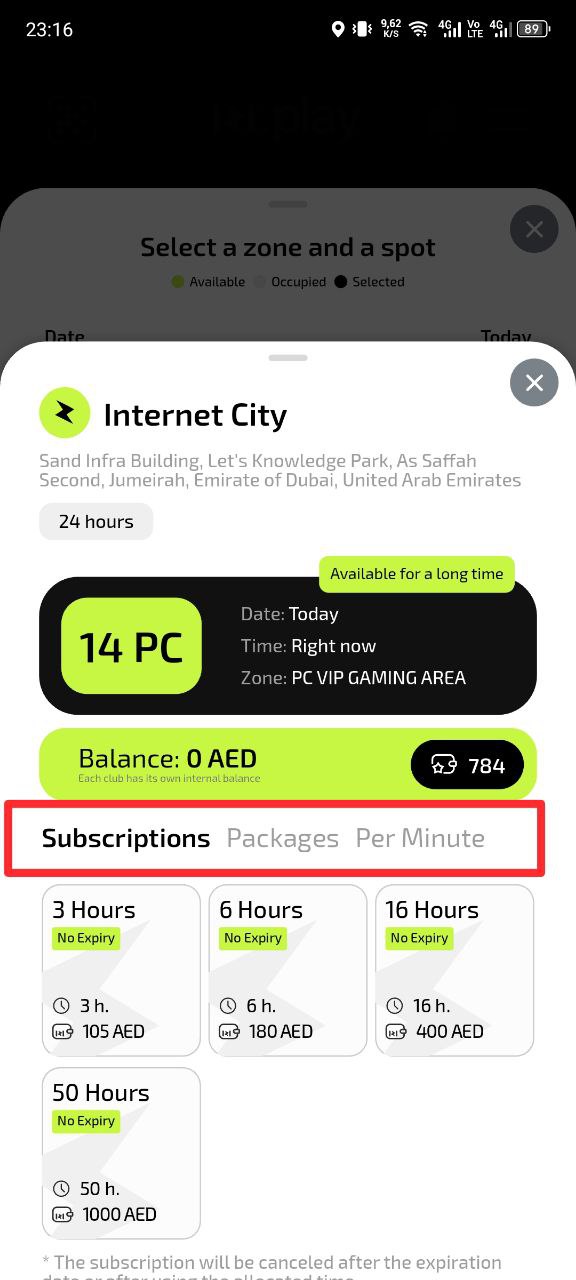
- Choose a suitable option: Season pass, Package or Per-minute
- Base your choice on the planned duration of play
Why this matters: For short sessions, per-minute tariffs are more profitable; for long ones, packages or season passes are better.
Step 6. Select a tariff
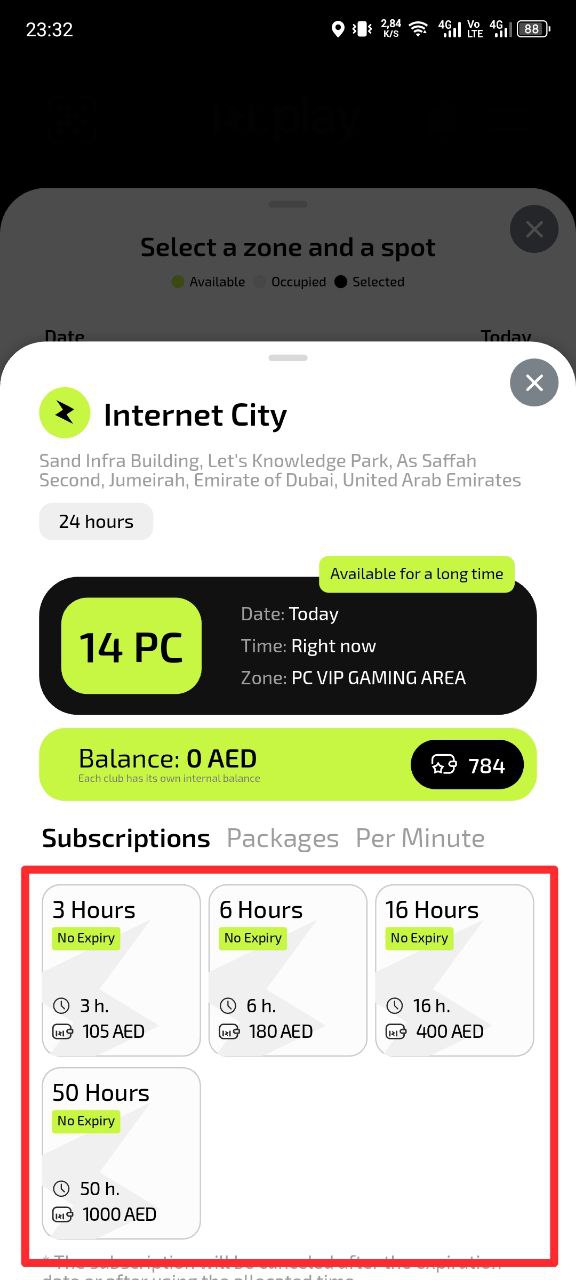
- From the list of available tariffs choose the optimal one
- Pay attention to the price and conditions
Why this matters: Choosing the right tariff helps you save money and get the required amount of time.
Step 7. Pay for the session
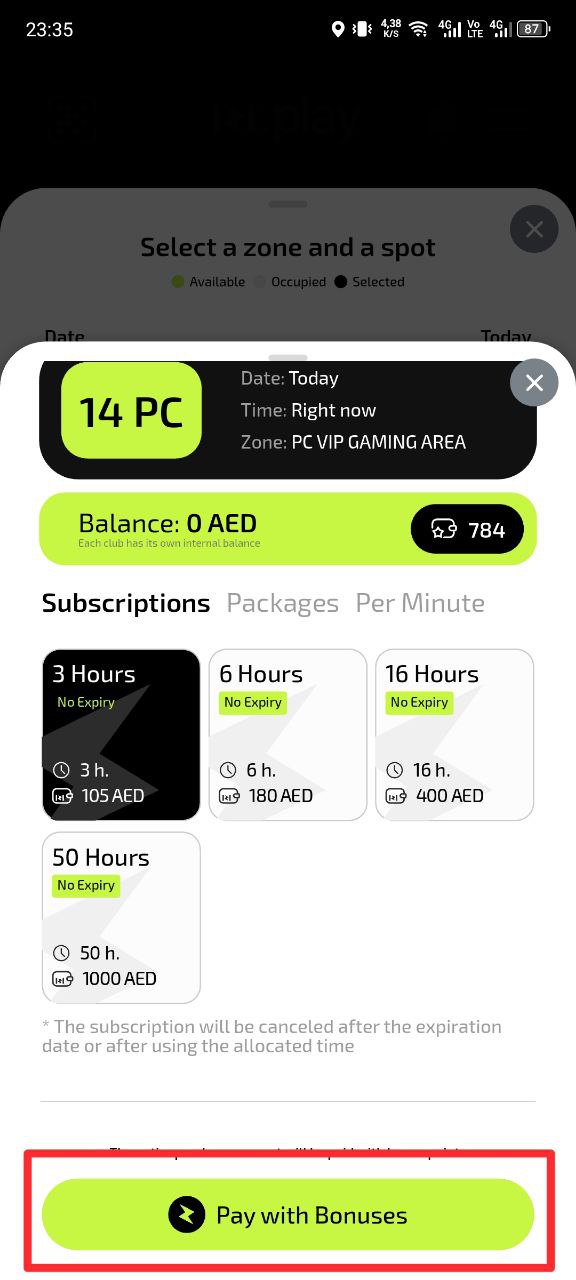
- Check all activation parameters
- Tap the “Pay” button
- Confirm payment with the selected method
Why this matters: After successful payment, the computer is automatically unlocked and you can start playing immediately.
Common situations
| Problem | What to do and why |
|---|---|
| The selected PC is occupied by another user | What to do: Choose another free computer from the list. Why: PC statuses are updated in real time, but small delays are possible. |
| You cannot pay for the session | What to do: Check your card balance and internet connection. Try another payment method. Why: Without successful payment the session will not be activated. |
| You need to change the session start time | What to do: You do not need to change the time — the system automatically sets the current time. Why: This ensures an instant start of the game after payment. |
| Free computers are not displayed | What to do: Refresh the page. Make sure the correct club is selected. Why: Data on computer availability is updated every time the page is refreshed. |