3.6.5 Exporting the items list to a file
Article goal
Show how a club administrator can export the items list to a file for convenient work and integration with external accounting systems in IZI CRM.
Who this article is for
- Club administrator
- Users with access rights to the “Store” section in the admin panel
What you will learn
- How to open and configure the items export
- How to select fields (columns) to include in the file
- How to include all items, even those that are out of stock
- What to do if the file is not downloaded or fields are displayed incorrectly
Prerequisites
Before you start, make sure that:
- You have administrator rights with access to the “Store” section
- Items have already been added to the system
- Access to the admin panel is available
Step-by-step guide
Step 1. Go to the “Store” section
- Log in to the IZI CRM admin panel.
- Go to “Store – Items list”.
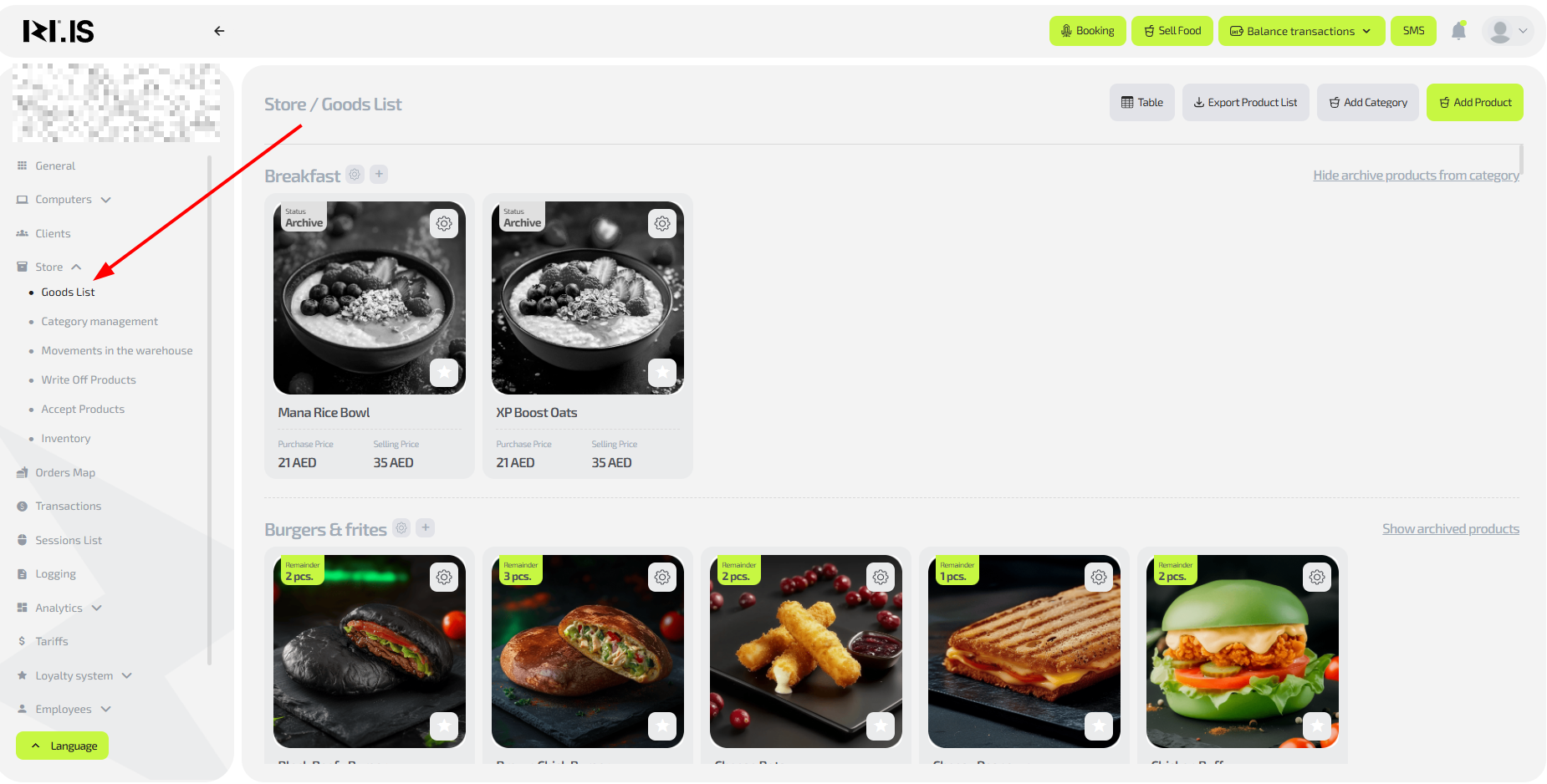
Step 2. Start the export
- On the right, click the “Export items list” button.
- In the window that opens, tick the fields (columns) you want to see in the file.
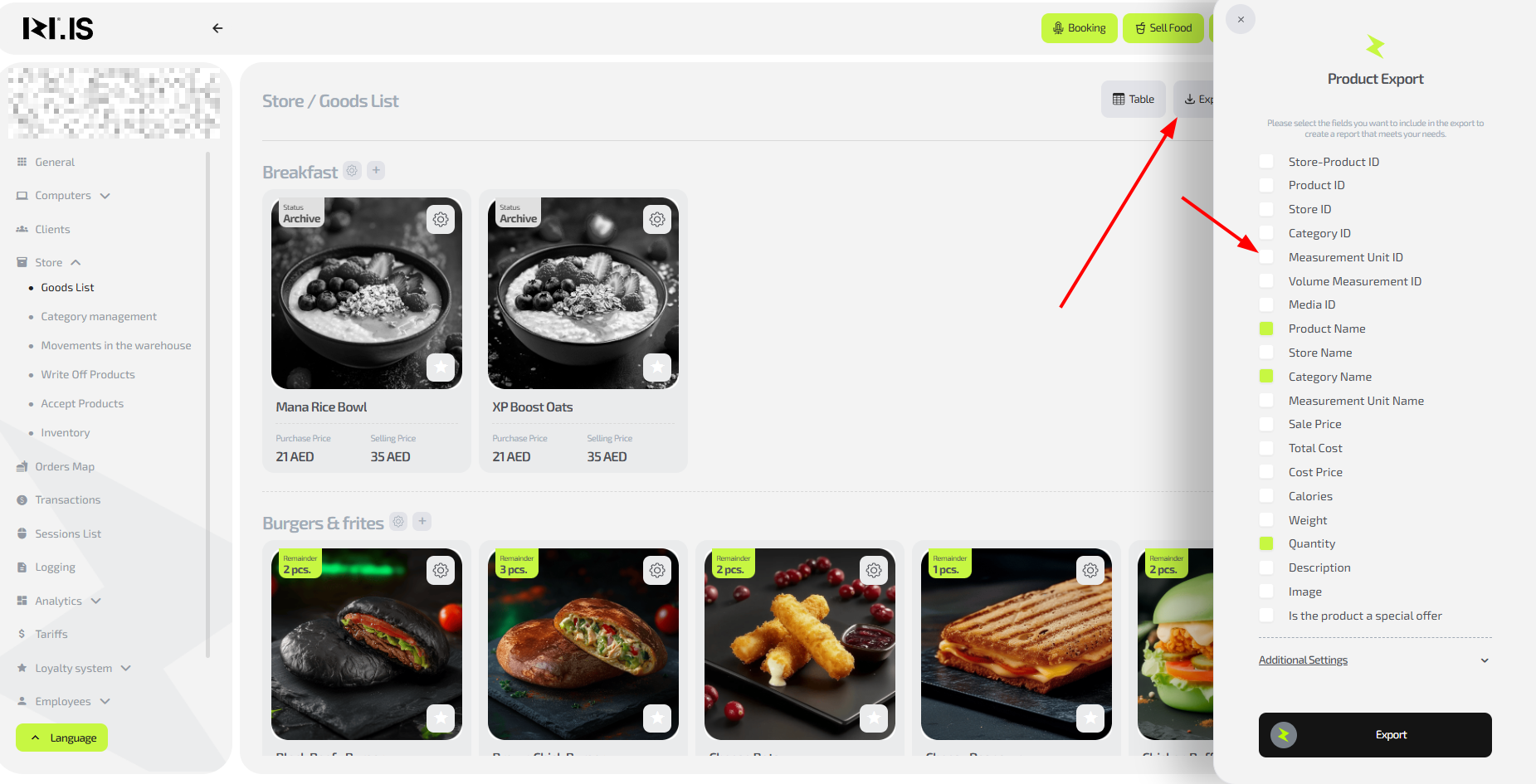
Tip: Select only relevant fields so that the file remains compact and convenient for analysis.
Step 3. Include all items (if needed)
- At the very bottom of the list, click “Advanced options”.
- Enable the toggle to include absolutely all items, even those that are currently out of stock.
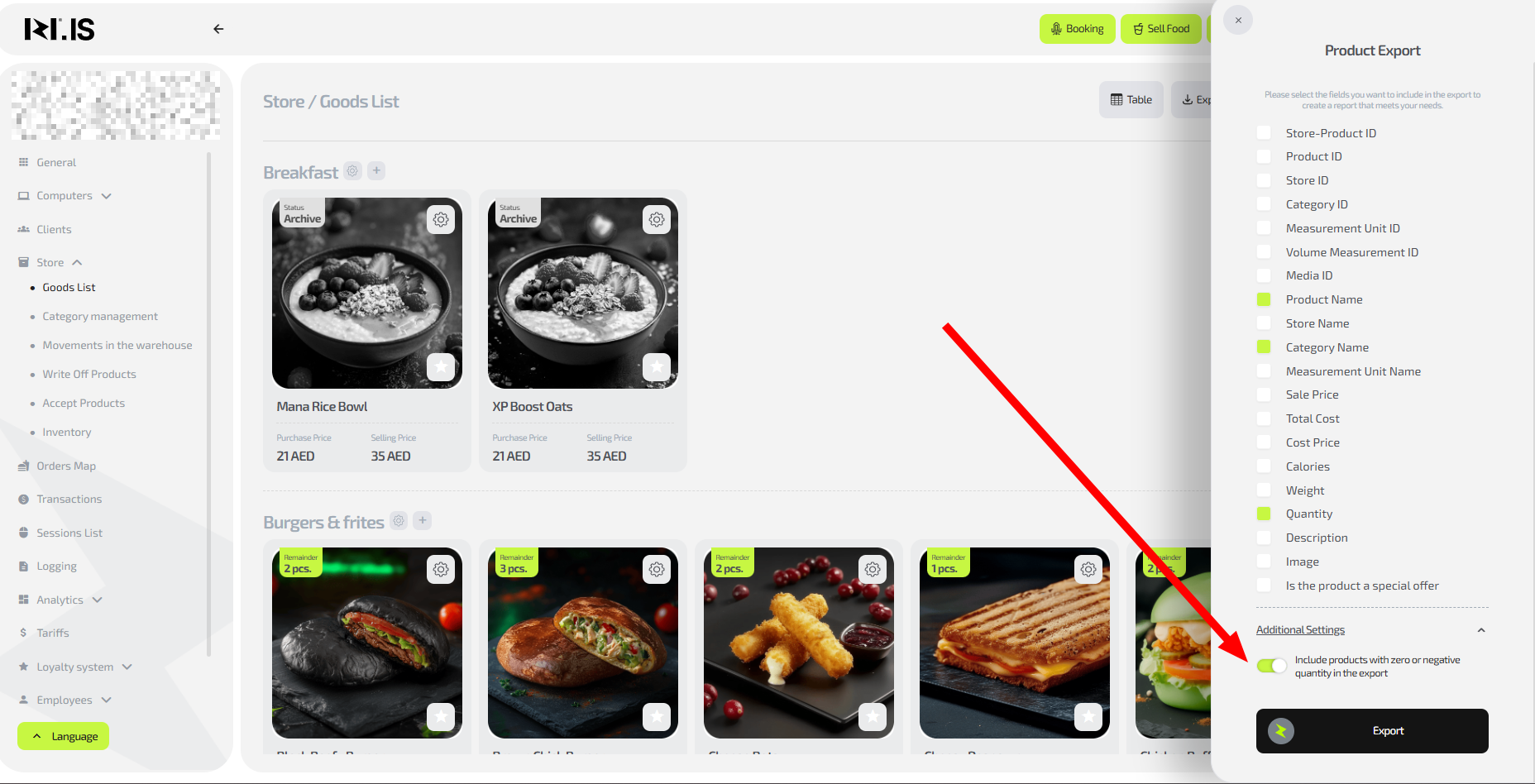
Important: Without this option, only items with stock balance >0 will be exported.
Step 4. Run the export and save the file
- Click “Export”.
- Choose the location and file name on your computer.
- Open the file — it will contain the full list of items with the selected fields.
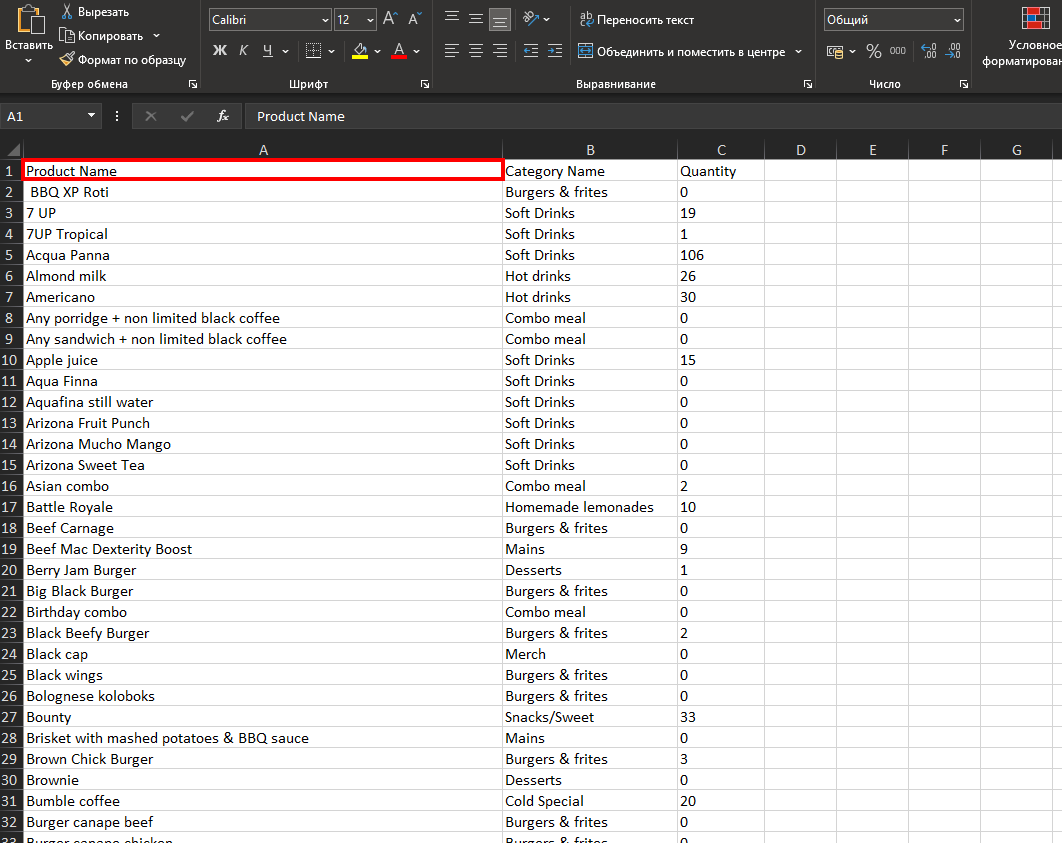
Tip: Use the .xlsx file for importing into external accounting systems.
Common situations
| Problem | What to do |
|---|---|
| The file is not downloaded | Check your Internet connection; try another browser or refresh the page. |
| Fields are not displayed | Make sure they are checked in the export window; repeat the export. |
| Items with zero stock are missing | Enable the “Advanced options” setting to include all items. |
| The file opens empty | Check the encoding (UTF-8); open it in Excel or Google Sheets. |