3.6.2 Items list
Article goal
Help the club owner or administrator understand the “Items list” section, learn how to navigate its interface, find required items, filter, edit and manage the bar assortment via IZI CRM.
Who this article is for
- Club owners
- Administrators
- Managers working with the store and bar
What you will learn
- Which interface elements are available in the “Items list” section
- How to work with item cards and categories
- Which actions are available for an item
- How to use the table mode
- How to export the items list to Excel / PDF
- Where categories are edited and how to move an item to another category
Prerequisites
Before you start, make sure that:
- You have access to the Store section
- Item categories are created (if not — see 3.6.1 Category management)
- You understand the store logic: write-off, receipt, movement (see the corresponding articles)
Main section interface
After going to Store → Items list, a visual catalog of items grouped by categories opens.
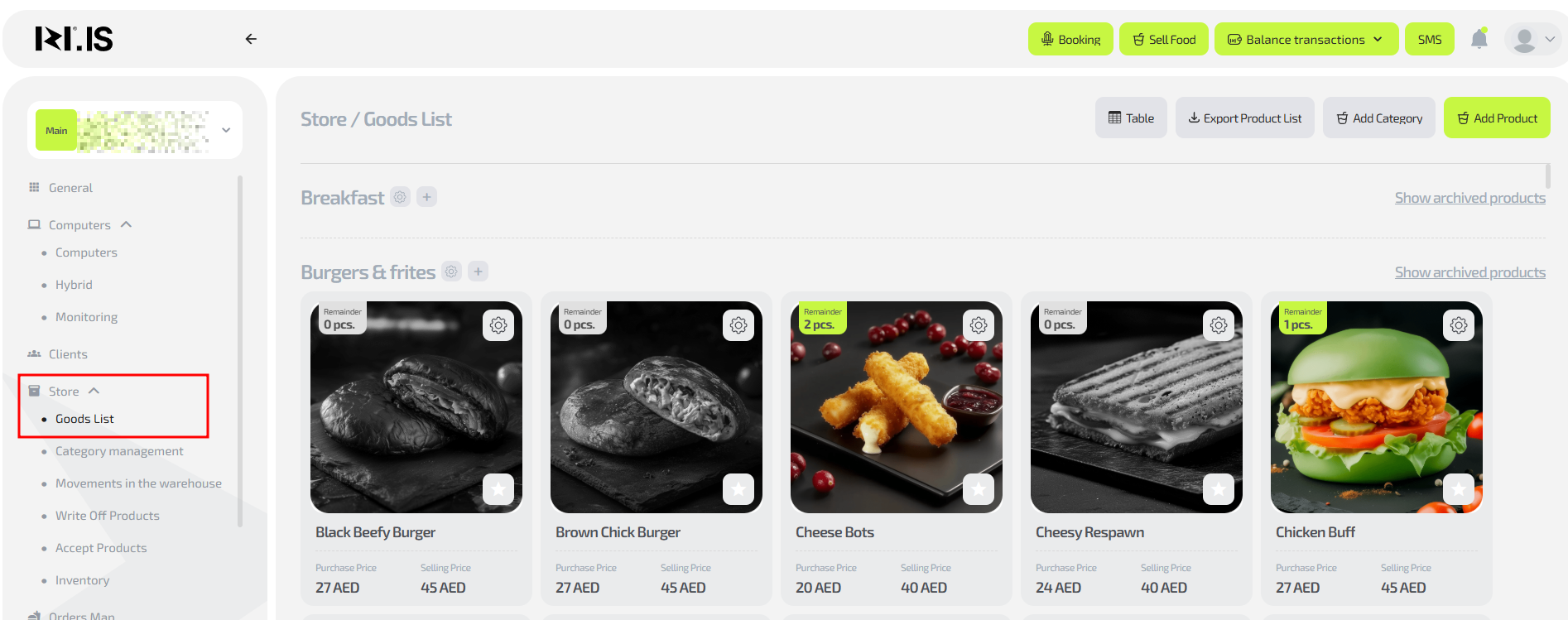
The screen shows:
Item categories
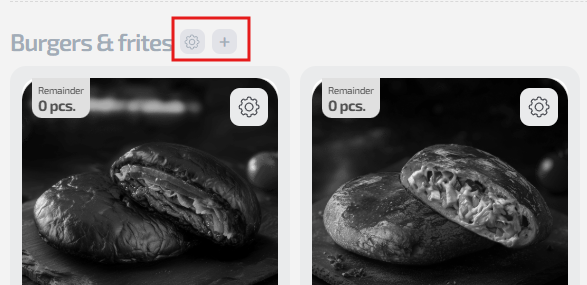
Each category is separated by a header. On the right side of the name there is a gear icon, which opens the category editing window (see 3.6.1) and a “plus” icon to add a new item to the category.
Item cards

Each card contains:
- Item photo
- Current stock (“Balance X pcs”)
- Purchase price
- Sale price
- “Star” icon to mark the item as a special offer
- ⋮ (gear) button — item actions menu
Available actions with the item (from the menu)
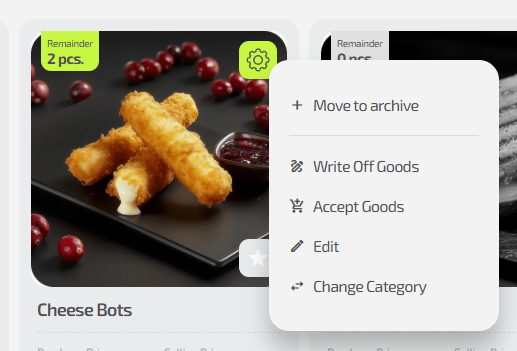
When you click the gear icon, the menu opens:
- Move to archive
- Write off item
- Receive item
- Edit
- Change category
(Details of these operations are covered in separate articles: write-off, receipt, item editing and working with categories.)
Section control buttons

At the top of the page:
- Table view / cards — switches how items are displayed
- Export items list — exports the assortment
- Add category
- Add item
There is also a “Show archived items” button that allows you to display hidden positions.
Table mode
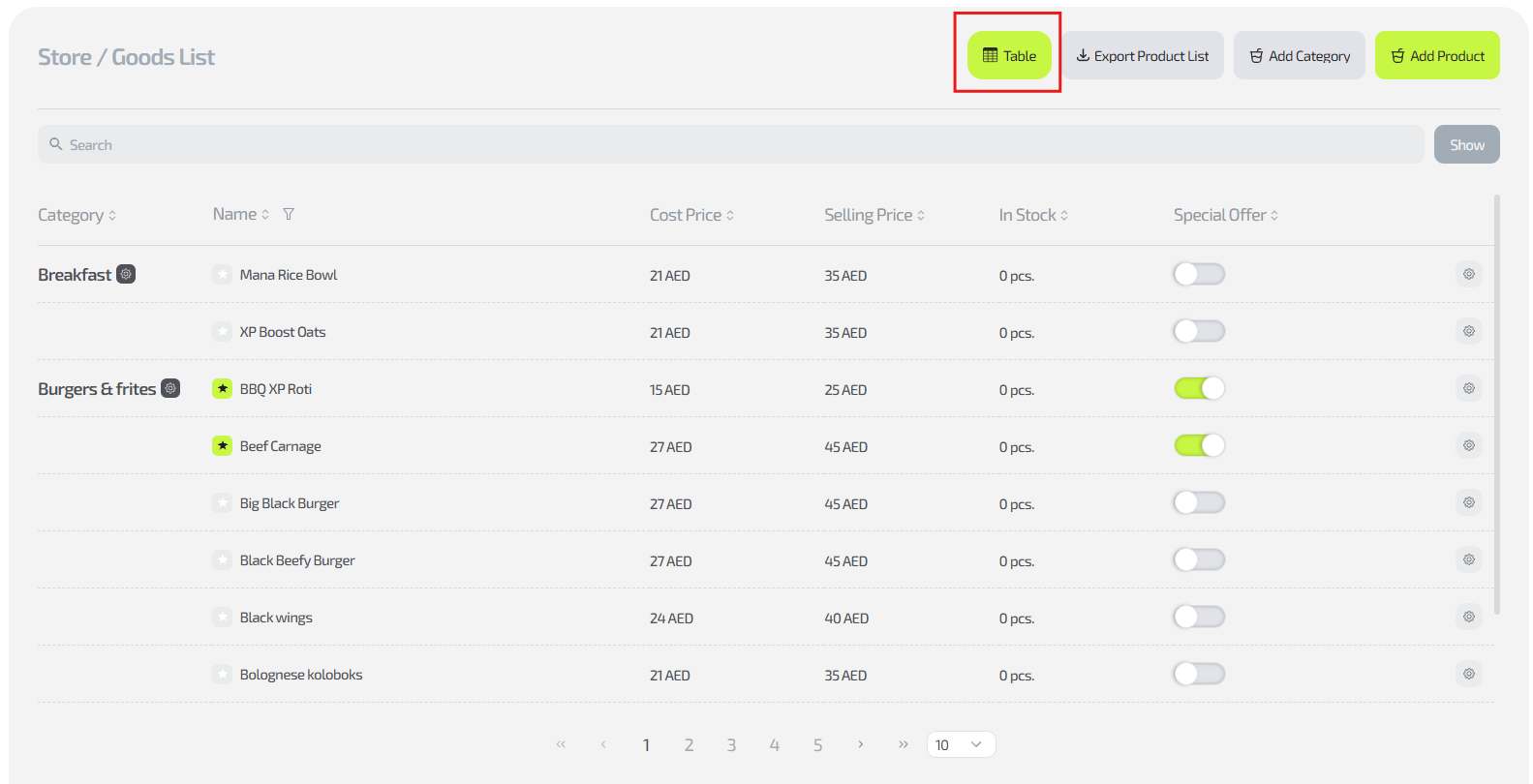
When you click the “Table” button, the items list is shown in a structured table.
The table shows:
- Category
- Item name
- Cost price
- Sale price
- Stock balance
- Special offer (toggle)
- Actions menu (⚙)
Features of table mode:
- Search works by name, category, price and many other parameters
- Sorting is available on most columns (arrows next to the header)
- The gear in the category row opens the category editing window
- The gear in the item row opens the same item menu as in card view
- The table is convenient when working with large sets of items
Search and filters

At the top there is a universal search bar. It allows you to search:
- By item name
- By category
- By price
- By part of a word or phrase
Search works instantly and supports partial matches.
Exporting the items list
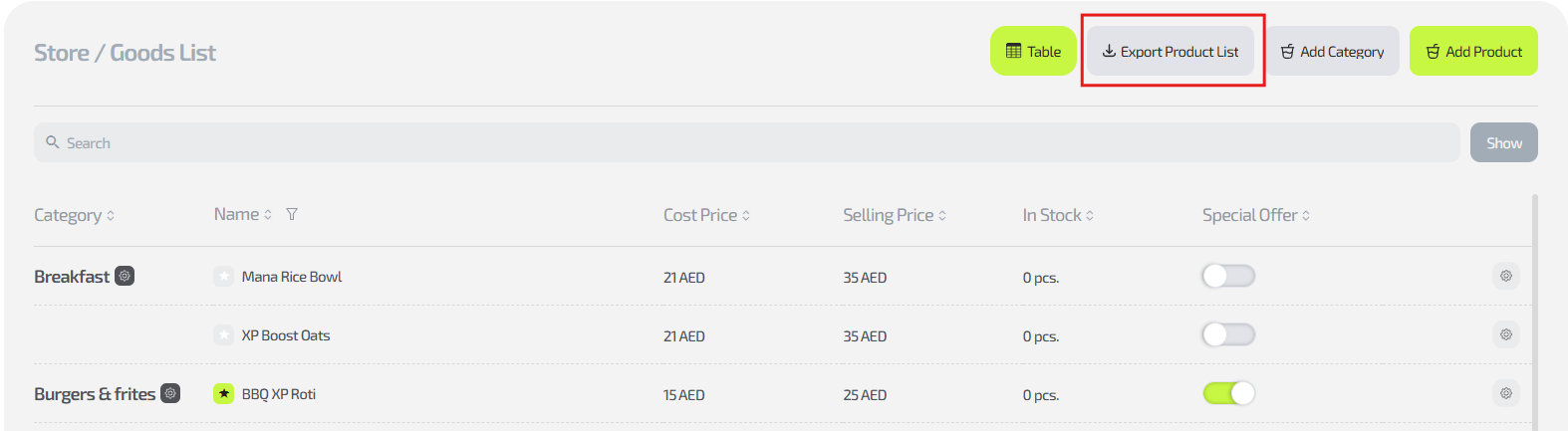
To create reports, click:
Store → Items list → Export items list
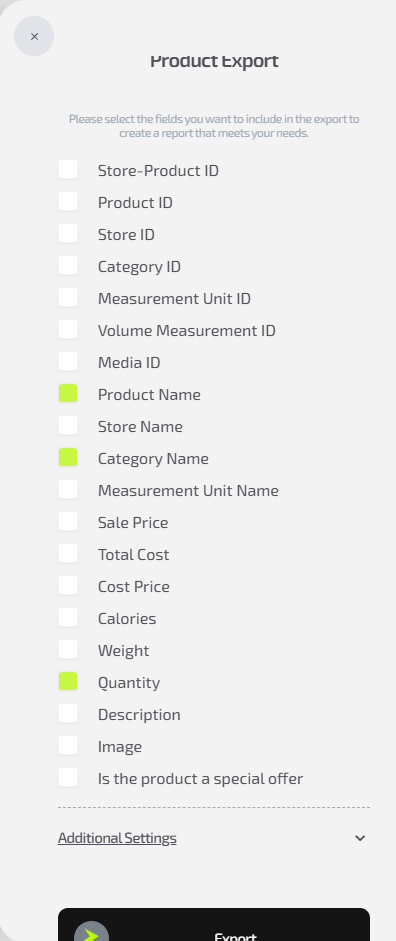
A window will open where you can select parameters:
Select fields for the report:
- Name
- Quantity
- Purchase price
- Sale price
- Category
- Total cost and others
Example uses of the report:
For stock analysis — name, quantity, sale price
For financial accounting — purchase cost, quantity, total
For updating the bar menu — categories + item names
There is a setting:
“Include items with zero or negative quantity”
Useful when analyzing shortages.
After selecting parameters, click “Export” — an Excel file will be downloaded.
Common situations
| Situation | Solution |
|---|---|
| You need to quickly change an item price | Open the menu → “Edit” |
| Item should disappear from the menu | Archive it |
| Item is out of stock, you need to add more | Use “Receive item” |
| You made a mistake with stock balances | Use “Write off” or “Receive item” |
| Some positions are not visible | Enable display of archived items |