3.11.2 Fixed tariff (Creation)
Article goal
Show the club owner how to create a fixed tariff in IZI CRM: from selecting the tariff type to configuring its active time and price.
Who this article is for
- Club owners
- Club managers
- Staff members with owner-level rights
Important:
Creating and editing tariffs is available only under the club Owner account.
Under an Administrator account this functionality is not available.
What you will learn
- What a fixed tariff is and how it works
- Where a fixed tariff is created in CRM
- Which parameters must be filled in
- How to configure validity period, days and hours
- How to set the price correctly
- In which cases a fixed tariff is used
Prerequisites
Before you start, make sure that:
- You are logged into CRM with the club Owner account
- PC zones are already configured in the system
- You understand during which hours this tariff should be active
What is a fixed tariff
A fixed tariff is a tariff with a strictly defined time interval during which the client can use a PC.
Specifics:
- The client can sit at a PC at any time within the tariff period
- But must leave the PC exactly at the end of the tariff period, even if they started later
- The price is always fixed, regardless of the actual play time
Example
The “Cyber morning” tariff is active from 08:00 to 11:00.
The client pays for the tariff and sits down at 09:30.
They must leave the PC exactly at 11:00, while paying the full tariff price.
Step-by-step guide to creating a fixed tariff
Step 1. Go to the “Tariffs” section
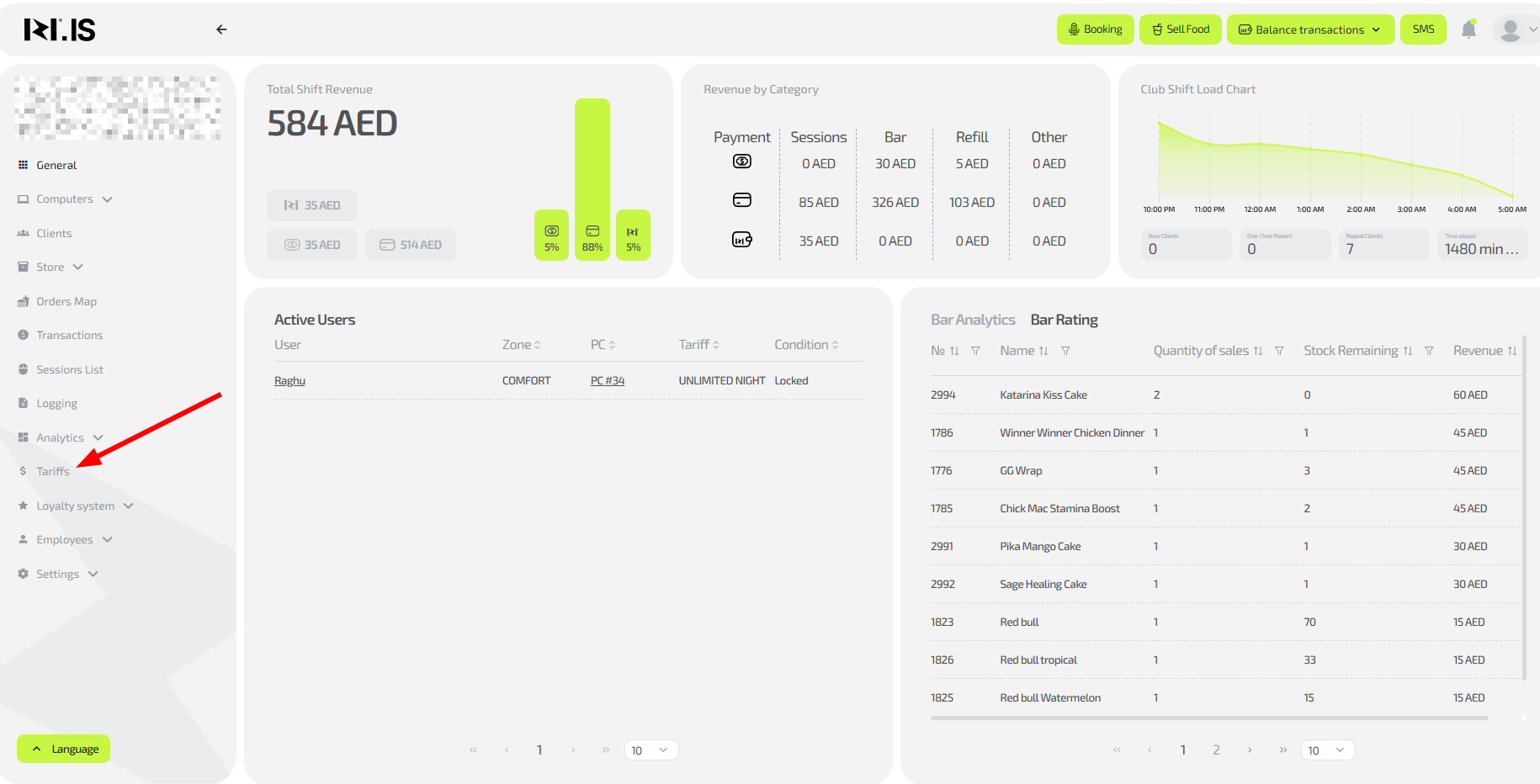
On the CRM main page, in the left menu click “Tariffs”.
Step 2. Create a new tariff

Choose one of the options:
- Click “+ New tariff” in the upper-right corner
- Or click “+” in the “Fixed” subsection of the required tariff group
Step 3. Fill in the left side of the form
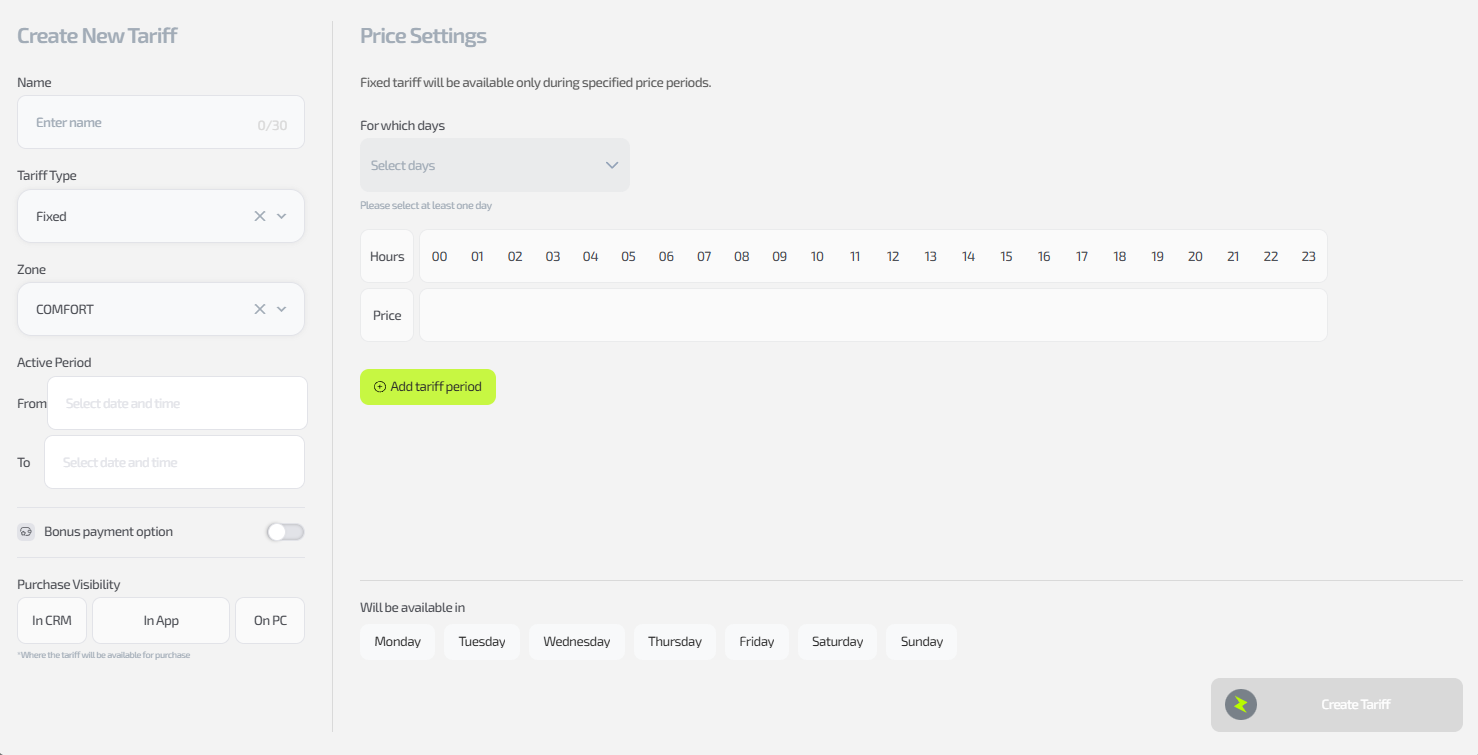
In the left side of the window specify:
- New tariff name
- Tariff type — “Fixed”
(if you clicked “+” in the “Fixed” subsection, the type will be filled in automatically) - PC zone
(it is filled in automatically depending on the selected group) - Validity period (optional field)
Used for promotional tariffs - Tariff visibility — where it will be available:
- CRM
- Mobile app
- PC widget
Step 4. Fill in the right side of the form
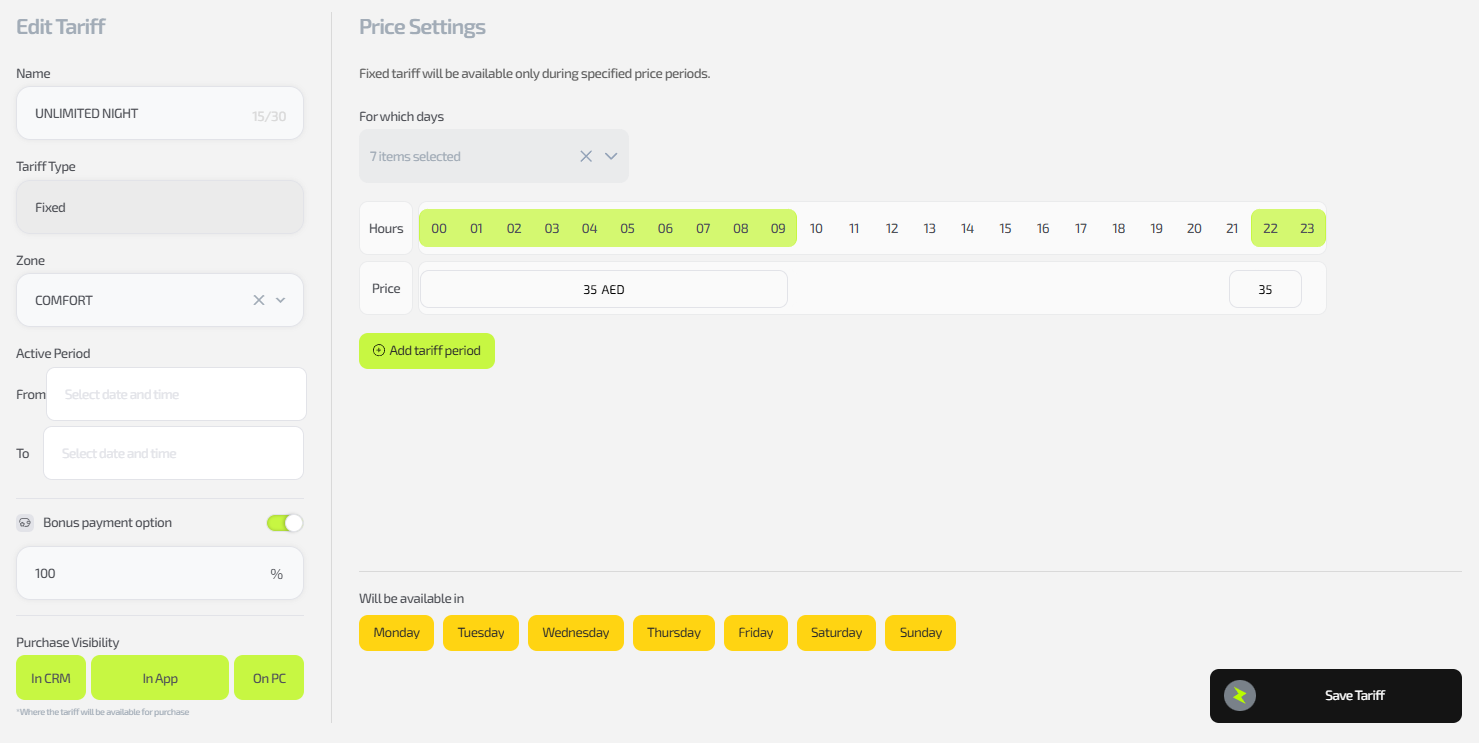
The right side defines the main tariff conditions.
Tariff active days
Select the days of the week when this tariff is active.
Tariff active hours
- You can select one hour at a time
- Or select a range of hours with the mouse by holding the left button
Important:
The end hour is specified 1 hour less, because the system works with full hours only.
Example:
If you set 00 – 08, the real period will be:
00:00:00 – 08:59:59
Price
- The price is applied to the entire selected period
- If the period contains a gap (for example, the tariff is active from 22:00 to 08:00 — two intervals: 22–00 and 00–08),
the price must be specified for each fragment separately
Multiple prices for a single tariff
If the tariff has different prices, for example:
- weekdays / weekends
- day / night hours
click “Add period for tariff” and configure additional intervals in the same way.
Step 5. Finish creating the tariff
Click “Add tariff”.
Done — the fixed tariff is created and available for use.
Important specifics of the fixed tariff
- The client cannot play longer than the configured time
- This tariff cannot be extended
- It is suitable for:
- morning tariffs
- night packages
- promotional time-limited offers
- tournament sessions
Common situations
| Situation | What to do |
|---|---|
| The client sat later but demands the full period | Explain that the fixed tariff is paid in full regardless of the seating time |
| The price is not applied | Check that the price is specified for all hour intervals |
| The tariff is not visible in the app | Check the “Tariff visibility” setting |
| The client asks for extension | Use a per-minute tariff for extension |