How to configure tariffs for specific dates in IZI
Article goal
Show how a club administrator can configure special tariffs for specific dates (for example, holidays) in the IZI CRM system so that the price is calculated as on weekends.
Who this article is for
- Club administrator
- Users with access rights to the "Tariffs" section in the admin panel
What you will learn
- How to select and edit a tariff for specific dates
- How to use the calendar to select dates
- What to do if the same configuration is required for several tariffs
- Possible issues and their solutions during configuration
Prerequisites
- Before you start, make sure that:
- You have administrator rights with access to the "Tariffs" section
- Tariffs are already created in the system
- Access to the admin panel is available
Step-by-step guide
Step 1 Go to the "Tariffs" section
- Log in to the IZI CRM admin panel.
- Go to the "Tariffs" section.
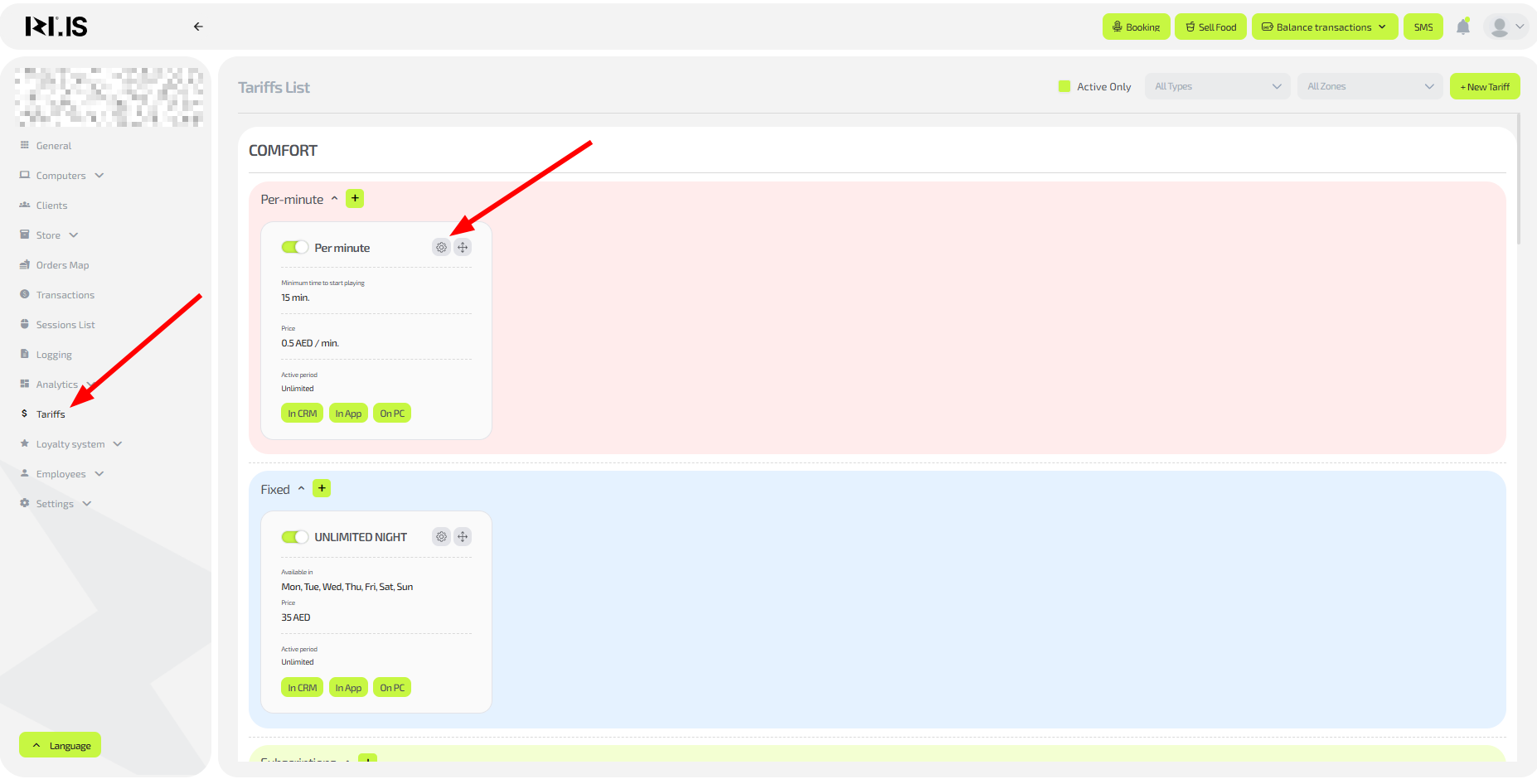
Step 2 Select and edit a tariff
- Select the required tariff from the list.
- Click the edit button (gear icon).
Step 3 Configure the dates
- In the right part of the window, in the dropdown menu, select the "Custom dates" option.
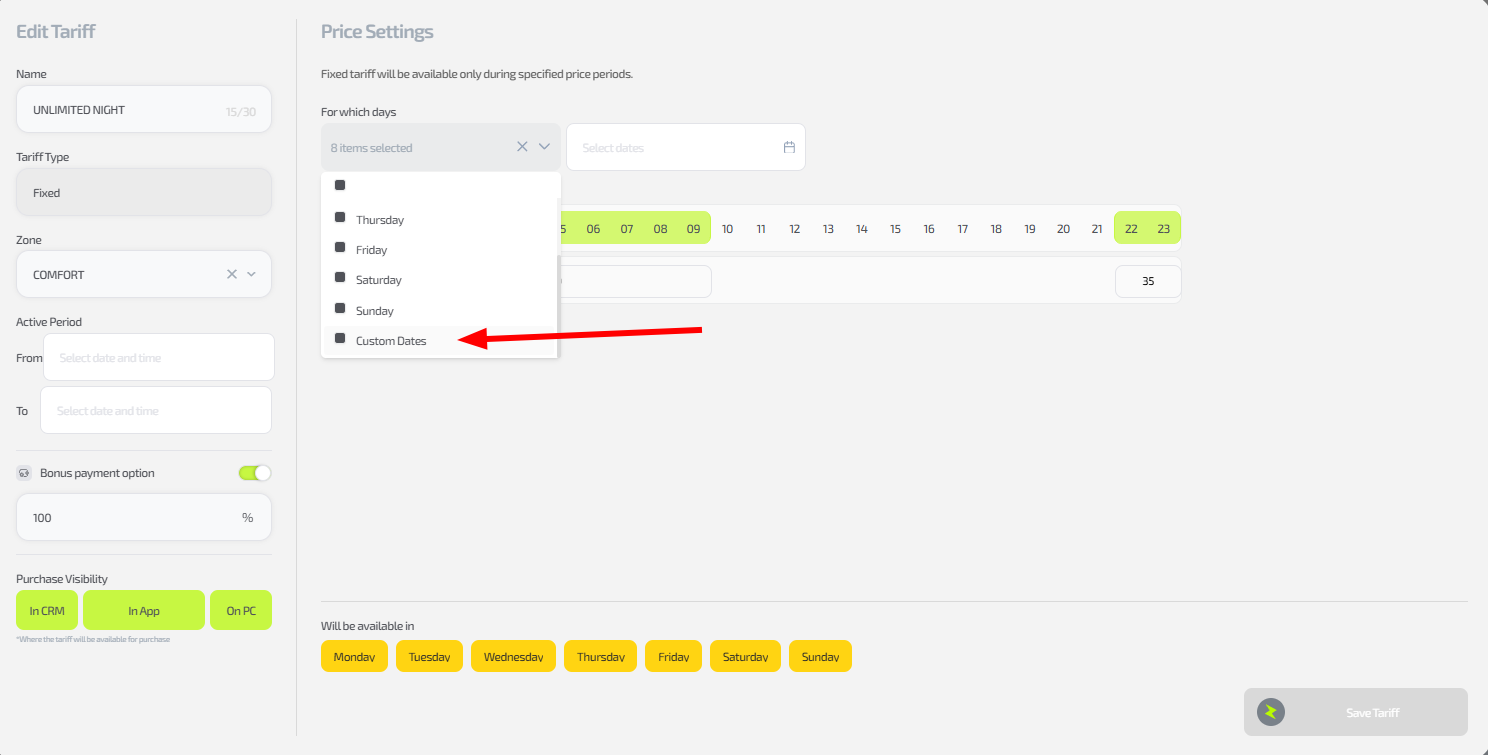
- A calendar will open — mark the required dates one by one (for example, holidays that fall on weekdays).
- Close the calendar after selecting dates.
- Save the tariff changes by clicking "Save tariff".
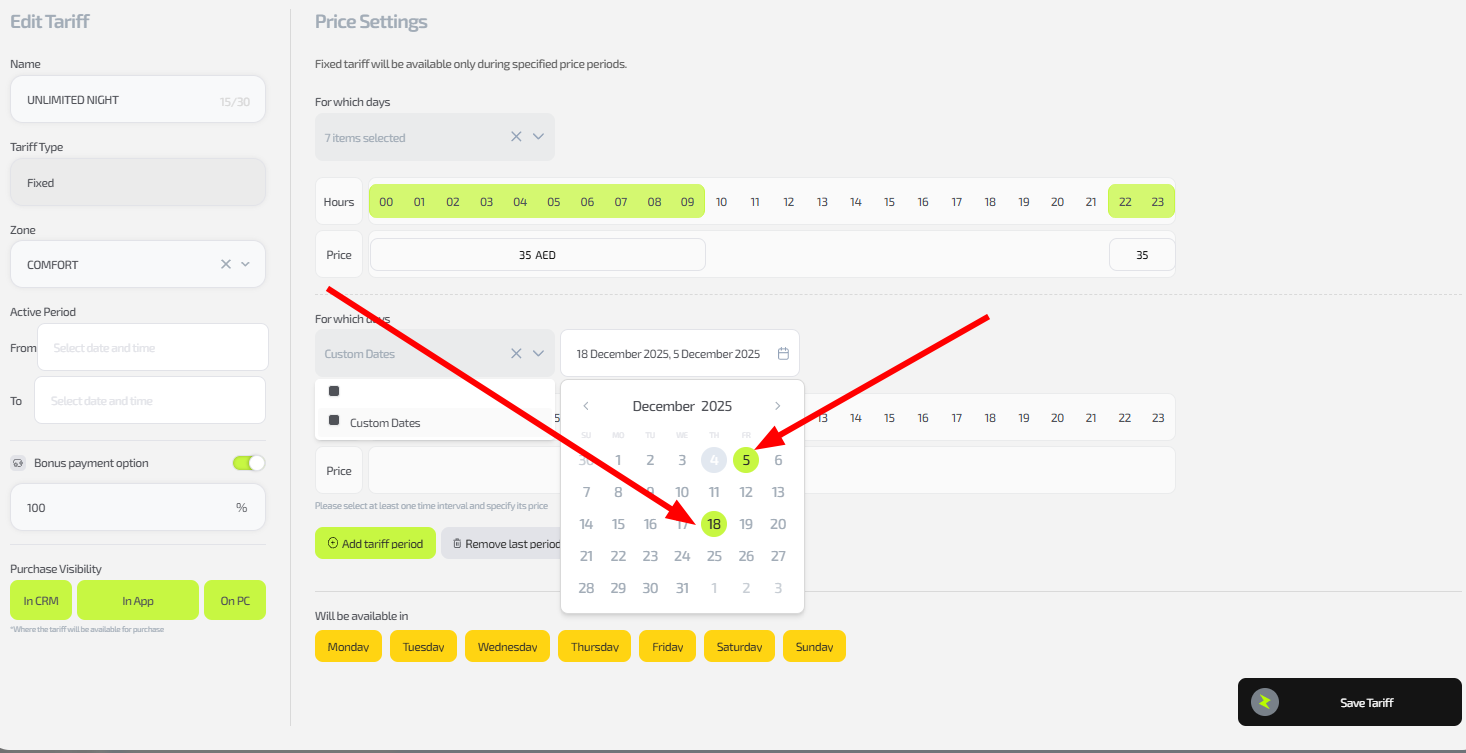
Tip: If the dates apply to several tariffs, repeat Steps 2–3 for each one separately — there is no automation for bulk configuration yet.
Important: This setting allows you to calculate the cost as on weekends for selected weekday dates and overrides the basic rules of the tariff. For example, if 10 September is selected for weekday pricing but is a Saturday or Sunday, the first option will be applied.
Common situations
| Problem | What to do |
|---|---|
| The calendar does not open | Make sure the "Custom dates" mode is selected; clear the browser cache. |
| The setting is not applied to sessions | Test on a new session on the selected date; check the tariff status (whether it is active). |
| You need to configure many tariffs | Repeat the process for each one; |