3.15.2 Screensavers
Article goal
Explain how a club administrator or owner can install or update video screensavers on gaming PCs directly through IZI CRM.
Who this article is for
- Club owners
- Club administrators
- Staff with access to Settings → Screensavers
What you will learn
- Where the “Screensavers” section is located
- Which data is shown in the PC list
- How to use search and filters
- How to prepare a video file for a screensaver
- How to assign or update screensavers in bulk
- How the “Edit selected” window works
Prerequisites
Before you start, make sure that:
- The video file is already uploaded to Google Drive or another file-sharing service
- You have a direct download link (not a preview page)
- The file is in a supported format: mp4, webm, ogg, mov, jpg, jpeg, png, gif, webp, bmp
- IZI software is installed on gaming PCs and they are connected to CRM
Where the “Screensavers” section is located
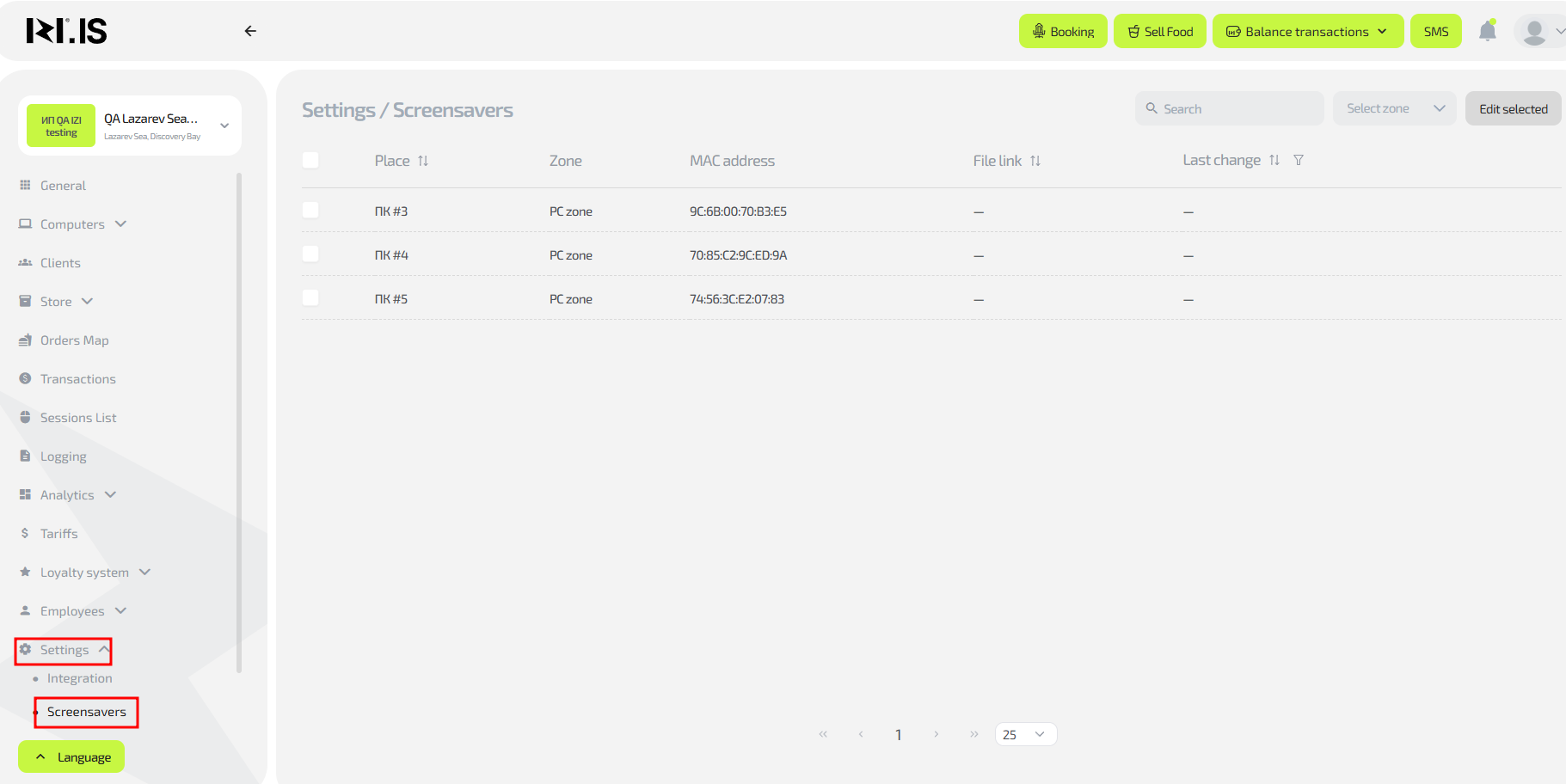
- Log in to IZI CRM.
- In the left menu select Settings.
- In the submenu click Screensavers.
A list of all gaming PCs available for video screensavers will open.
What is displayed on the main screen of the section

The table shows the following fields:
- Selection checkboxes — allow you to select PCs for bulk editing
- Place — PC number in the club (PC #3, PC #4, etc.)
- Zone — gaming zone the PC belongs to
- MAC address — unique network address of the station
- File link — shows the link to the assigned screensaver or “—” if no file is set
- Last change — date and time when the screensaver was last updated
Search and filtering in the section
Search
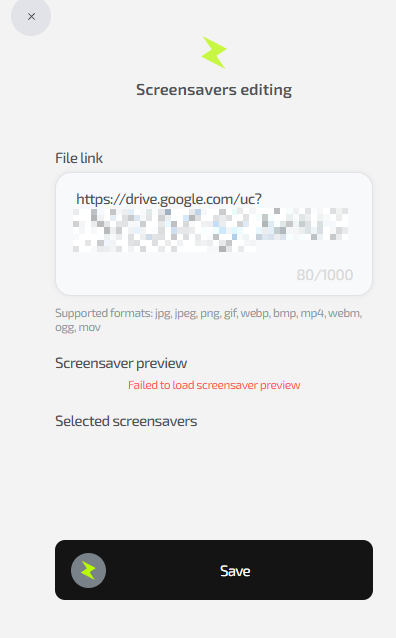
You can search PCs by:
- PC number (PC #5)
- Zone name (Ultra)
- MAC address (full or partial)
- Part of the file link
Filtering is applied instantly as you type.
Filtering by zones

To the right of the search bar there is a “Select zone” filter:
- shows only the selected zone
- speeds up bulk editing
- helps to find PCs without screensavers
Filtering by last change date

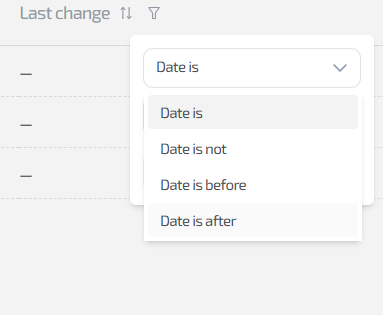
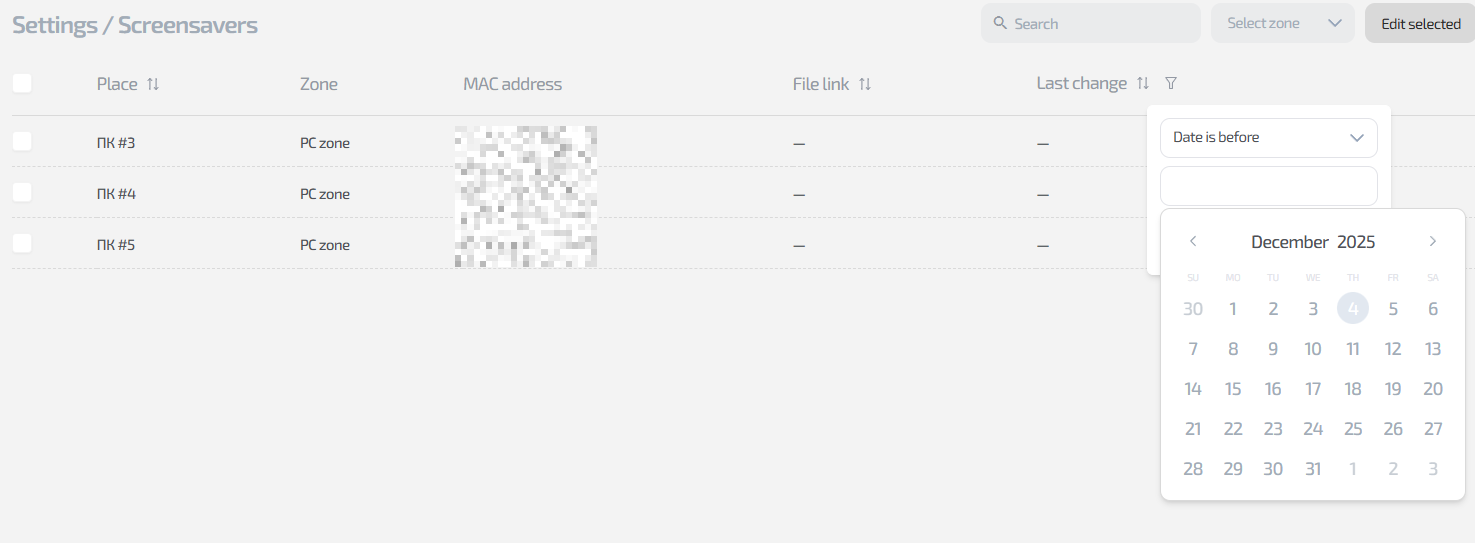
In the “Last change” column there is a filter icon. When you click it, the following filters are available:
- Date (Data is) — show items with last changes on the selected date
- Date exclude (Data is not) — show all items except the selected date
- Date before (Data is before) — show all items with last changes before the selected date
- Date after (Date is after) — show all items with last changes after the selected date
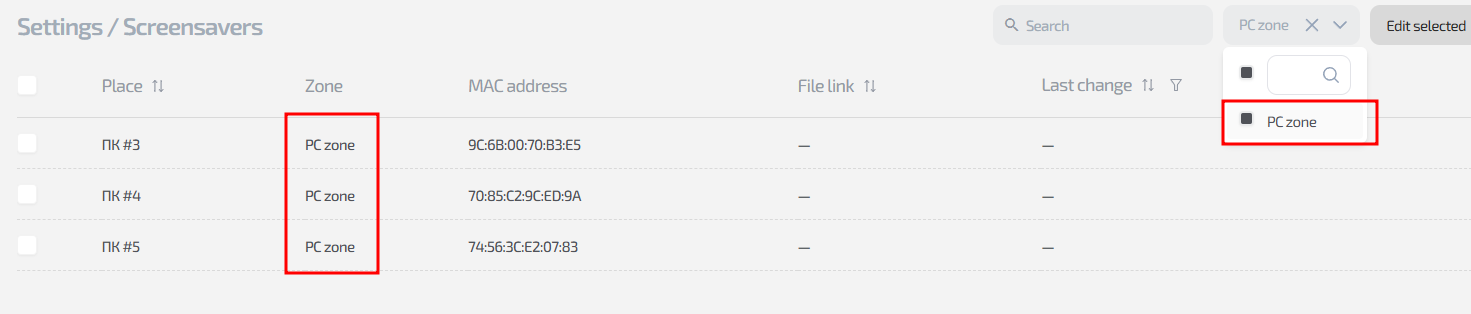
Select the desired filter and then pick a date below.
Only the rows you need will remain in the PC list.
Sorting
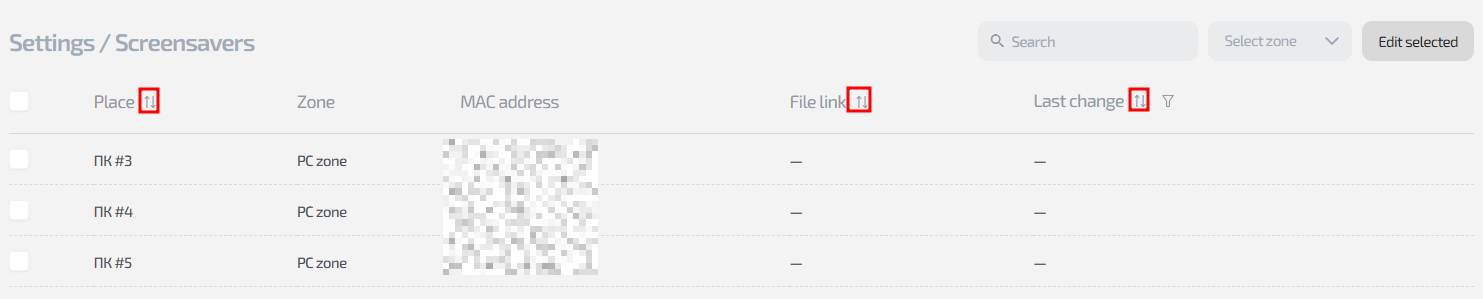
The columns “Place”, “File link”, and “Last change” support sorting:
- ⬆ ascending
- ⬇ descending
This is useful for finding PCs with assigned or missing files.
Select all PCs
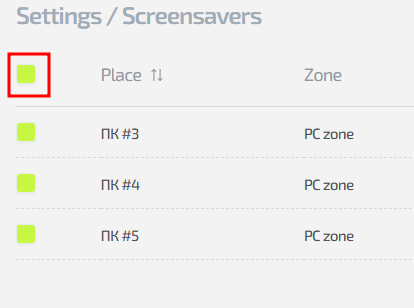
The checkbox in the upper-left corner:
- selects all PCs on the current page
- or clears the selection
Used for assigning one video to multiple stations at once.
Preparing a video screensaver
To make sure the video works correctly:
- Upload it to Google Drive or any file-sharing service.
- Get a direct download link. For Google Drive use the converter: https://sites.google.com/site/gdocs2direct/
- Make sure the file is in a supported format — mp4/webm/ogg/mov.
- Copy the final direct link.
How to install or update screensavers
Select PCs
In the “Screensavers” section:
- select one or more PCs
- click “Edit selected”
The editing window will open.
“Edit screensavers” window
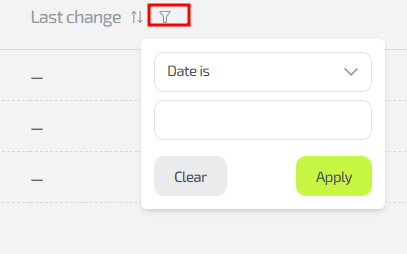
In this window you can:
1. Insert the file link
The “File link” field — paste the direct download link here.
Field limit — up to 1000 characters.
2. View file preview
CRM tries to generate a preview.
If it is missing — that is normal and depends on the link source.
3. View selected PCs
At the bottom you see the list of all stations to which the screensaver will be applied:
- Place
- Zone
4. Save changes
Click “Save”.
The screensaver will be updated on all selected PCs within a few seconds.
Tips and important notes
- For stable operation use videos of short duration (10–30 seconds).
- Make sure the link is truly direct — otherwise the screensaver will not load.
- Check “Last change” — it helps you see whether changes were applied to the PC.
- If protection/freeze is enabled on the PC, the file may not be saved until a reboot.
Common situations
| Situation | Reason | What to do |
|---|---|---|
| Preview is not loading | The link does not support preview | Just save — the file will still be downloaded on the PC |
| PC did not update the screensaver | The PC was offline | Make sure the station is online and try again |
| Video does not play | The file is too large or an unsupported format | Use mp4/webm and reduce the file size |
| The link does not load | It is not a direct link | Use a direct-link generator |