Managing the staff list
Article goal
Explain how the club owner or an authorized staff member can create, edit and delete staff accounts, and which data is shown in the “Employees list” section.
Who this article is for
- Club owners
- Managers
- Staff members with access to staff management
- Senior administrators
What you will learn
- Where the “Employees list” section is located
- Which information the staff list contains
- How to add a new employee
- How to edit staff data
- How to delete an employee from CRM
Prerequisites
Before you start, make sure that:
- Your role has access rights to staff management
- The future staff member is already registered in the IZI.Play app (account created and confirmed via SMS or call)
- Positions and roles are configured in advance (see 3.14.1 and 3.14.2)
How to find the section
- Log in to IZI CRM
- In the left menu select “Employees”
- In the submenu click “Employees list”
A table with all club employees will open.
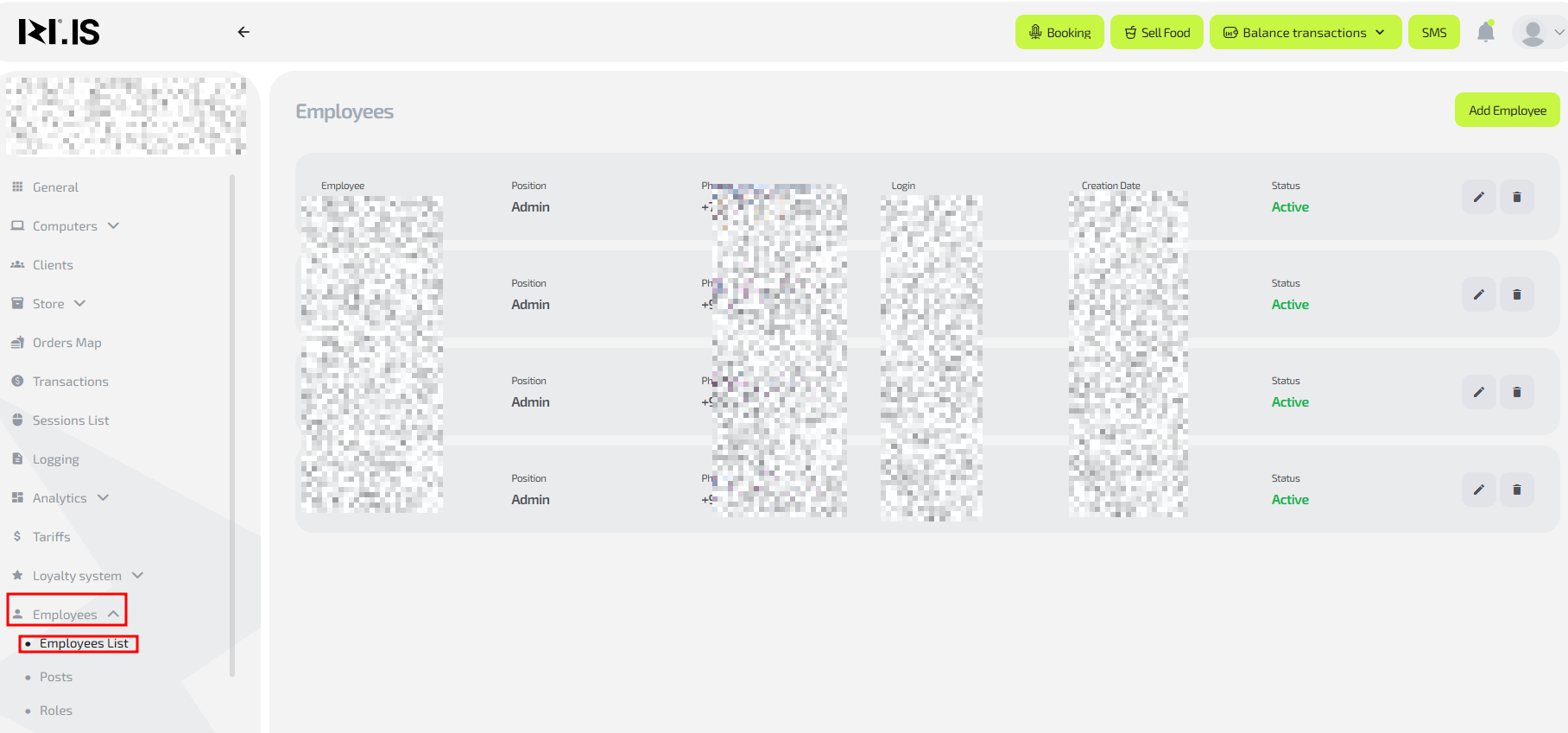
Which information is shown for an employee

In the main window each row contains:
- Employee name / full name — display name from their profile
- Position — assigned position (for example: admin)
- Phone — phone number used to register the IZI account
- Login — employee login for CRM (set when creating the account in the app)
- Created at — when the employee was added to CRM
- Status — “Active” or “Blocked”
- Action buttons:
- Edit — opens the employee card
- Delete — removes the employee from CRM
Creating a new account
Before adding an employee:
- The phone number must be registered in IZI (account created) via the mobile app
- Registration must be confirmed via SMS or phone call
- The user must have at least:
- First name
- Last name
- Login
How to add an employee

-
Click “Add employee” in the upper-right corner
-
In the opened window:
- enter the employee’s phone number in the search field; after the list appears, select the required account — the main account information will open
- select the employee’s position
- set a password for CRM login
-
Click “Create employee”
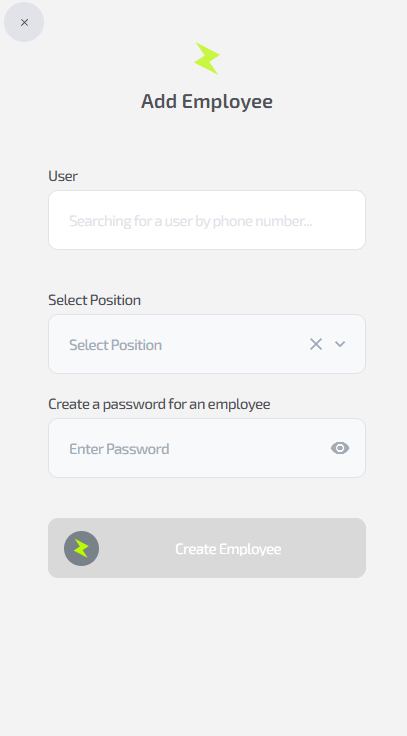
Editing staff data
Editing is available only for some fields.
Editable fields
- First name
- Last name
- Position
Fields that cannot be edited
- Login
- Phone number
These can be changed only by IZI technical support. See article 1.8 IZI.IS technical support information.
How to edit an employee

- In the required employee’s row click the pencil icon — an additional window with account information will open
- Edit the available fields
- Click “Save”
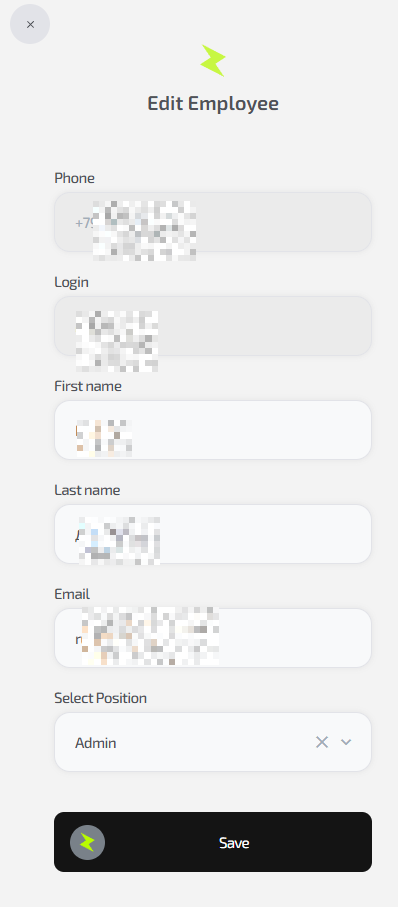
Changes are applied immediately.
Deleting an employee

To delete an employee from CRM:
- In the employee’s row click the trash bin icon
- A confirmation window will open
- Click “Next” to confirm deletion
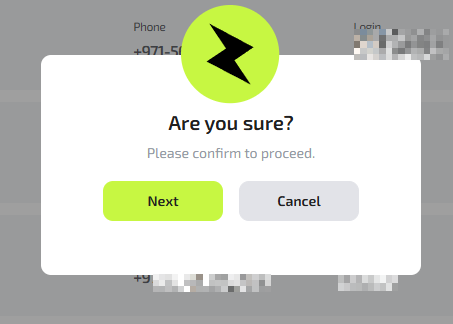
After deletion:
- The employee disappears from the staff list
- Their CRM access is removed
- They will not be able to log into the system until added again with a new password
Common situations
| Situation | What to do |
|---|---|
| The required account is not found in search | Make sure the phone number is registered in the IZI app, confirmed, and at least the login is filled in |
| Login or phone cannot be edited | Contact support (article 1.8) |
| The employee cannot log into CRM | Check the password or employee status |
| The employee cannot be deleted | Make sure you have the required access rights |